


AI Playbooks
- Click 'Tickets' > 'Management' > 'AI Playbooks' to open this interface.
A playbook is a named procedure that tells the AI service agent how to handle a particular kind of request — a password reset, a new starter, an offboarding. Each playbook says when it should run, what the AI should do, which tools it may use, and whether a human has to approve the action first.
You can browse and search the playbooks, open one to edit it, turn it on or off, require approval before it acts, write its instructions, and attach the tools it may call.
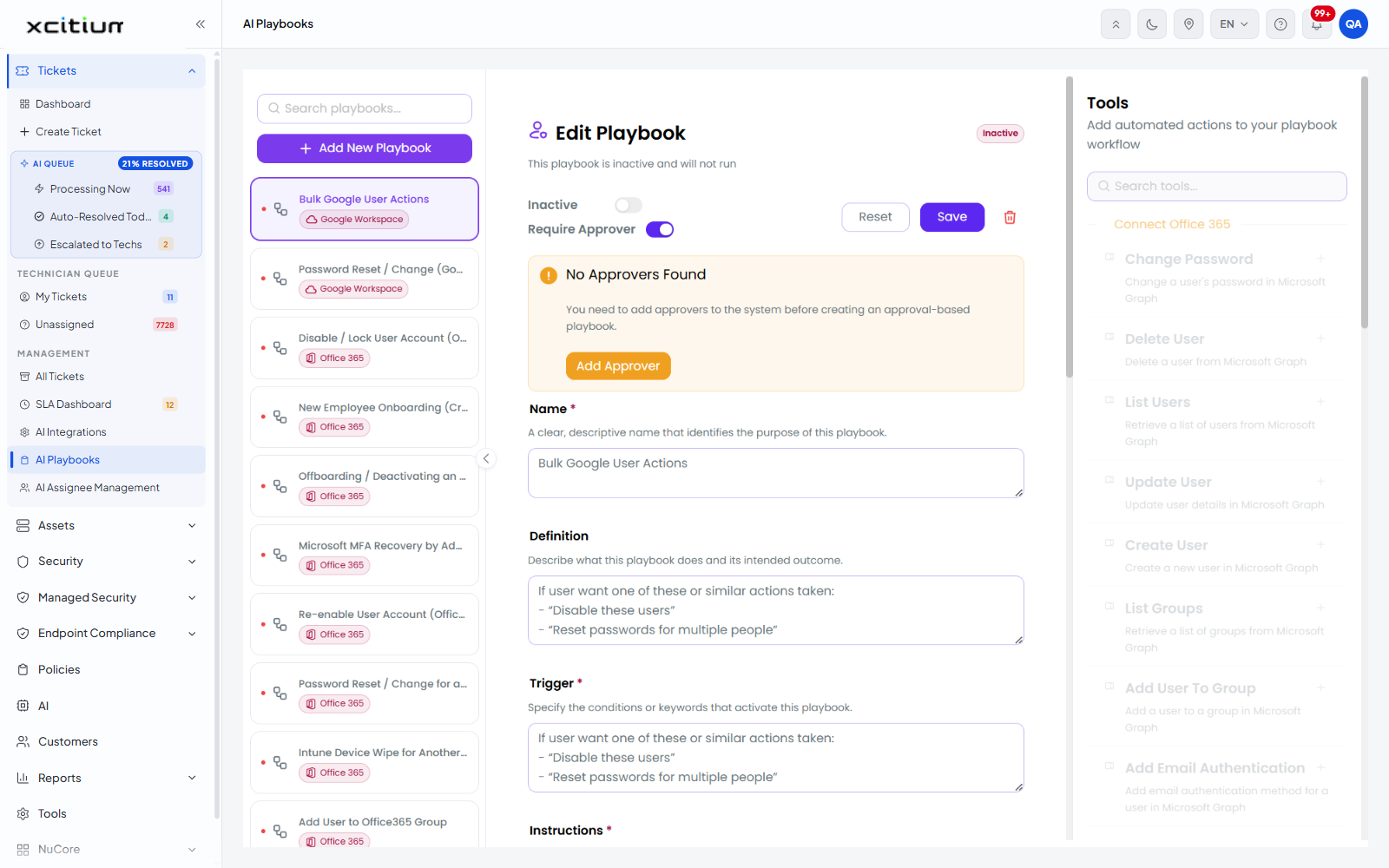
How the screen is laid out
This is an embedded application with three panes: the playbook list on the left, the playbook editor in the middle, and the 'Tools' panel on the right.
The playbook list
| Element | Description |
| Search playbooks... | A search box that filters the list as you type. |
| + Add New Playbook | Opens an empty playbook editor. See Create a Playbook. |
| List entry | Each entry shows a status dot, the playbook name and the integration it is built on, for example 'Office 365' or 'Google Workspace'. Click an entry to open it in the editor. |
The built-in playbooks
The account is supplied with a set of ready-made playbooks covering common identity and device tasks:
| Playbook | Integration |
| Bulk Google User Actions | Google Workspace |
| Password Reset / Change (Google Account) | Google Workspace |
| Google Workspace User Audit / Review | Google Workspace |
| Google User Identification & Disambiguation (Google Workspace) | Google Workspace |
| Delete Google Workspace User (Hard Offboarding - Destructive) | Google Workspace |
| Update Google User Profile / Account Details | Google Workspace |
| Disable or Re-Enable Google User (Soft Offboarding) | Google Workspace |
| New Employee Onboarding (Create Google Workspace User) | Google Workspace |
| Disable / Lock User Account (Office365) | Office 365 |
| New Employee Onboarding (Create Office365 User) | Office 365 |
| Offboarding / Deactivating an Employee (Delete Office365 User) | Office 365 |
| Microsoft MFA Recovery by Adding Alternate Authentication Method | Office 365 |
| Re-enable User Account (Office365) | Office 365 |
| Password Reset / Change for an Existing User | Office 365 |
| Intune Device Wipe for Another User | Office 365 |
| Add User to Office365 Group | Office 365 |
| Bulk User Operations (Office365 User) | Office 365 |
| Update User Profile / Attributes (Office365 User) | Office 365 |
| Account Cleanup / Audit (Office365 User) | Office 365 |
| User Lookup (Office365 User) | Office 365 |
The playbook editor
Opening a playbook heads the middle pane 'Edit Playbook'. An inactive playbook carries an 'Inactive' badge and the line 'This playbook is inactive and will not run'.
| Control | Description |
| Inactive | A switch that turns the playbook off and on. |
| Require Approver | A switch that makes the playbook wait for a human decision before it acts. Turning it on reveals the 'After Approval' and 'Approver' fields. |
| Reset | Discards your unsaved edits and restores the saved version. |
| Save | Saves the playbook. |
The playbook fields
| Field | Helper text | Type | Required |
| Name | A clear, descriptive name that identifies the purpose of this playbook. | Text. Placeholder 'e.g., User Provisioning'. | Yes |
| Definition | Describe what this playbook does and its intended outcome. | Textarea. Placeholder 'What does this playbook do? Describe its purpose and actions.' | No |
| Trigger | Specify the conditions or keywords that activate this playbook. | Textarea. Placeholder 'When should this playbook run? e.g., When a user requests password reset'. | Yes |
| Instructions | Define the conversational flow and actions that interact with the user. | Rich-text editor. Placeholder 'Define the automated workflow steps for this playbook...'. | Yes |
| After Approval | Define what actions to perform after approval is granted. | Rich-text editor. Shown only when 'Require Approver' is on. | Yes (when approval is required) |
| Approver | Choose who will review and approve or reject requests handled by this playbook. | Dropdown. Default 'Select an approver'. Shown only when 'Require Approver' is on. | Yes (when approval is required) |
Edit a playbook
- Click 'Tickets' > 'Management' > 'AI Playbooks'.
- Find the playbook in the left-hand list, using 'Search playbooks...' if you need to.
- Click it. The editor loads with its current content.
- Change the 'Name', 'Definition', 'Trigger', 'Instructions' or 'After Approval' text.
- Attach or detach tools in the 'Tools' panel.
- Set the 'Inactive' and 'Require Approver' switches as required.
- Click 'Save'. To abandon your changes instead, click 'Reset'.
Note: a playbook left inactive will not run, whatever its trigger says. The badge and the line under the heading tell you which state it is in.