


View and Manage Patches on a Device
- Open a device, then click the 'Patch Management' tab.
This tab is the patch position for one device: which operating-system updates it has and has not taken, and which of its third-party applications are behind. It is where a patch is installed on, or removed from, a single machine.
You can see every operating-system patch and its state, see which applications have newer versions available, ask the device to check for updates, and install or remove patches.
The sub-tabs
- Operating System — patches for the operating system itself. This is the default.
- Third Party Applications — updates for the applications installed on the device.
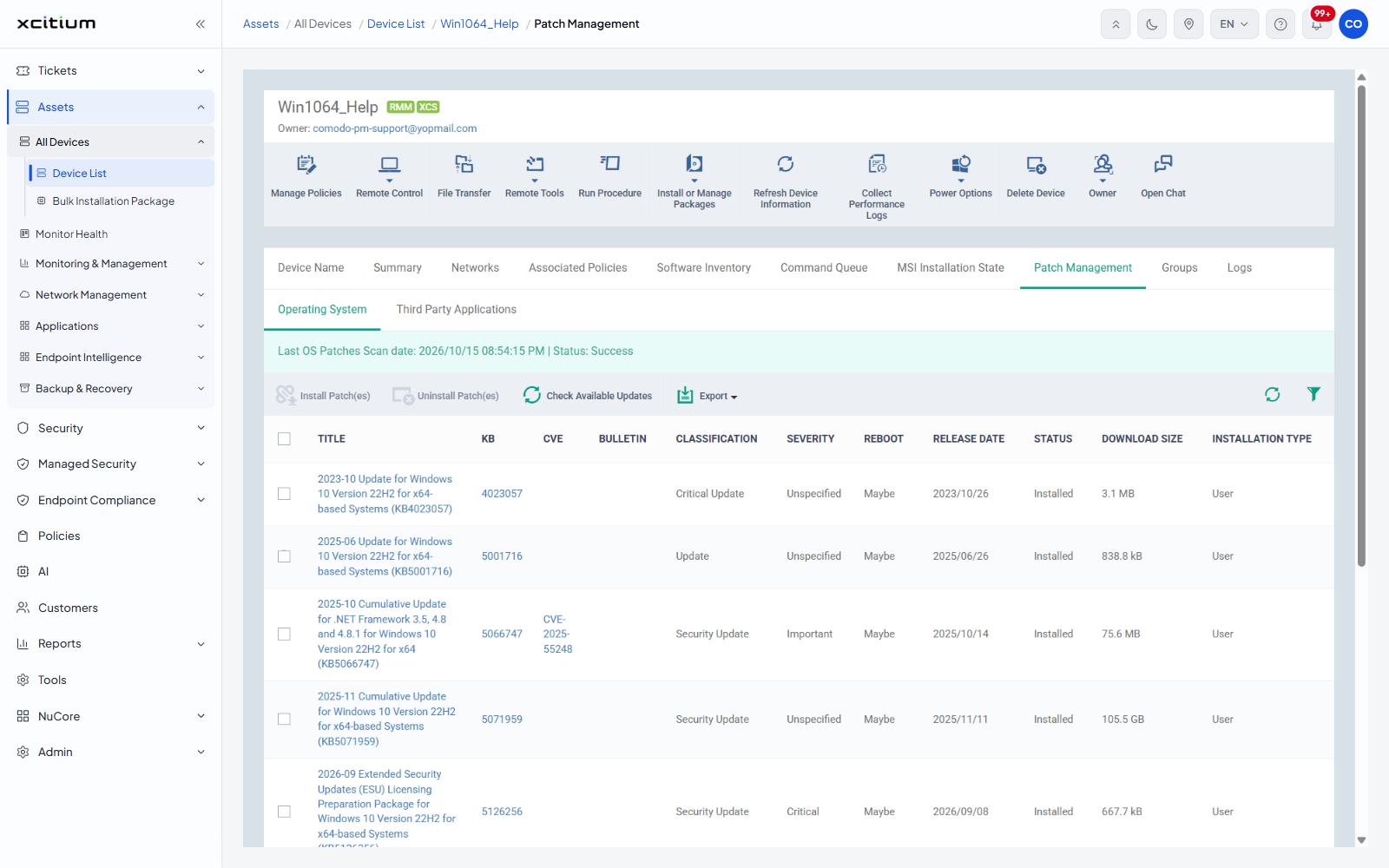
Operating System
A banner reads 'Last OS Patches Scan date:' with the time of the last scan and 'Status:' with its result.
| Button | Description |
| Install Patch(es) | Installs the ticked patches on the device. Greyed until a row is ticked. |
| Uninstall Patch(es) | Removes the ticked patches. Greyed until a row is ticked. |
| Check Available Updates | Asks the device to scan for patches again. |
| Export | Exports the list. |
| Column | Description |
| (checkbox) | Selects the row. |
| TITLE | The patch title as the vendor publishes it. |
| KB | The knowledge-base number. |
| CVE | The vulnerability identifiers the patch addresses. |
| BULLETIN | The security bulletin reference. |
| CLASSIFICATION | The patch kind. Values seen: 'Critical Update', 'Update', 'Security Update'. |
| SEVERITY | How serious the patch is. Values seen: 'Unspecified', 'Important', 'Critical'. |
| REBOOT | Whether a restart is needed. Values seen: 'Maybe'. |
| RELEASE DATE | When the vendor published it. |
| STATUS | Whether the device has it. Values seen: 'Installed'. |
| DOWNLOAD SIZE | How large the download is. |
| INSTALLATION TYPE | How it was installed. Values seen: 'User'. |
Third Party Applications
Toolbar: 'Install Patch(es)', plus the refresh and filter icons.
| Column | Description |
| (checkbox) | Selects the row. |
| SOFTWARE NAME | The application name. |
| VENDOR | Who publishes it. |
| SOFTWARE CATEGORY | What kind of application it is. Values seen: 'Web Browsers', 'Online Storage', 'Other'. |
| INSTALLED VERSION | The version on the device now. |
| INSTALLATION DATE | When that version was installed. |
| LATEST VERSION AVAILABLE | The newest version the catalogue holds. |
| SEVERITY | How serious the update is. |
| RELEASE DATE | When the newest version was published. |
| STATUS | Values seen: 'Installed', 'Available'. |
| INSTALLATION TYPE | How the application was installed. |
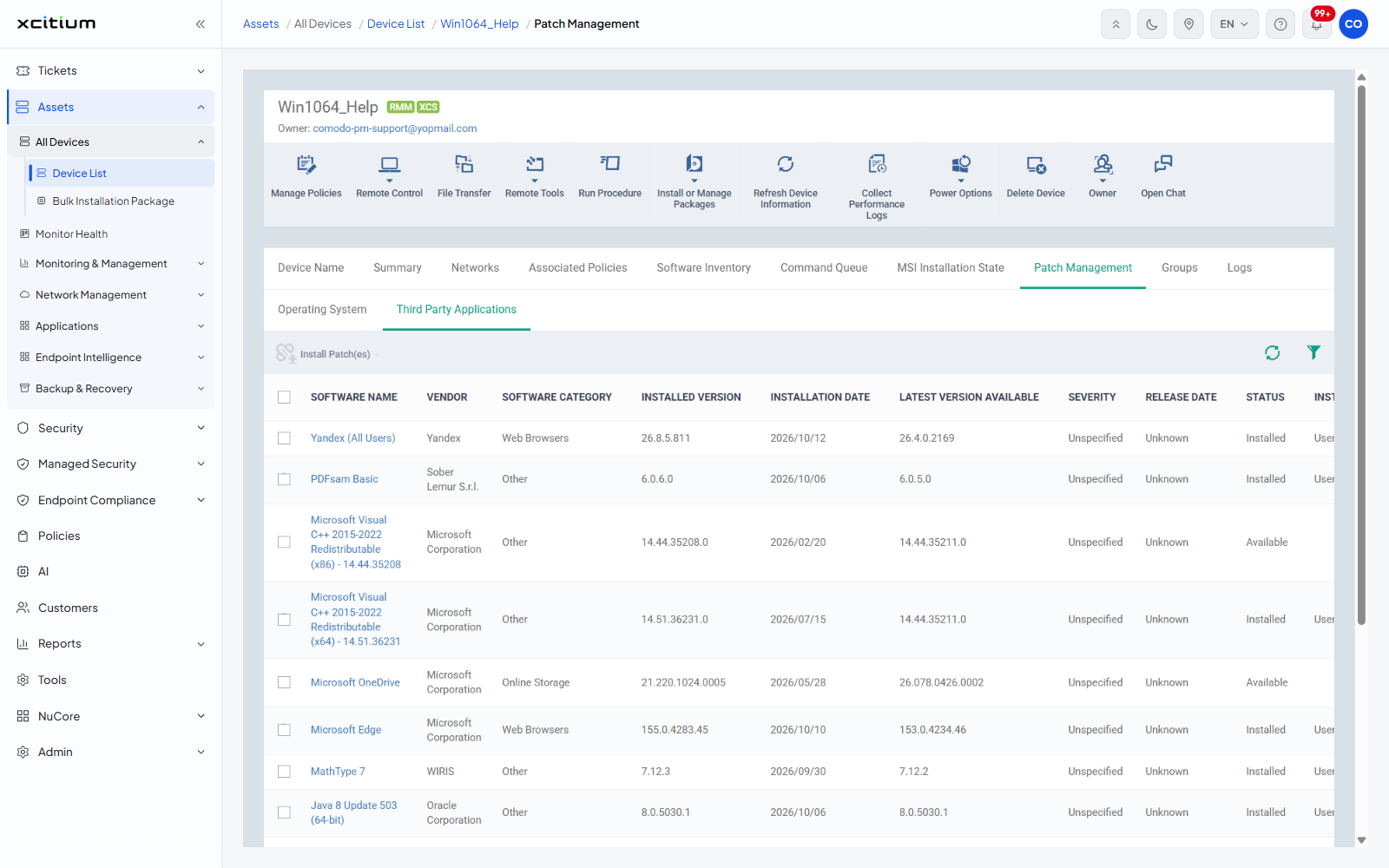
Install a patch on one device
- Open the device and click the 'Patch Management' tab.
- Click 'Check Available Updates' if the scan date is old.
- Tick the patches you want installed.
- Click 'Install Patch(es)'.
Note: patch actions run against a live machine and some need a restart. Check the 'REBOOT' column before installing during working hours, and see Maintenance Windows for controlling when this is allowed.