


View Device Logs
- Open a device, then click the 'Logs' tab.
Logs is the history of everything that has happened to the device: which alerts fired, which monitors tripped, and how every script, patch, install and discovery turned out. It is the first place to look when something did not do what you expected.
You can read the alert and monitoring history, and the outcome of every procedure, patch job, install, uninstall and discovery that touched this device.
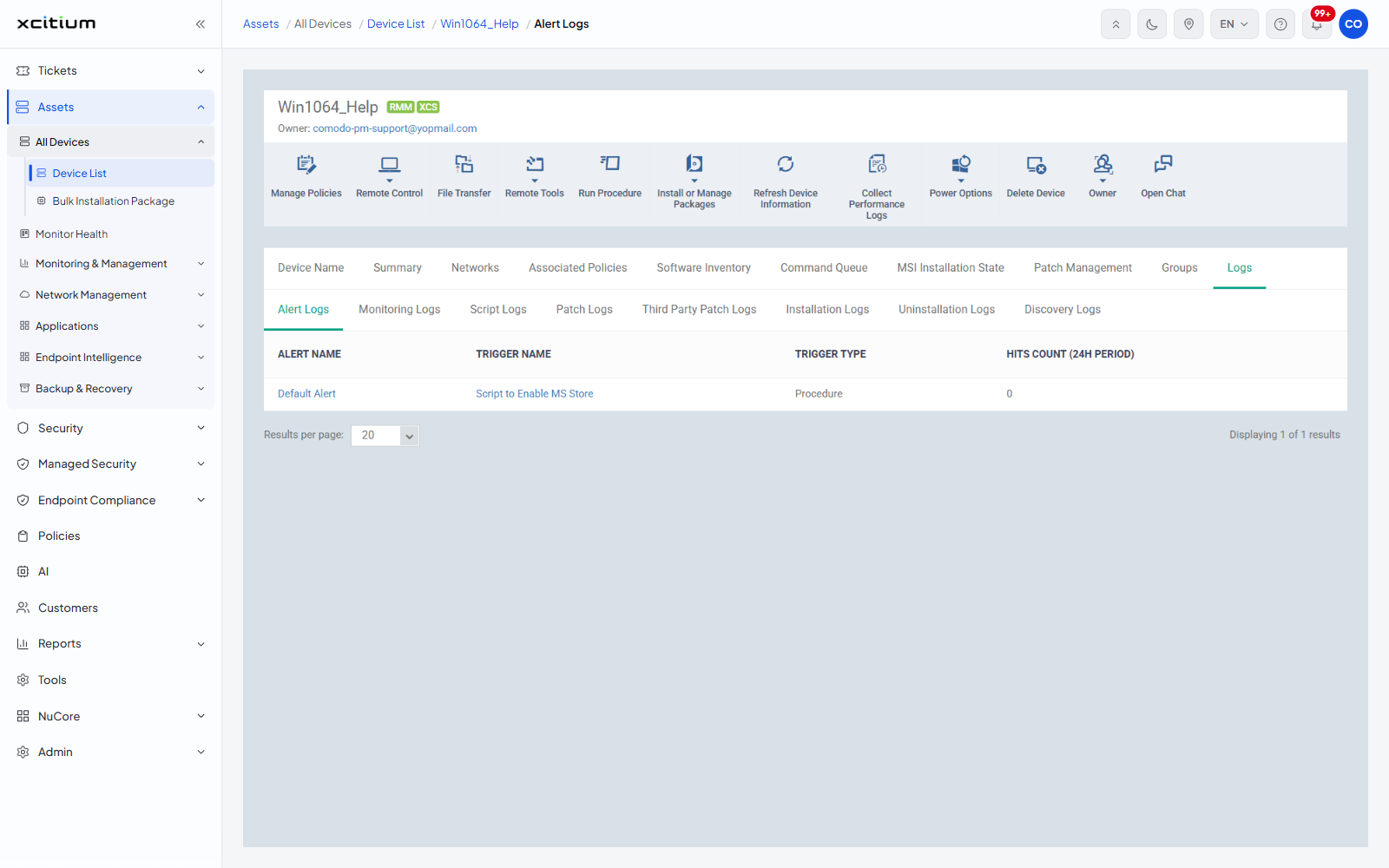
The sub-tabs
| Sub-tab | Columns |
| Alert Logs | ALERT NAME | TRIGGER NAME | TRIGGER TYPE | HITS COUNT (24H PERIOD). This is the default. The alert and trigger names are links. 'TRIGGER TYPE' shows what raised it, for example 'Procedure'. |
| Monitoring Logs | MONITOR NAME | STATUS | HIT COUNT | LAST HIT TIME | LAST UPDATE TIME | DETAILS. |
| Script Logs | (checkbox) | PROCEDURE NAME | STARTED AT | STARTED BY | LAUNCH TYPE | EXECUTED BY | FINISHED AT | STATUS | LAST STATUS UPDATE | DETAILS. |
| Patch Logs | (checkbox) | PROCEDURE NAME | STARTED AT | STARTED BY | LAUNCH TYPE | FINISHED AT | KB | FAILED PATCH KB | STATUS | LAST STATUS UPDATE | TARGETED PATCH COUNT | SUCCESS PATCH COUNT | FAIL PATCH COUNT | DETAILS. |
| Third Party Patch Logs | (checkbox) | PROCEDURE NAME | STARTED AT | STARTED BY | LAUNCH TYPE | FINISHED AT | STATUS | LAST STATUS UPDATE | DETAILS. |
| Installation Logs | PROCEDURE NAME | STARTED AT | STARTED BY | LAUNCH TYPE | FINISHED AT | STATUS | LAST STATUS UPDATE | DETAILS. |
| Uninstallation Logs | The same columns as Installation Logs. |
| Discovery Logs | DISCOVERY NAME | STATUS | STARTED AT | STARTED BY | FINISHED AT | LAUNCH TYPE | DISCOVERY TYPE | DETAILS. |
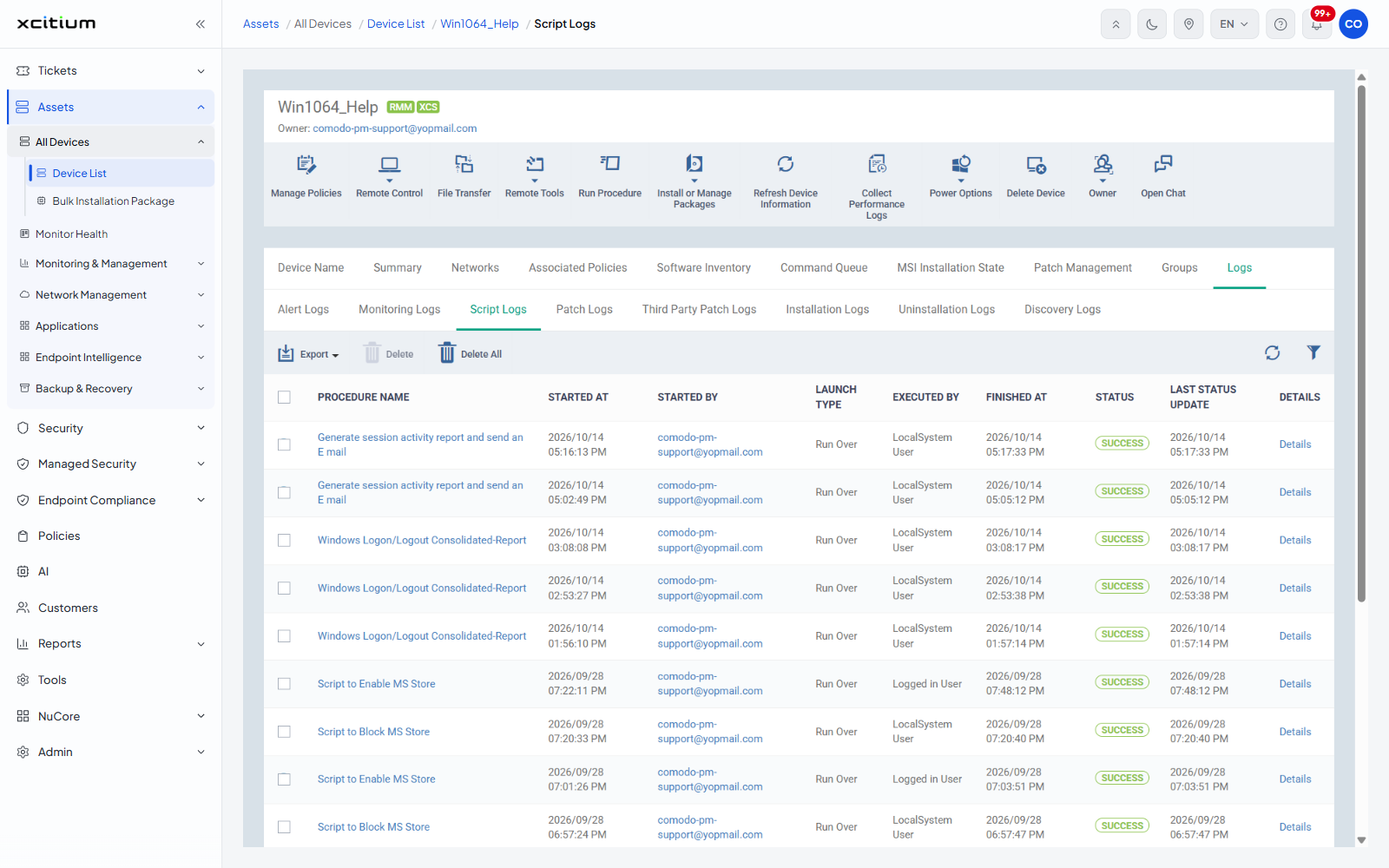
Read a log
- Open the device and click the 'Logs' tab.
- Click the sub-tab for the kind of activity you are tracing.
- Find the run by its start time.
- Click 'Details' on the row to see the full result.
Note: 'LAUNCH TYPE' distinguishes a job you started by hand from one a schedule started. 'EXECUTED BY' on the script log shows which account the script ran as.