


Application Vulnerabilities
- Click 'Endpoint Compliance' > 'Application Vulnerabilities' to open this interface.
The 'Application Vulnerabilities' page rolls the findings up by application rather than by vulnerability. One row is one version of one product, with the count of vulnerabilities attributed to it broken down by severity. It answers the question 'which application is costing us the most?'.
You can filter the list by operating system or by software, switch between active and suppressed findings, and export the result.
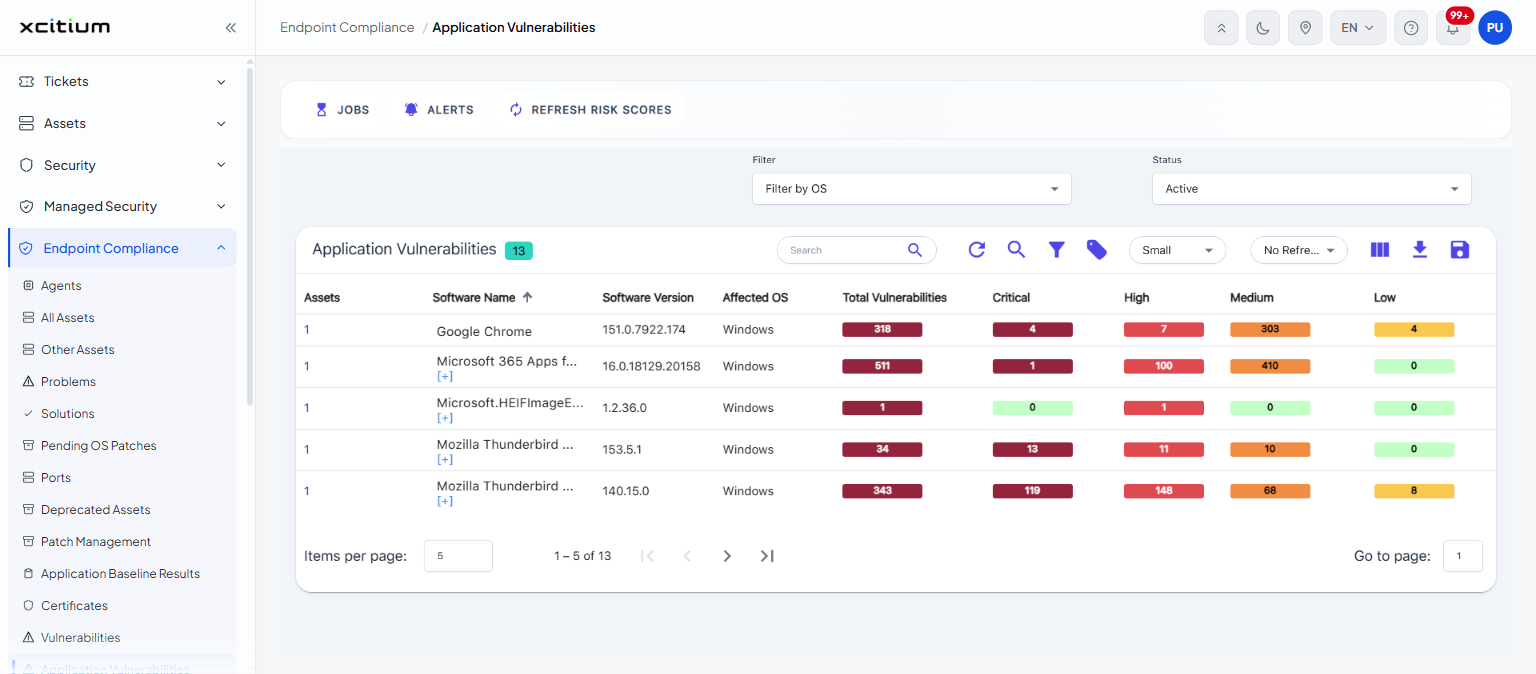
Filter controls
A 'Filter' area above the list carries two drop-downs.
| Control | Description |
| Filter by OS | Chooses what the list is grouped by. The options are 'Filter by OS' and 'Filter by Software'. |
| Status | Chooses which findings to show. The options are 'Active' and 'Suppressed'. The default is 'Active'. |
Columns
The list is headed 'Application Vulnerabilities' with a chip showing how many products it holds.
| Column | Description |
| Assets | How many assets have this version installed. |
| Software Name | The application. A '[+]' link expands the full name. |
| Software Version | The version installed. |
| Affected OS | The operating system the assets run. |
| Total Vulnerabilities | How many vulnerabilities are attributed to this version. |
| Critical | How many of them are critical. |
| High | How many are high. |
| Medium | How many are medium. |
| Low | How many are low. |
Find the applications costing you the most
- Click 'Endpoint Compliance' > 'Application Vulnerabilities'.
- Leave 'Status' on 'Active'.
- Click the 'Critical' column heading to sort by the number of critical findings.
- Use 'Solutions' or 'Patch Management' to update the products at the top of the list.
See 'OS Vulnerabilities' for the same rollup against the operating system.