


Customize the Monitor Health Cards
- Open Monitor Health, then click 'Customize' at the top right.
Not every card is useful to every account — an estate with no mobile devices has no use for the Android card. This screen is where cards are turned off and reordered.
You can turn any card on or off and change the order they appear in.
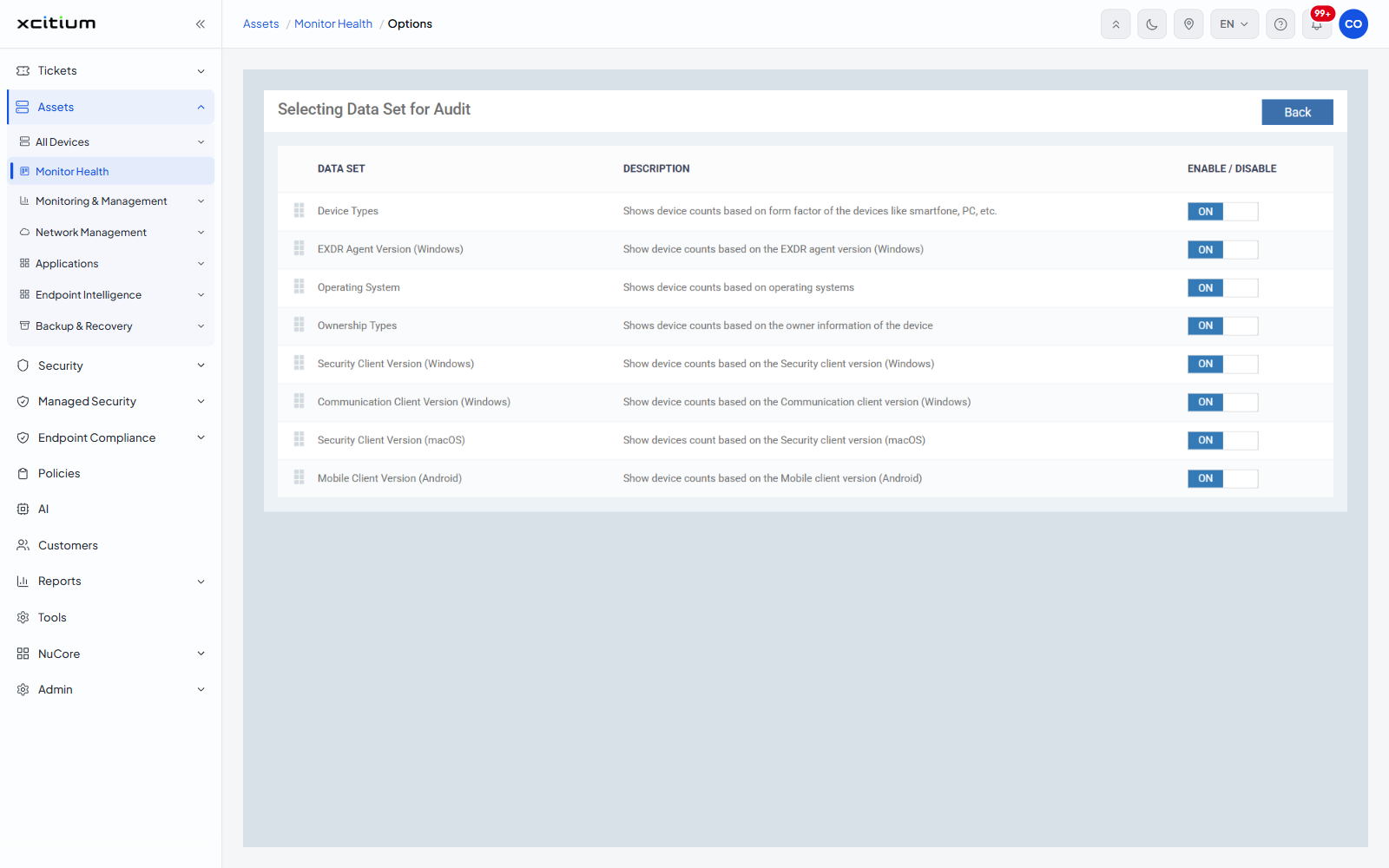
The screen
The heading reads 'Selecting Data Set for Audit', with a 'Back' button at the top right that returns to the dashboard.
| Column | Description |
| (drag handle) | Drag a row to change where its card appears on the dashboard. |
| DATA SET | The card name. |
| DESCRIPTION | What the card counts. |
| ENABLE / DISABLE | An ON/OFF toggle. A card set to OFF disappears from the dashboard. |
The data sets
| Data set | Description as shown |
| Device Types | Shows device counts based on form factor of the devices like smartfone, PC, etc. |
| EXDR Agent Version (Windows) | Show device counts based on the EXDR agent version (Windows) |
| Operating System | Shows device counts based on operating systems |
| Ownership Types | Shows device counts based on the owner information of the device |
| Security Client Version (Windows) | Show device counts based on the Security client version (Windows) |
| Communication Client Version (Windows) | Show device counts based on the Communication client version (Windows) |
| Security Client Version (macOS) | Show devices count based on the Security client version (macOS) |
| Mobile Client Version (Android) | Show device counts based on the Mobile client version (Android) |
Turn a card off
- Click 'Assets' > 'Monitor Health'.
- Click 'Customize'.
- Set the card's toggle to OFF.
- Click 'Back'. The dashboard no longer shows that card.
Reorder the cards
- Open the Customize screen.
- Drag a row by its handle to the position you want.
- Click 'Back'.
All eight data sets are ON by default.