


CTEM Metrics
- Click 'Security' > 'Threat Dashboards' > 'CTEM Metrics' to open this interface.
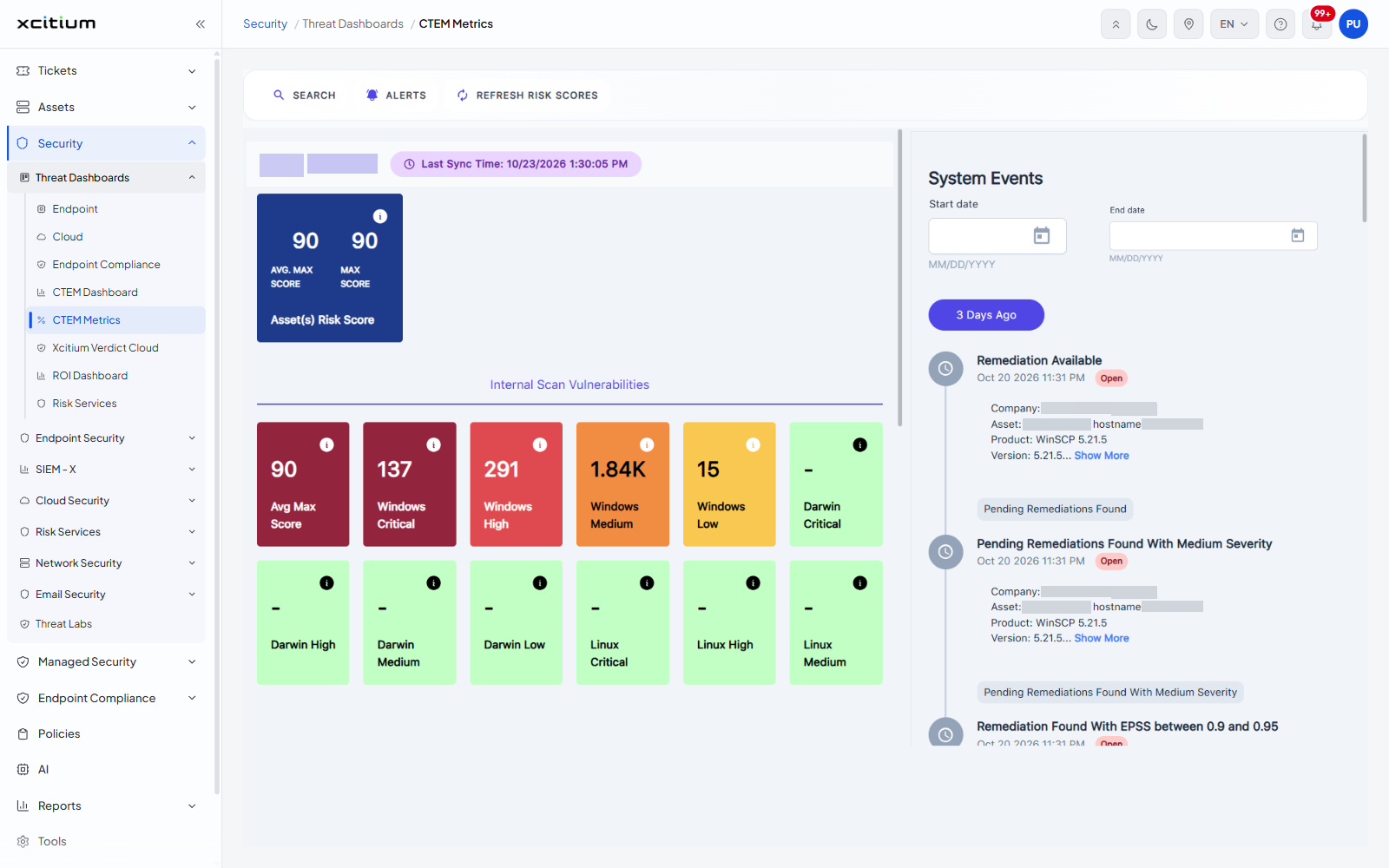
CTEM Metrics is the scorecard view of continuous threat exposure management. It reduces the whole estate to a handful of numbers: one risk score, a grid of vulnerability counts broken down by operating system and severity, and a compliance score for each standard that has been assessed. A panel of system events runs down the right of the page.
You can read the current scores, page through the events, look up a CVE and open the alerts panel from the same toolbar the CTEM dashboard uses.
The toolbar
The toolbar is the same one the CTEM dashboard carries.
| Control | Description |
| SEARCH | Opens the 'Search CVE' box. |
| ALERTS | Opens the 'Alerts' panel. |
| REFRESH RISK SCORES | Recalculates the risk scores. It acts at once with no confirmation. |
The page heading
The name of the company the metrics belong to is printed at the top left in large type, with a 'Last Sync Time:' chip beside it giving the date and time the figures were last refreshed.
Asset(s) Risk Score
A dark tile at the top left holds two figures side by side, 'AVG. MAX SCORE' and 'MAX SCORE', under the caption 'Asset(s) Risk Score'. An information icon in the corner of the tile explains the figure.
Internal Scan Vulnerabilities
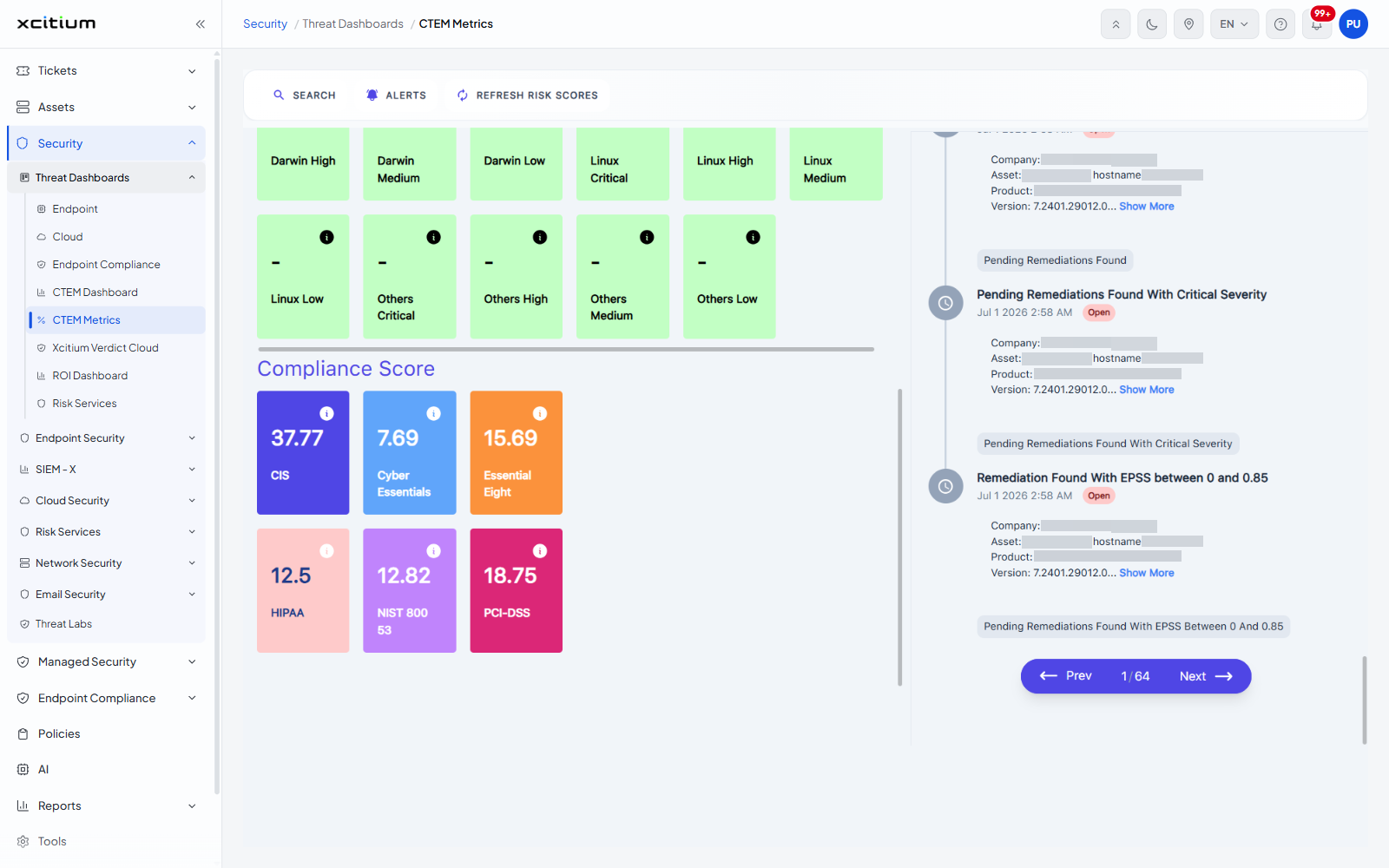
Under the heading 'Internal Scan Vulnerabilities' is a grid of coloured tiles, each a count with its label underneath and an information icon in the corner. The tile colour tracks the value, from deep red for the worst down to green where there is nothing to report. A dash is shown where there is no figure.
| Tile | Description |
| Avg Max Score | The average of the maximum risk scores across the scanned assets. |
| Windows Critical / Windows High / Windows Medium / Windows Low | Vulnerabilities found on Windows assets, one tile per severity. |
| Darwin Critical / Darwin High / Darwin Medium / Darwin Low | The same four counts for macOS assets. |
| Linux Critical / Linux High / Linux Medium / Linux Low | The same four counts for Linux assets. |
| Others Critical / Others High / Others Medium / Others Low | The same four counts for every other asset type. |
Compliance Score
Under the heading 'Compliance Score' is a second grid of tiles, one per standard assessed, each showing the score as a number with the standard name underneath and an information icon in the corner. The standards available include 'CIS', 'Cyber Essentials', 'Essential Eight', 'HIPAA', 'NIST 800 53' and 'PCI-DSS'.
System Events
A panel headed 'System Events' fills the right of the page. It is part of the page here, not a drawer.
| Element | Description |
| Start date | A date box hinted 'MM/DD/YYYY' with a calendar button. |
| End date | A date box hinted 'MM/DD/YYYY' with a calendar button. |
| Period headings | Chips such as '3 Days Ago' and 'Last Month' group the events below them. |
| Event entry | A clock icon, the event title, the date and time, a status pill ('Open' on every entry seen), then 'Company:', 'Asset:', 'Product:' and 'Version:' lines ending in a 'Show More' link, and a grey chip repeating the rule name. |
| Pager | A bar at the foot of the panel with 'Prev', the position - for example '1 / 64' - and 'Next'. |
Read the system events
- Set 'Start date' and 'End date' to narrow the list to a period.
- Click 'Show More' on an entry to see the rest of its detail.
- Use 'Next' and 'Prev' at the foot of the panel to move through the pages.
Note: the body of this screen renders only on an account that has CTEM scan results.