


File Verdicts
- Click 'Security' > 'Endpoint Security' > 'File Verdicts' to open this interface.
File Verdicts lists the files your devices submitted to the Xcitium Verdict Cloud analysis service and what that analysis returned.
You can open a file's verdict details, filter by submission date and export the list.
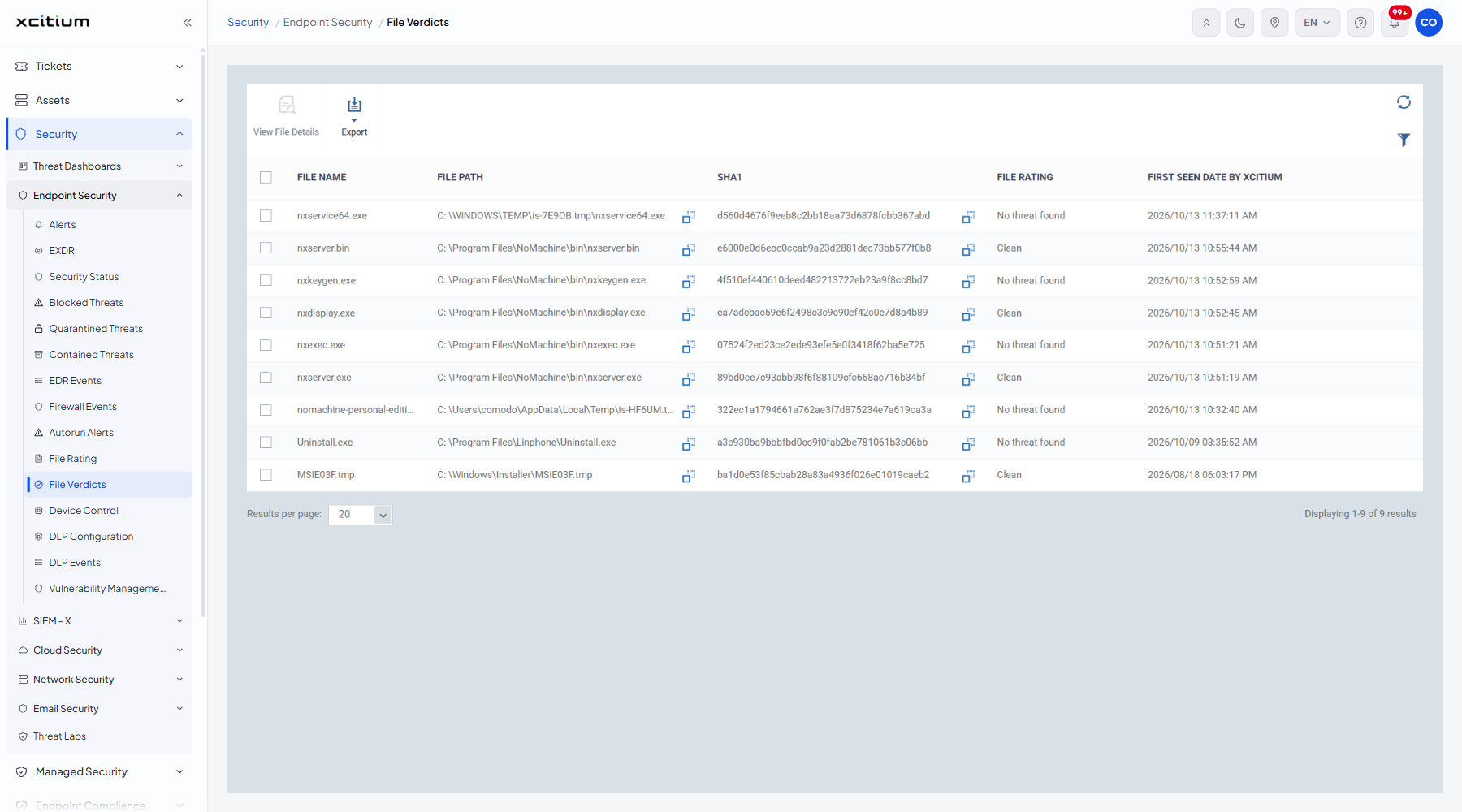
The columns
| Column | Description |
| FILE NAME | The name of the submitted file. |
| FILE PATH | Where the file sat on the device. |
| SHA1 | The SHA-1 hash of the file. |
| FILE RATING | What the analysis returned. Values seen include 'No threat found' and 'Clean'. |
| FIRST SEEN DATE BY XCITIUM | When the analysis service first saw the file. |
The toolbar
| Button | Description |
| View File Details | Opens the verdict details of the ticked file. |
| Export | Downloads the list. |
Open a file's verdict details
- Tick the file's row.
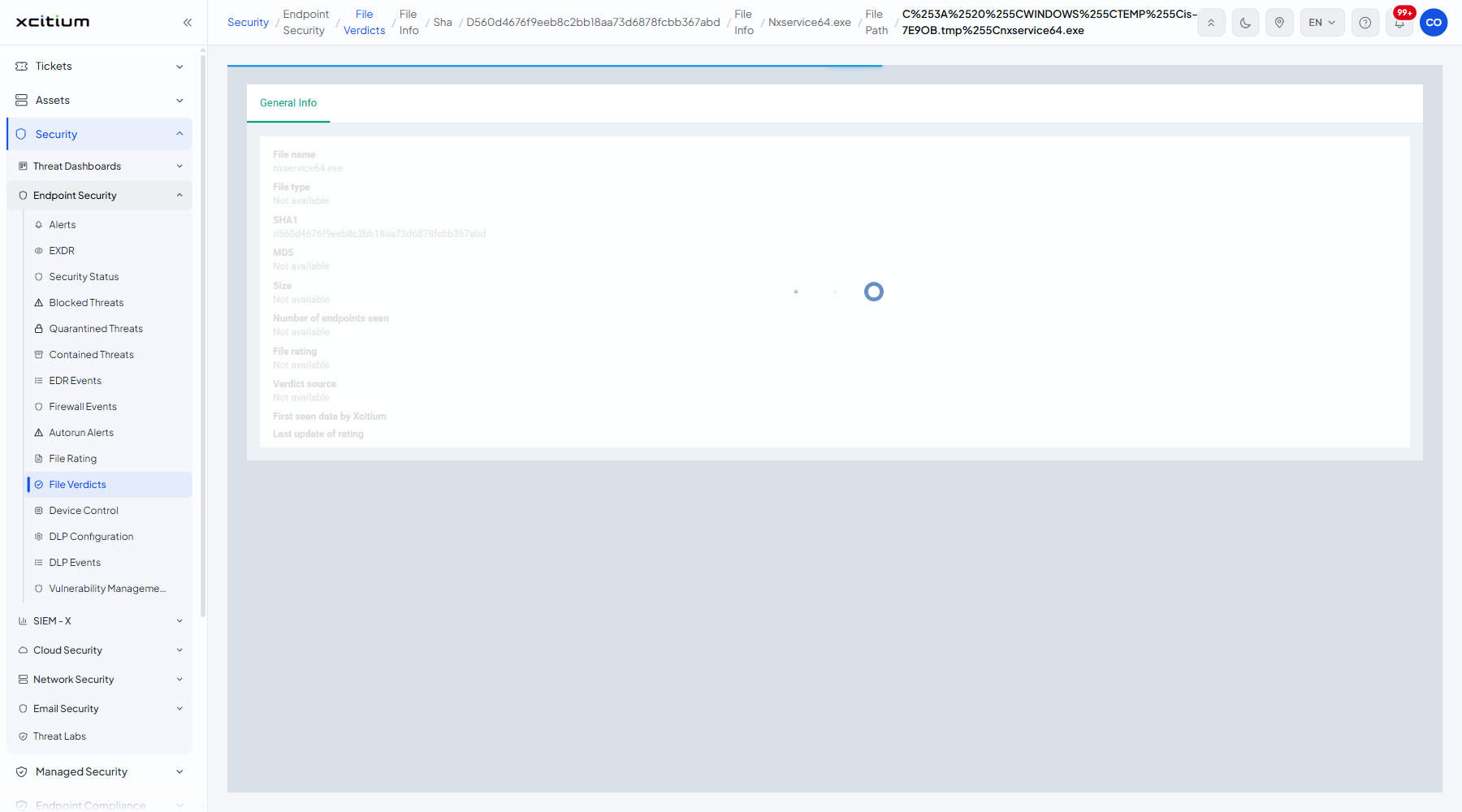
- Click 'View File Details'. A 'General Info' panel opens.
| Field | Description |
| File name | The name of the file. |
| File type | What kind of file it is. |
| SHA1 | The SHA-1 hash. |
| MD5 | The MD5 hash. |
| Size | How big the file is. |
| Number of endpoints seen | How many devices submitted it. |
| File rating | The verdict. |
| Verdict source | What produced the verdict. |
| First seen date by Xcitium | When the service first saw the file. |
| Last update of rating | When the verdict last changed. |
Filter the list
- Click the funnel icon at the top right of the table.
- Set 'First submission date' using the From and To boxes, each with its own calendar picker.
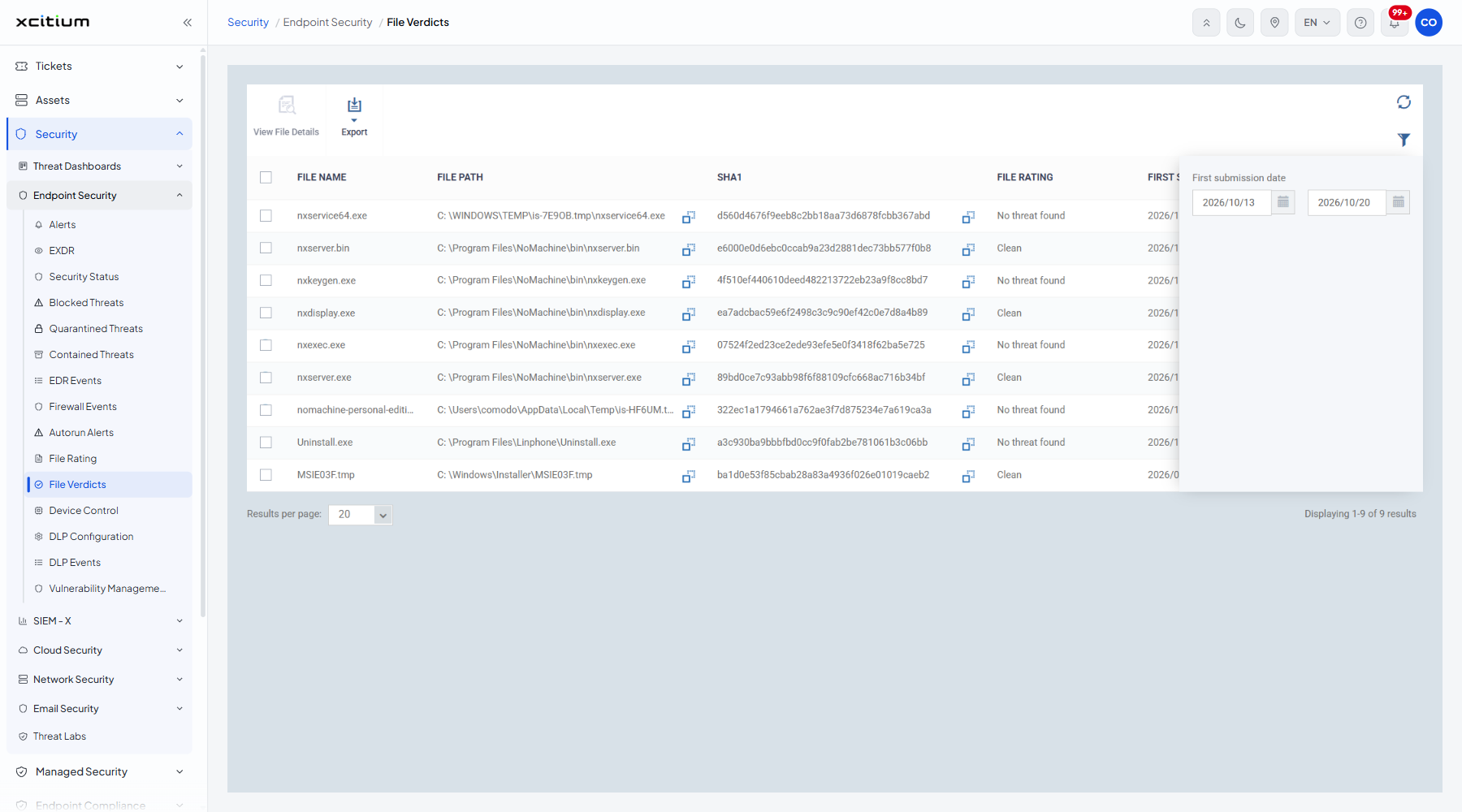
Note: 'First submission date' is the only filter on this screen.