


Export, Clone and Delete Profiles
- Click 'Policies', tick a profile row, then use the toolbar buttons.
Four toolbar controls act on profiles rather than opening a screen. Three of them work on the profile you tick in the list; the fourth exports the list itself.
Buttons that need a selection
'Export Profile', 'Clone Profile' and 'Delete Profile' are greyed out while nothing is ticked. Hovering a greyed-out button shows the message 'Please select profile to take this action'. Tick the check box at the start of a row to make them available.
| Button | Description |
| Export Profile | Downloads the ticked profile as a file. The same file is what 'Import' > 'Import from Exported Profile' reads back. |
| Clone Profile | Makes a copy of the ticked profile. Copies appear in the list with '[cloned]' in front of the original name. |
| Delete Profile | Removes the ticked profile from the account. |
The Export menu
'Export' is a menu button and does not need a selection. It has one entry.
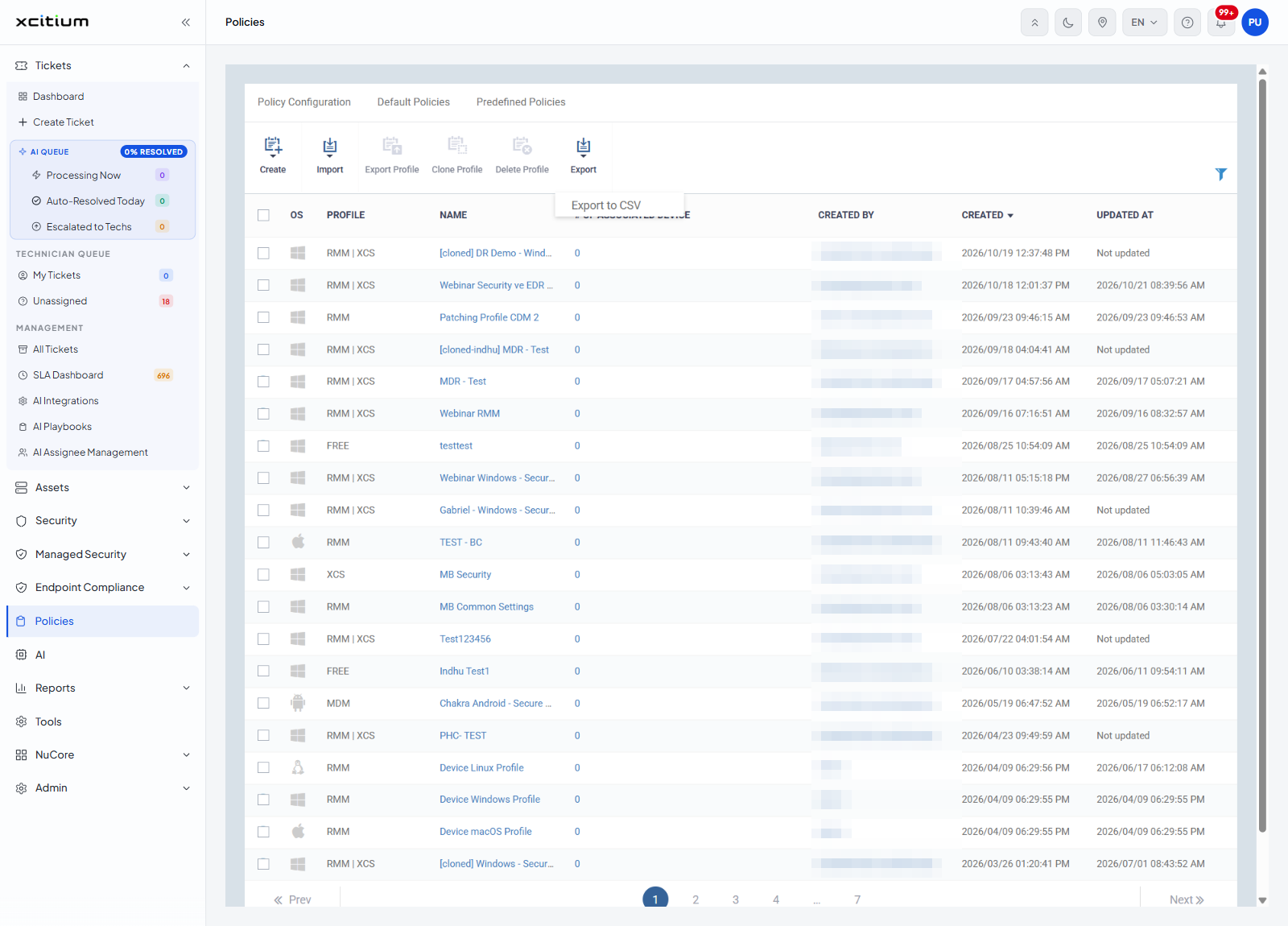
| Menu entry | Description |
| Export to CSV | Produces a comma-separated file of the profile list. |
Hovering 'Export' while the list is empty shows the message "There's no data to export".
Clone a profile
- Click 'Policies' in the left navigation bar.
- Tick the check box at the start of the profile's row.
- Click 'Clone Profile' on the toolbar.
Note: every control on this page acts the moment you click it. None of them asks you to confirm first, so check that the right row is ticked before you click, and take particular care with 'Delete Profile'.
Note: the 'Policy Configuration' tab offers the same actions in a different shape — per-row 'Export', 'Clone' and 'Delete' icon buttons, plus a 'DELETE POLICY(IES)' button for ticked rows. See Export and Delete Policies.