


Import a Policy
- Click 'Policies' > 'Policy Configuration' > 'IMPORT' to open this menu.
'IMPORT' builds a policy from a file. The menu offers two routes.
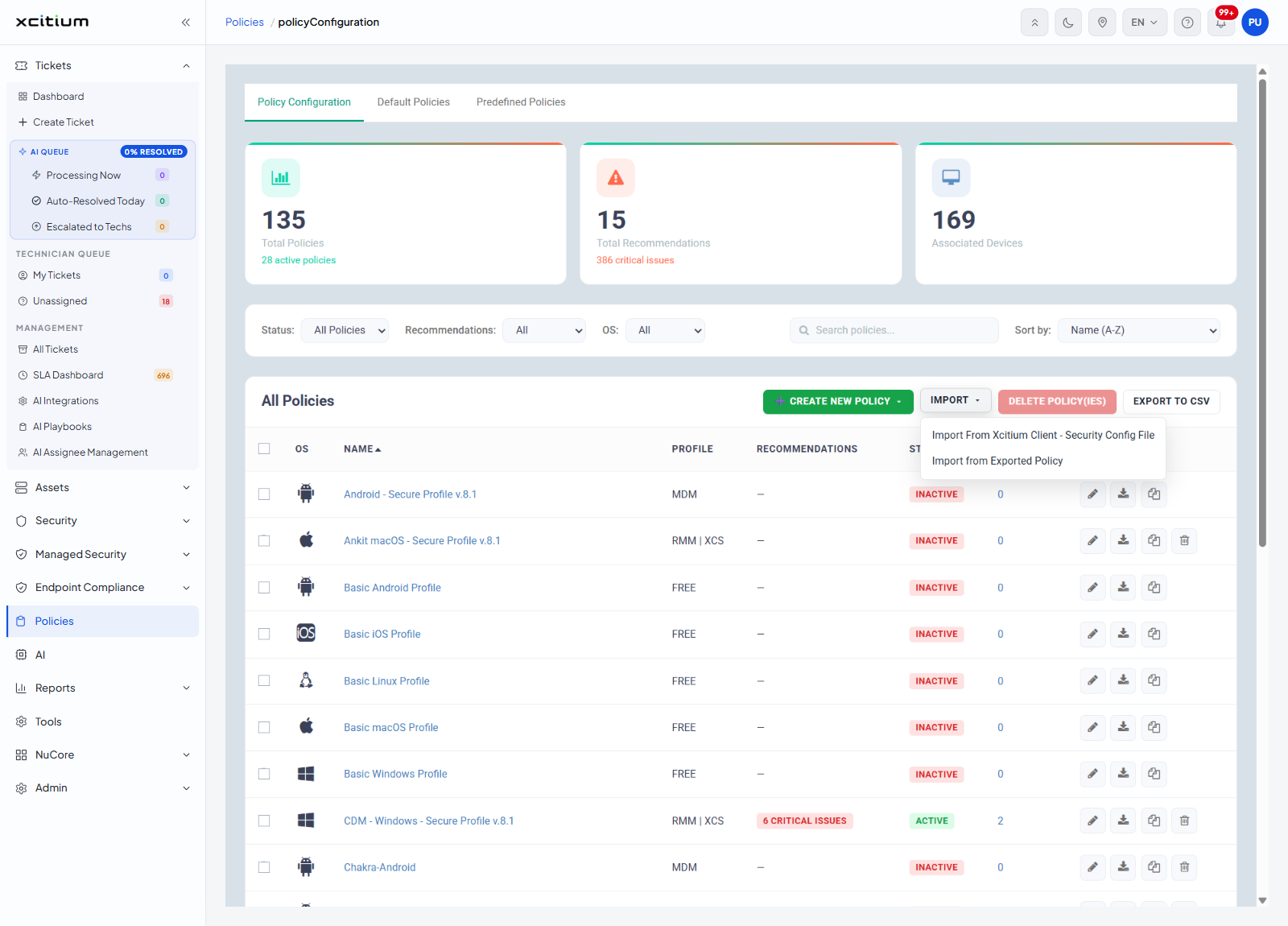
| Menu entry | Description |
| Import From Xcitium Client - Security Config File | Opens the 'Import Windows Policy' dialog, where you name the policy and attach a configuration file taken from the security client. |
| Import from Exported Policy | Builds a policy from a file produced earlier by 'Export Policy' or the per-row 'Export' button. |
The 'Import Windows Policy' dialog
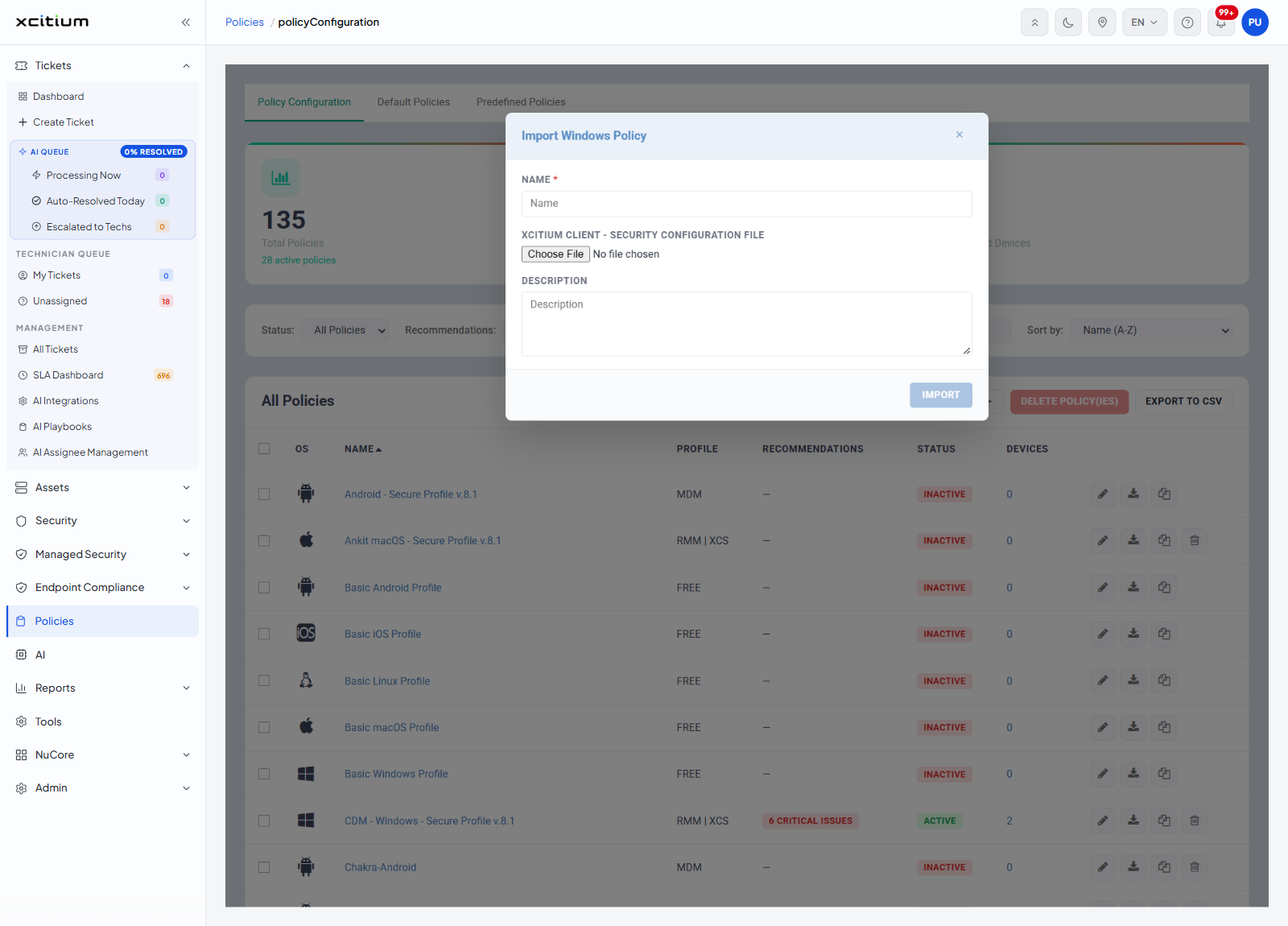
| Field | Control | Default | Required |
| NAME | Single-line text box, placeholder 'Name' | Empty | Yes — marked with a red asterisk |
| XCITIUM CLIENT - SECURITY CONFIGURATION FILE | A file chooser that opens your computer's file browser | No file chosen | Yes |
| DESCRIPTION | Multi-line text box, placeholder 'Description' | Empty | No |
| Button | Description |
| IMPORT | Creates the policy from the file. |
| X (top right of the dialog) | Closes the dialog without importing anything. |
Import a policy
- Click 'Policies' > 'Policy Configuration'.
- Click 'IMPORT'.
- Click 'Import From Xcitium Client - Security Config File'.
- Type a name in the 'NAME' box.
- Choose the configuration file.
- Type a description if you want one.
- Click 'IMPORT'.
Note: 'Import from Exported Policy' opens your computer's own file browser as soon as you click it. There is no dialog on the page first.