


Monitors
- Open a Windows profile, then click the 'Monitors' tab.
'Monitors' lists the monitors attached to the profile. A monitor watches a condition on the device and raises an alert when it is met. Monitors are built elsewhere in the platform; here you choose which of them this profile carries.
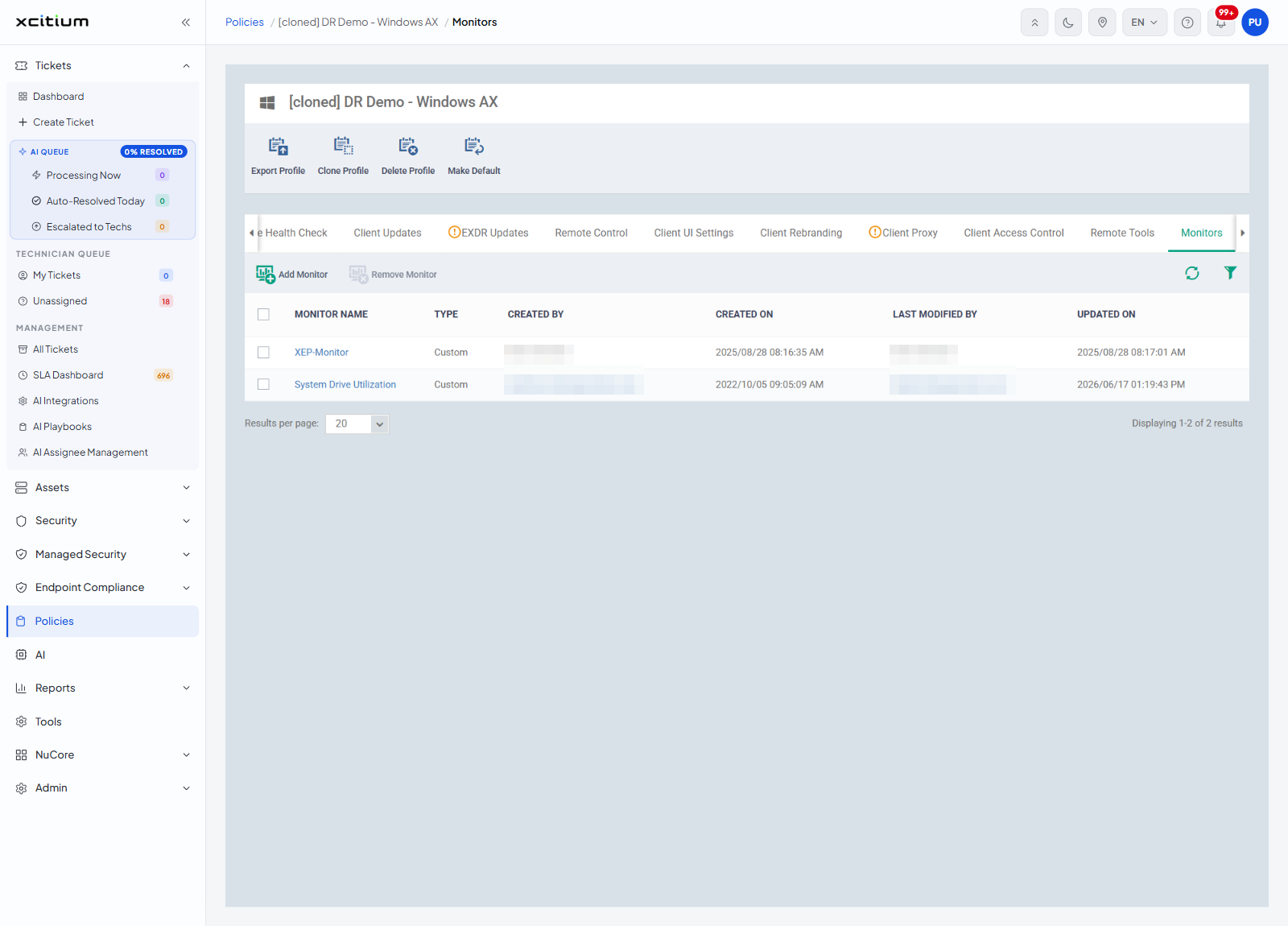
Toolbar
| Button | Description |
| Add Monitor | Opens the 'Add Monitor' dialog. |
| Remove Monitor | Takes the ticked monitor off the profile. |
| Table refresh (circular arrows) | Reloads the list. |
| Table filter (funnel) | Opens the filter controls for the list. |
Columns
| Column | Description |
| Check box (first column) | Ticks the row for 'Remove Monitor'. |
| MONITOR NAME | The name of the monitor, as a link. |
| TYPE | What kind of monitor it is. Values include 'Custom'. |
| CREATED BY | Who made the monitor. Shows 'User removed' when that account no longer exists. |
| CREATED ON | Date and time the monitor was made. |
| LAST MODIFIED BY | Who last changed it. |
| UPDATED ON | Date and time it was last changed. |
The Add Monitor dialog
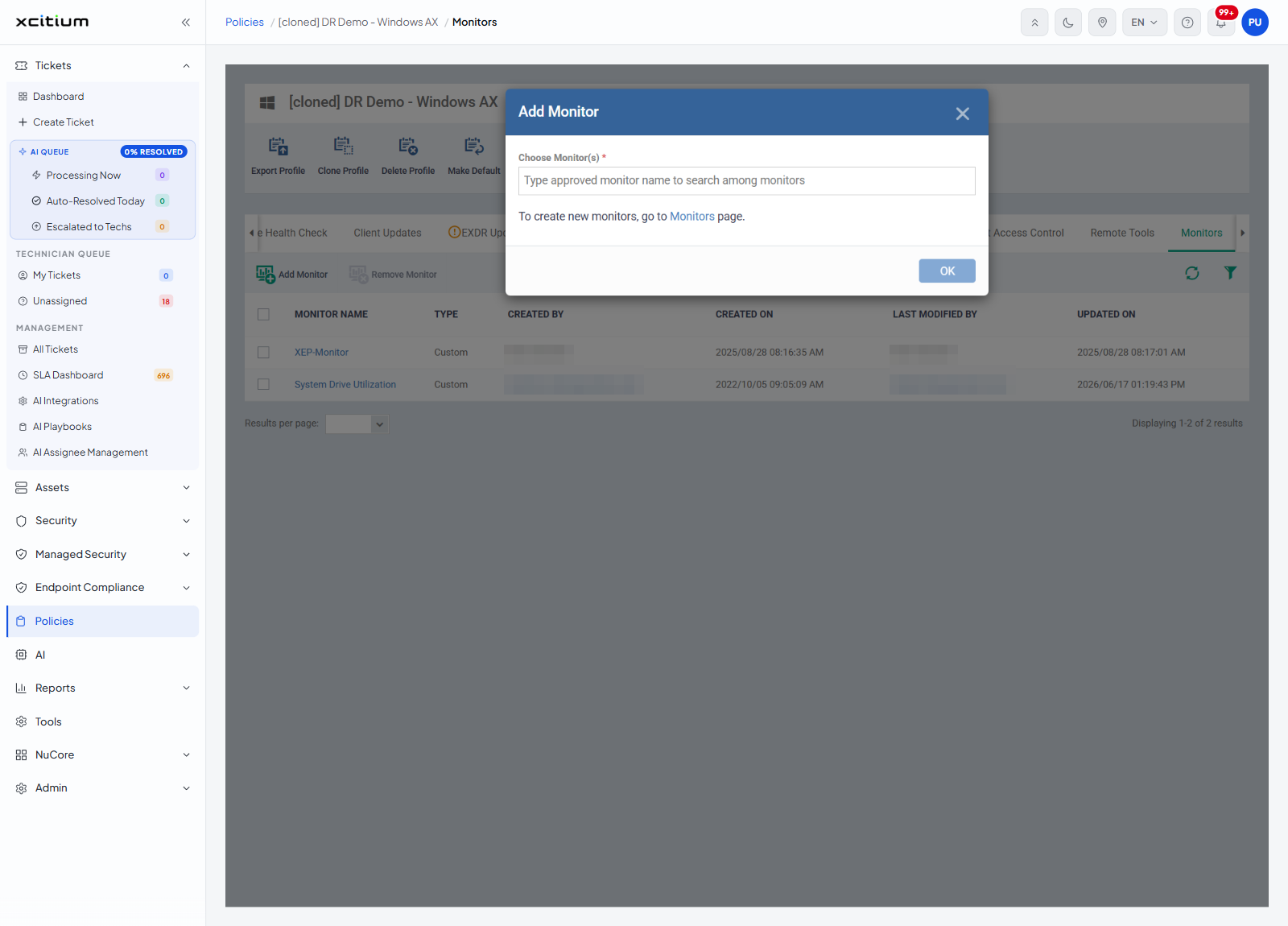
| Field | Control | Required |
| Choose Monitor(s) | A search box, placeholder 'Type approved monitor name to search among monitors' | Yes — marked with a red asterisk |
Underneath the box the dialog reads 'To create new monitors, go to Monitors page.', with 'Monitors' as a link.
| Button | Description |
| OK | Adds the chosen monitors to the profile. |
| X (top right of the dialog) | Closes the dialog without adding anything. |
Add a monitor to a profile
- Click 'Policies' in the left navigation bar and open the profile.
- Click the 'Monitors' tab.
- Click 'Add Monitor'.
- Start typing the monitor's name in the search box and pick it from the matches.
- Click 'OK'.
Note: only monitors that already exist can be added here. Build the monitor first, then come back.