


Ticket Detail
Click 'Tickets' > 'Management' > 'All Tickets' and click any row to open this interface. Every ticket list in the module opens the same page — from 'Processing Now', 'Escalated to Techs' and 'Unassigned' by clicking the row, and from 'My Tickets' with the 'View' button.
The ticket detail page is where a ticket is actually worked. It carries the full description, the AI's analysis, the conversation and audit trail, the ticket's properties, and every action you can take on it.
You can read and edit the ticket, reply to the requester, add an internal note, reassign it, change its priority, manage its attachments, merge it into another ticket, and resolve, close or reopen it.
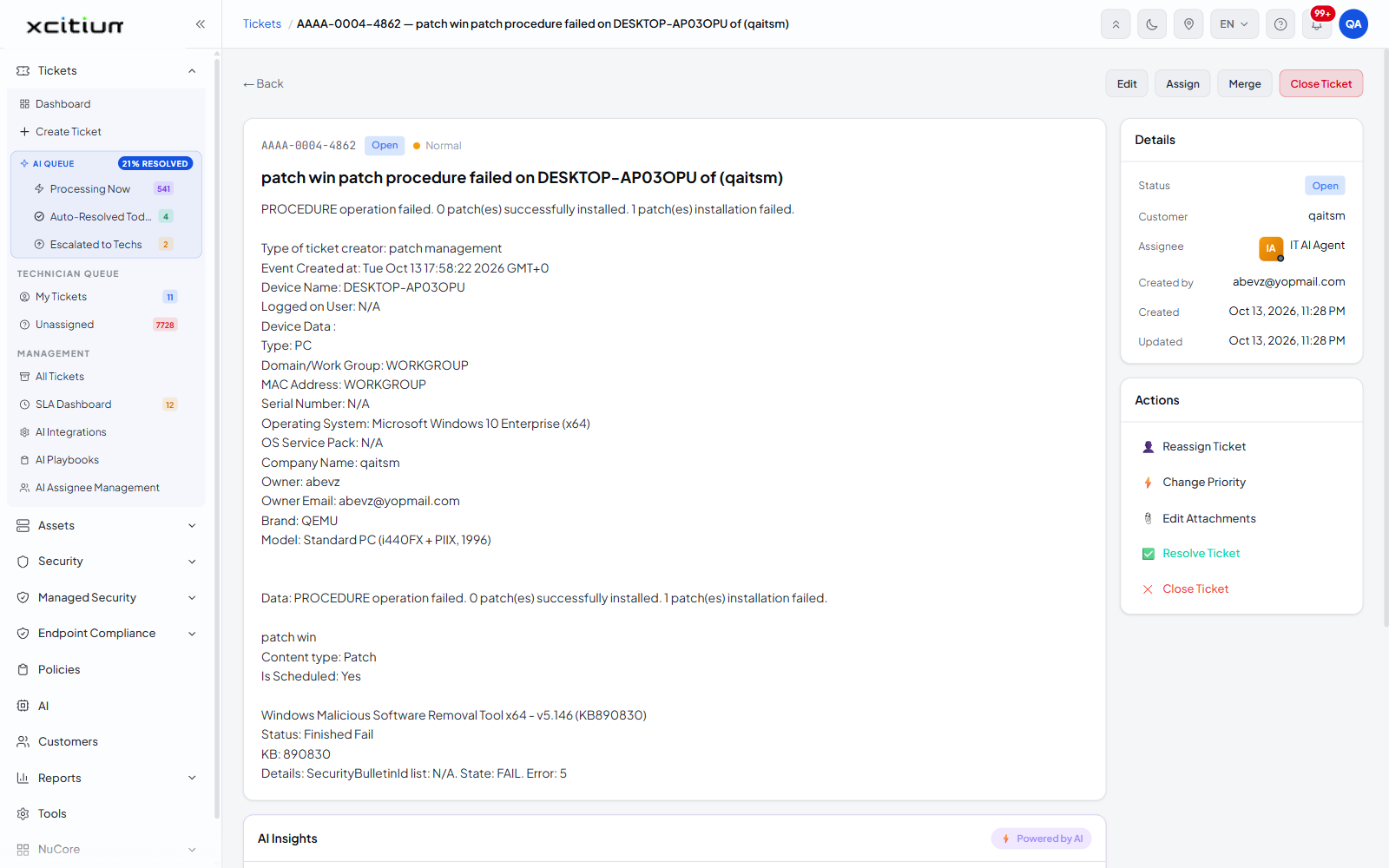
How the page is laid out
A toolbar runs across the top. Below it the page splits in two: the ticket body, AI insights and activity on the left; the 'Details', 'SLA Status' and 'Actions' cards on the right.
The toolbar
| Button | Description |
| ← Back | Returns to the list you came from. |
| Edit | Opens the 'Edit Ticket' screen. See Edit a Ticket. |
| Assign | Assignment control for the ticket. In practice use '👤 Reassign Ticket' in the 'Actions' card, which expands the assignee picker in place. See Reassign a Ticket. |
| Merge | Opens the merge dialog. See Merge Tickets. |
| Close Ticket | Closes the ticket immediately. See Resolve, Close and Reopen a Ticket. |
The ticket header and body
| Element | Description |
| Ticket number | The ticket reference, for example AAAA-0004-4862. |
| Status pill | The current status, for example 'Open'. |
| Priority pill | The current priority, for example 'Normal'. |
| Subject | The ticket subject, shown as the page heading. |
| Description | The full body of the ticket. For a ticket raised by automation this includes the event detail — the type of creator, the event time, the device name, the logged-on user, and a device data block listing type, domain or workgroup, MAC address, serial number, operating system, service pack, company name, owner, owner email, brand and model — followed by the result data. |
Note: for an automatically raised ticket the affected device is reported inside this description block rather than as a separate linked-device panel.
The Details card
| Row | Description |
| Status | The current ticket status. |
| Customer | The customer the ticket belongs to. |
| Assignee | The technician holding the ticket, as an avatar and name. Reads 'Unassigned' when nobody holds it. |
| Created by | The email address of whoever raised the ticket. |
| Created | The date and time the ticket was raised. |
| Updated | The date and time the ticket last changed. |
The Actions card
| Action | Description |
| 👤 Reassign Ticket | Expands an assignee picker in place. See Reassign a Ticket. |
| ⚡ Change Priority | Expands a priority picker in place. See Change Ticket Priority. |
| 📎 Edit Attachments | Opens the Edit Ticket screen at the attachments area. See Manage Ticket Attachments. |
| ✅ Resolve Ticket | Marks the ticket resolved. Becomes 'Reopen Ticket' once it is. See Resolve, Close and Reopen a Ticket. |
| ✕ Close Ticket | Closes the ticket. Becomes 'Reopen Ticket' once it is. |
The other panels
- AI Insights — the AI's analysis of the ticket.
- Activity — the conversation and audit trail, with the reply and internal-note composer beneath it.
- SLA Status — the SLA plan and the time left.
Open a ticket
- Click 'Tickets' > 'Management' > 'All Tickets'.
- Find the ticket using the filters, the search box or the stat cards.
- Click the row. The ticket detail page opens.
- Use the toolbar and the 'Actions' card to work the ticket.
- Click '← Back' to return to the list.