


Set Alert Recipients
- Open an alert, then click the 'Additional Recipients' tab.
Alert settings decide what happens in the console; this tab decides who hears about it by email, and how many times a condition has to repeat before anyone is told.
You can require a number of consecutive hits before emailing, send to the portal administrators, and add specific addresses or portal users.
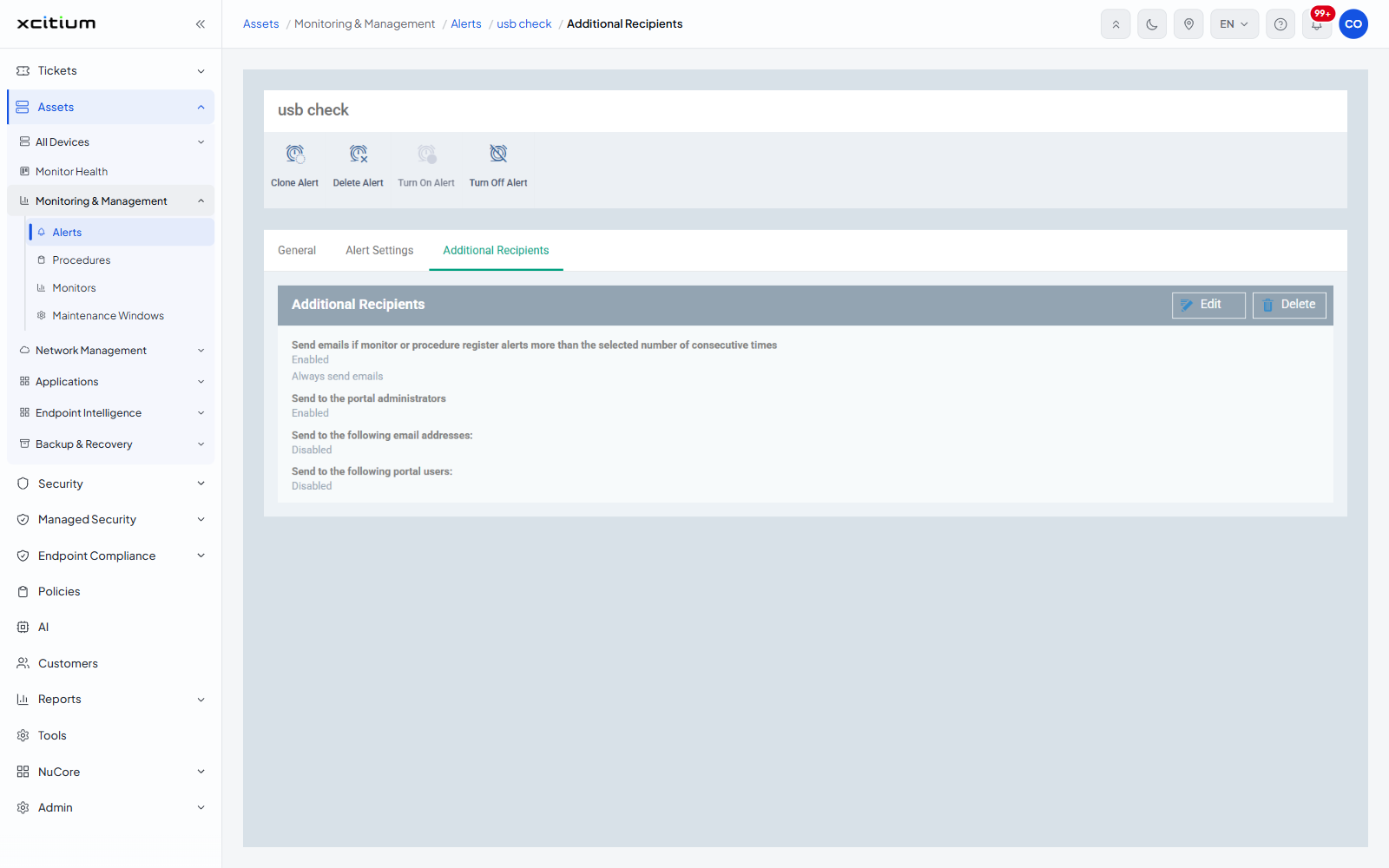
The settings
| Setting | Type | Options / default |
| Send emails if monitor or procedure register alerts more than the selected number of consecutive times | Checkbox with dropdown | The dropdown offers 'Always send emails' (the default), '2', '3', '4', '5', '10', '15'. |
| Send to the portal administrators | Checkbox | Emails every portal administrator. |
| Send to the following email addresses: | Checkbox | Reveals a field for the addresses to email. |
| Send to the following portal users: | Checkbox | Reveals a picker for the portal users to email. |
The read view lists each setting with 'Enabled' or 'Disabled' beneath it. Click 'Edit' to change them, then 'Save'.
Email a team about an alert
- Open the alert and click the 'Additional Recipients' tab.
- Click 'Edit'.
- Tick 'Send to the following email addresses:' and type the addresses.
- To avoid being emailed about a one-off blip, tick the consecutive-times checkbox and pick a number.
- Click 'Save'.
Note: the consecutive-times setting applies to the emails only. The alert itself still fires, and still opens a ticket if 'Alert Settings' says so.