


Maintenance Window Settings
- Open a maintenance window, then click the 'Settings' tab of the Maintenance Window dialog.
The Settings tab decides what the platform does when someone tries to run a disruptive task on a device outside its maintenance window, and what happens to monitors and queued procedures during the window.
You can stop monitors during the window, hold procedures for offline devices, and warn about or forbid each of eight on-demand tasks.
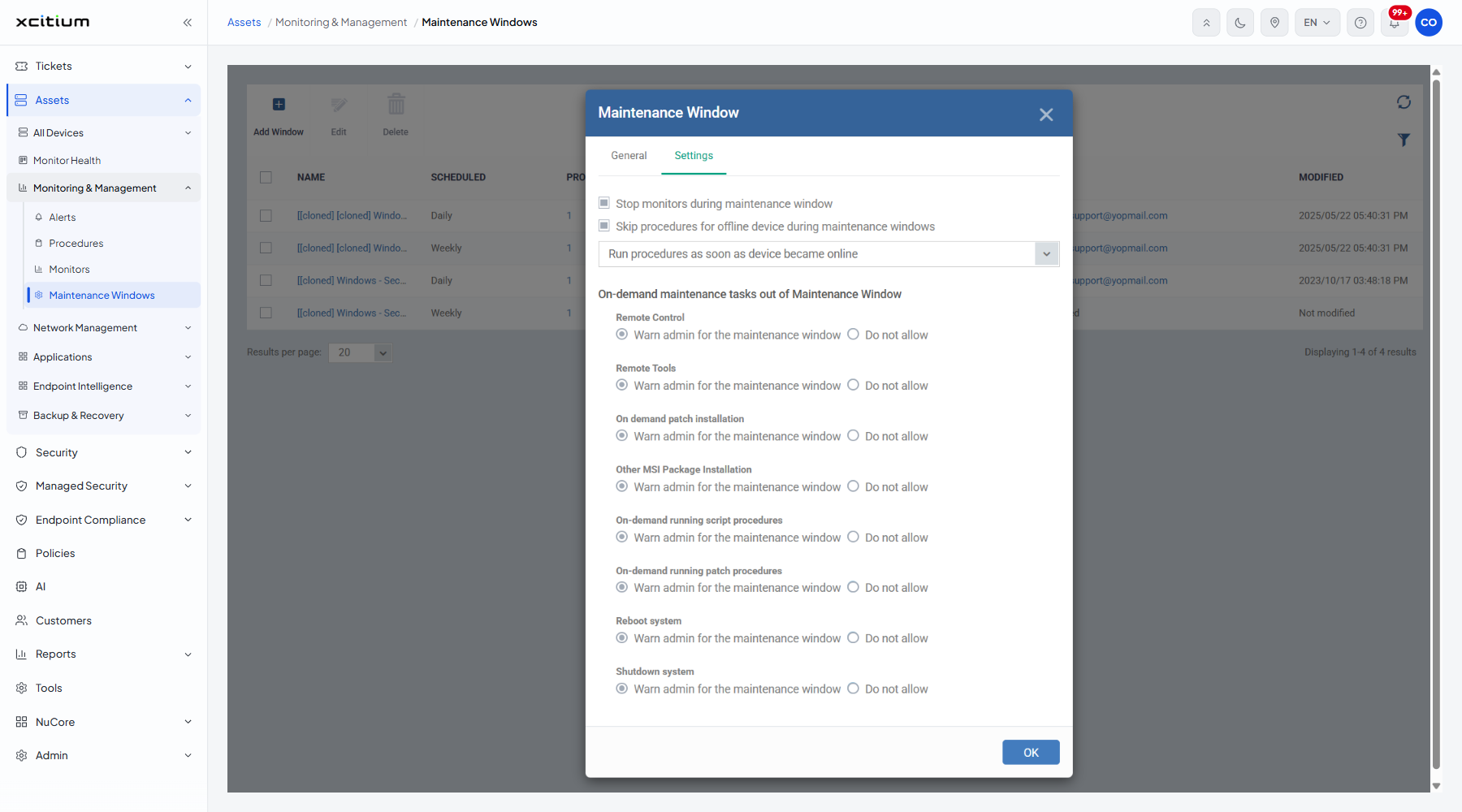
The two top settings
| Field | Type | Options / default | Required |
| Stop monitors during maintenance window | Checkbox | Ticked by default. Suspends the monitors on the device while the window is open, so planned work does not raise alerts. | No |
| Skip procedures for offline device during maintenance windows | Checkbox and dropdown | Ticked by default. The dropdown beneath offers 'Run procedures as soon as device became online' (default) and 'Run procedures during the nearest maintenance window'. | No |
On-demand maintenance tasks out of Maintenance Window
Under this heading sit eight task rows. Every one carries the same radio pair, and every one defaults to 'Warn admin for the maintenance window':
| Option | Description |
| Warn admin for the maintenance window | The task may go ahead, but the administrator is warned that the device is outside its window. This is the default for all eight. |
| Do not allow | The task is blocked while the device is outside its window. |
The eight tasks are:
| Column | Description |
| Remote Control | Taking over the screen of the device. |
| Remote Tools | Opening a file transfer or command interface on the device. |
| On demand patch installation | Installing a patch from the Patch Management screens. |
| Other MSI Package Installation | Installing a package on the device. |
| On-demand running script procedures | Running a script procedure with the 'Run' button. |
| On-demand running patch procedures | Running a patch procedure on demand. |
| Reboot system | Restarting the device. |
| Shutdown system | Powering the device off. |
Forbid reboots outside the window
- Click 'Assets' > 'Monitoring & Management' > 'Maintenance Windows'.
- Tick the window and click ‘Edit’, or click its name and then ‘Edit’.
- Open the 'Settings' tab.
- Choose 'Do not allow' beside 'Reboot system' and beside 'Shutdown system'.
- Click 'OK'.
Note: the counts shown in the Run Procedure dialog come from these settings: a device whose window says ‘Do not allow’ is counted as blocked, and one whose window says ‘Warn’ is counted as warned.