


Hash Search
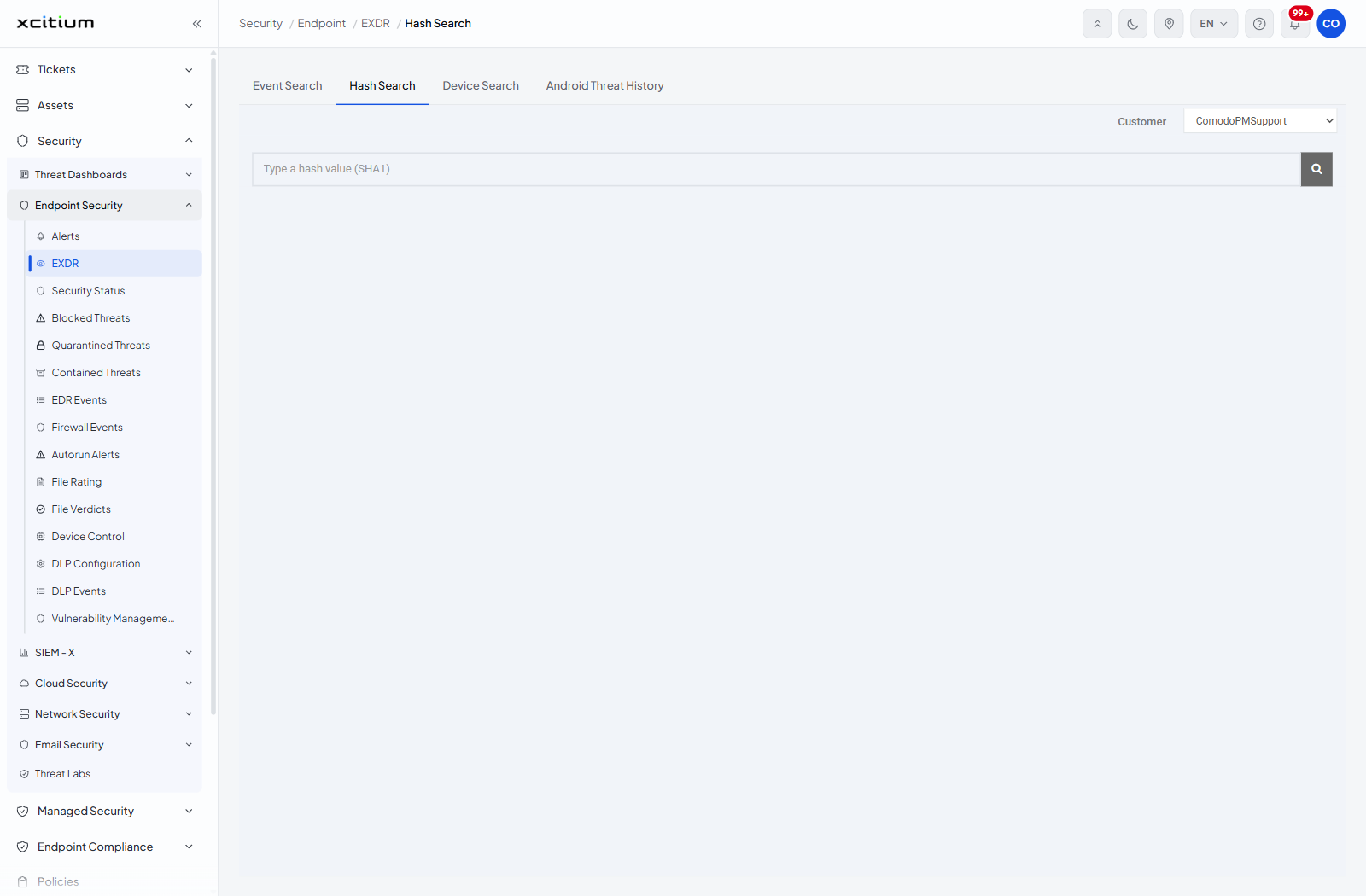
- Click 'Security' > 'Endpoint Security' > 'EXDR' > 'Hash Search' to open this interface.
Hash Search takes one SHA-1 file hash and reports everything the platform knows about that file: its verdict, where it has run, where it was downloaded from, where it was written, and which devices quarantined or disabled it.
You can look a hash up, read its verdict details and change the rating your account holds for it.
Search for a hash
- Pick a customer in the 'Customer' list at the top right.
- Click in the box marked 'Type a hash value (SHA1)'.
- Paste or type the SHA-1 hash.
- Press Enter, or click the search button at the end of the box.
The file summary
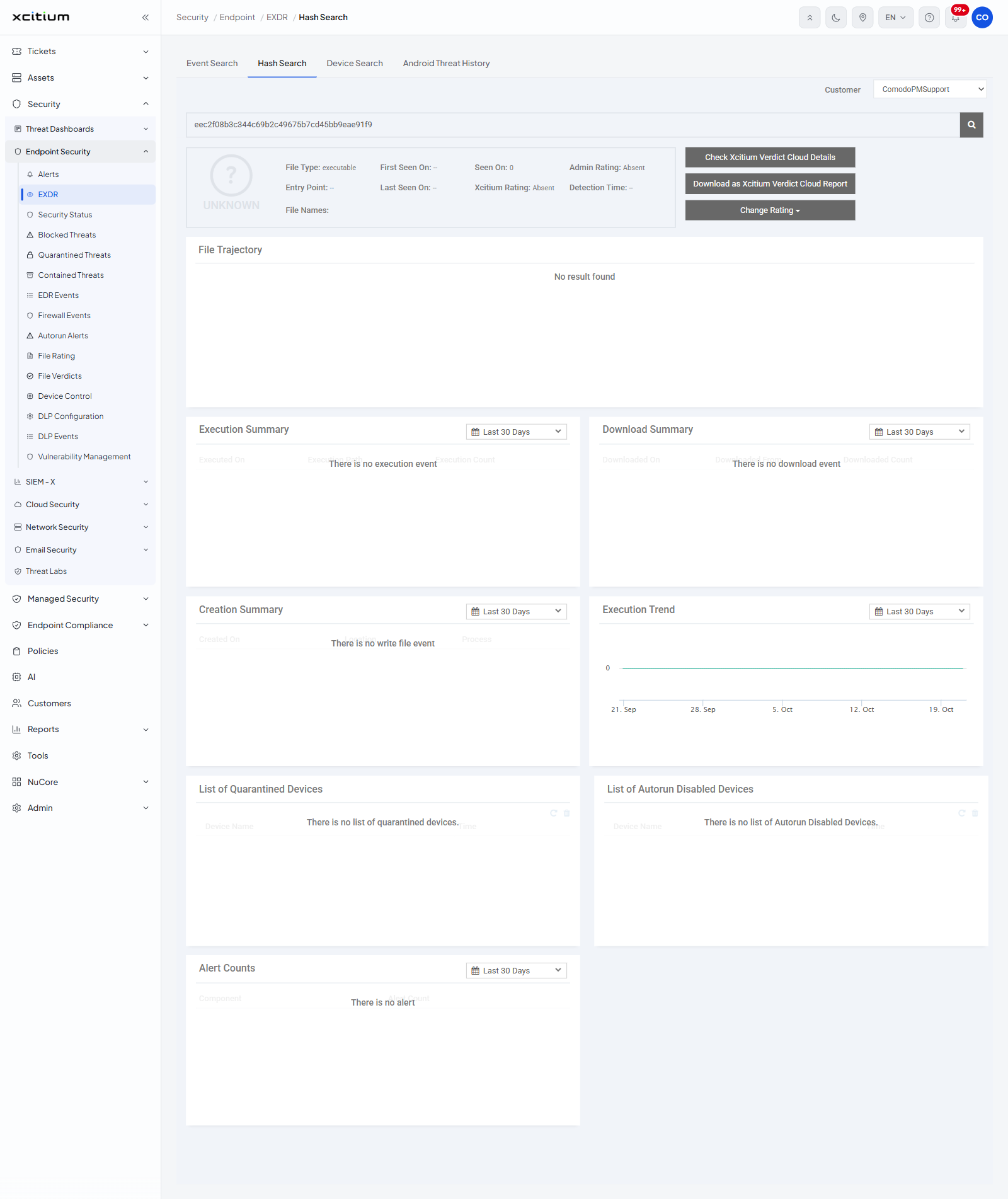
A banner at the top gives the verdict, for example 'UNKNOWN'. Beneath it come the file's details.
| Field | Description |
| File Type: | What kind of file it is, for example 'executable'. |
| Entry Point: | The file's entry point. |
| First Seen On: | When the file was first seen. |
| Last Seen On: | When the file was last seen. |
| Seen On: | How many devices have seen it. |
| Xcitium Rating: | The rating the verdict service gave the file. |
| Admin Rating: | The rating an administrator gave the file. |
| Detection Time: | When the file was detected. |
| File Names: | The names the file has been seen under. |
Two links sit beside the summary: 'Check Xcitium Verdict Cloud Details' and 'Download as Xcitium Verdict Cloud Report'.
The result panels
| Panel | What it shows |
| File Trajectory | How the file moved through the estate. Empty state 'No result found'. |
| Execution Summary | Columns 'Executed On', 'Execution Path' and 'Execution Count'. Empty state 'There is no execution event'. |
| Download Summary | Columns 'Downloaded On', 'Downloaded From' and 'Downloaded Count'. Empty state 'There is no download event'. |
| Creation Summary | Columns 'Created On', 'Location' and 'Process'. Empty state 'There is no write file event'. |
| Execution Trend | A chart of how often the file ran over time. |
| List of Quarantined Devices | Columns 'Device Name' and 'Time'. Empty state 'There is no list of quarantined devices.' |
| List of Autorun Disabled Devices | Columns 'Device Name' and 'Time'. Empty state 'There is no list of Autorun Disabled Devices.' |
| Alert Counts | Columns 'Component' and 'Alert Count'. Empty state 'There is no alert'. |
Change the rating of the file
- Click 'Change Rating' beside the file summary.
- Pick the rating you want: 'Rate File As Unrecognized', 'Rate File As Trusted' or 'Rate File As Malicious'.
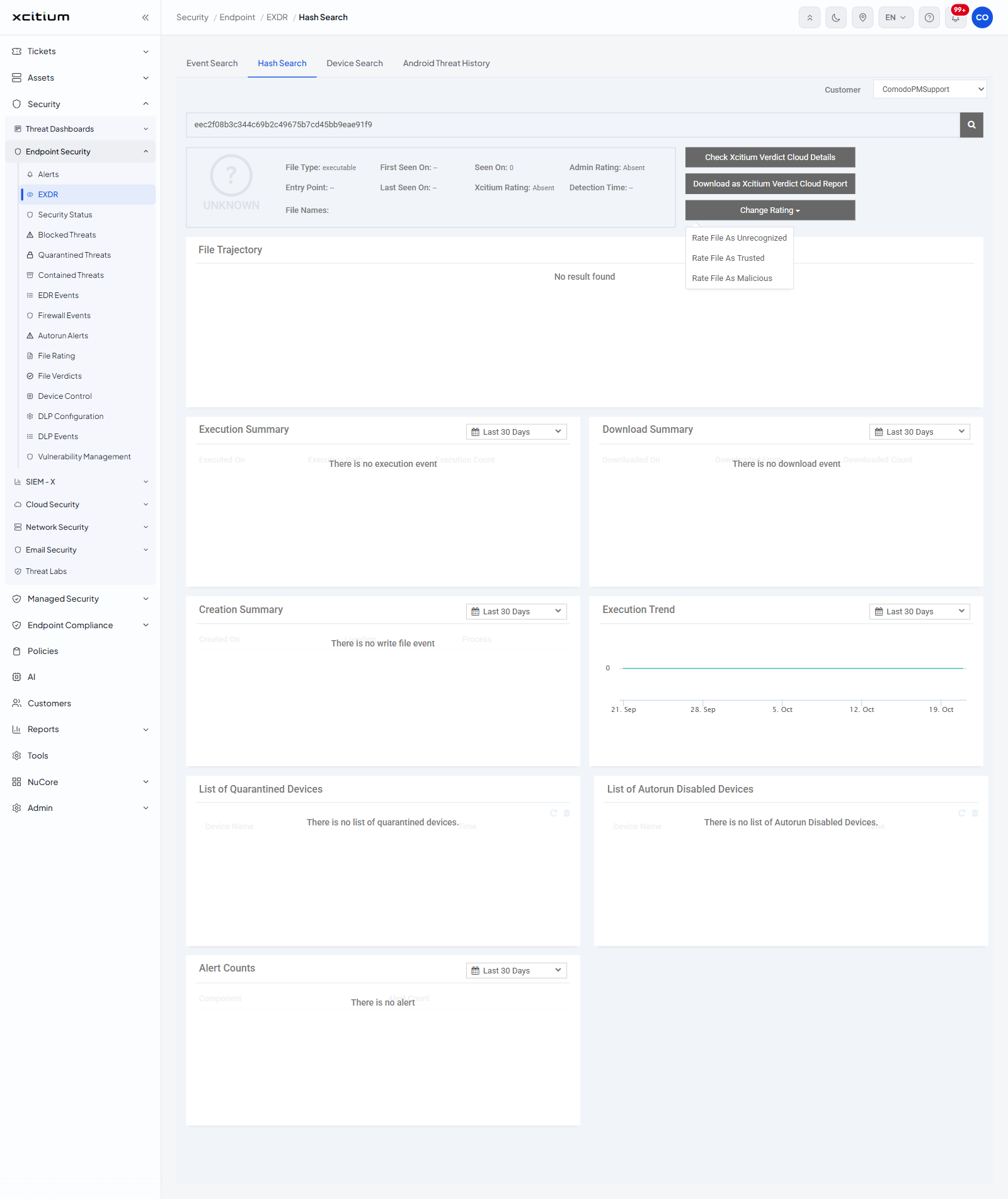
Note: changing a rating here changes how the client treats that file on every device in the account. Check the hash before you choose.