


Event View
- Click 'Security' > 'Endpoint Security' > 'EXDR' > 'Android Threat History', then click 'Event View'.
Event View lists every file event recorded on the estate, one row per event, and shows how the file was rated before and after the event. It is the most detailed of the four views.
You can filter the list on a dozen criteria, search by hash, change the rating of a file, open a file's details, pull its verdict report and export the list.
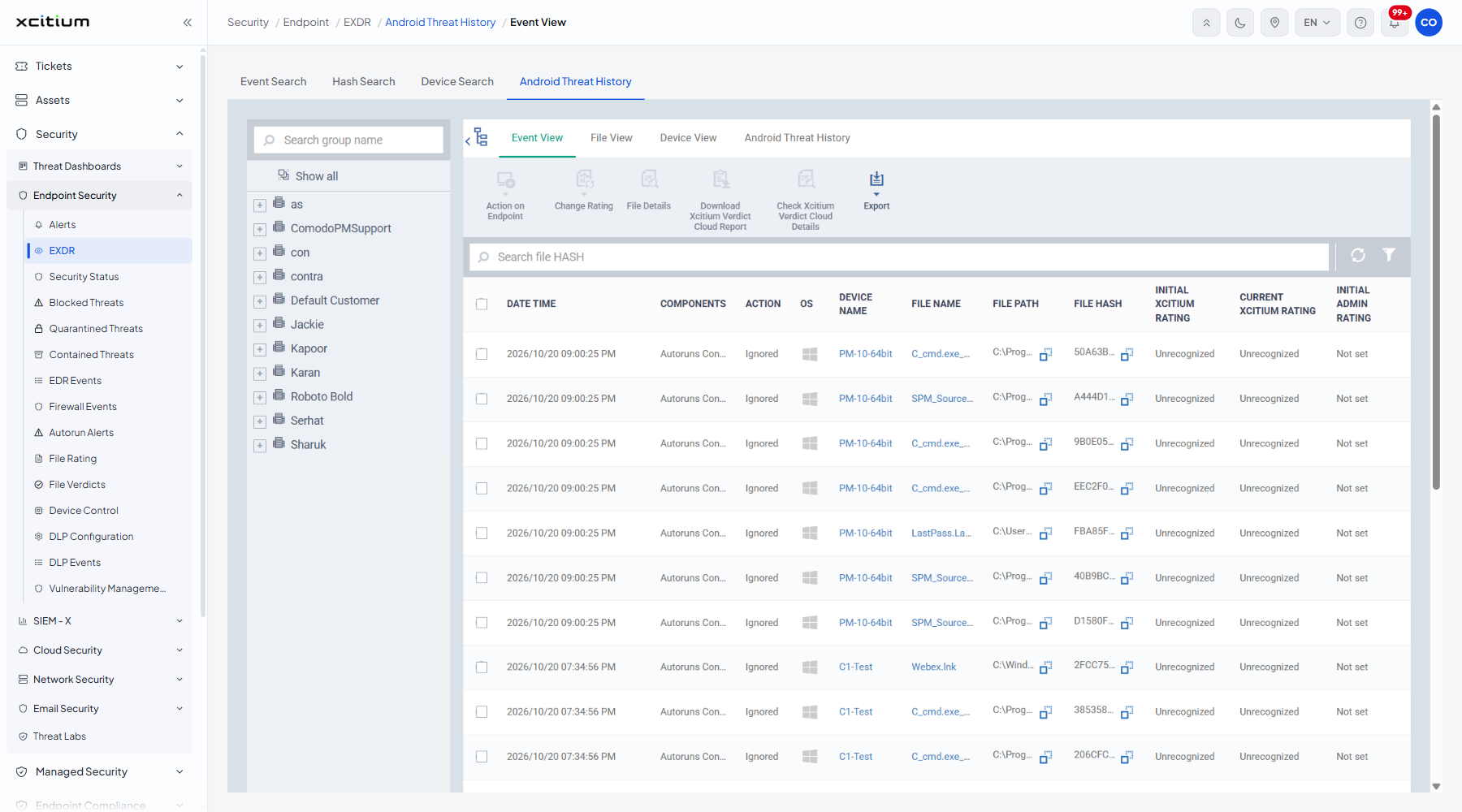
The columns
| Column | Description |
| DATE TIME | When the event happened. |
| COMPONENTS | The part of the client that recorded it, for example 'Autoruns Control'. |
| ACTION | What was done, for example 'Ignored'. |
| OS | The operating system of the device, shown as an icon. |
| DEVICE NAME | The device the event came from. |
| FILE NAME | The file involved. |
| FILE PATH | Where the file sits on the device. |
| FILE HASH | The hash of the file. |
| INITIAL XCITIUM RATING | The rating the verdict service held before the event. |
| CURRENT XCITIUM RATING | The rating the verdict service holds now. |
| INITIAL ADMIN RATING | The administrator rating before the event. |
| CURRENT ADMIN RATING | The administrator rating now. |
| ADDITIONAL INFO | Extra context, for example 'Autorun File'. |
The toolbar
| Button | Description |
| Action on Endpoint | Acts on the file on the device itself. It stays greyed out until the selection suits it; the tooltip reads "Select quarantined or disabled file(s) with HASH to take this action". |
| Change Rating | Sets the administrator rating of the ticked files. |
| File Details | Opens the details of the ticked file. |
| Download Xcitium Verdict Cloud Report | Downloads the verdict report for the ticked file. |
| Check Xcitium Verdict Cloud Details | Opens the verdict service entry for the ticked file. |
| Export | Downloads the list. |
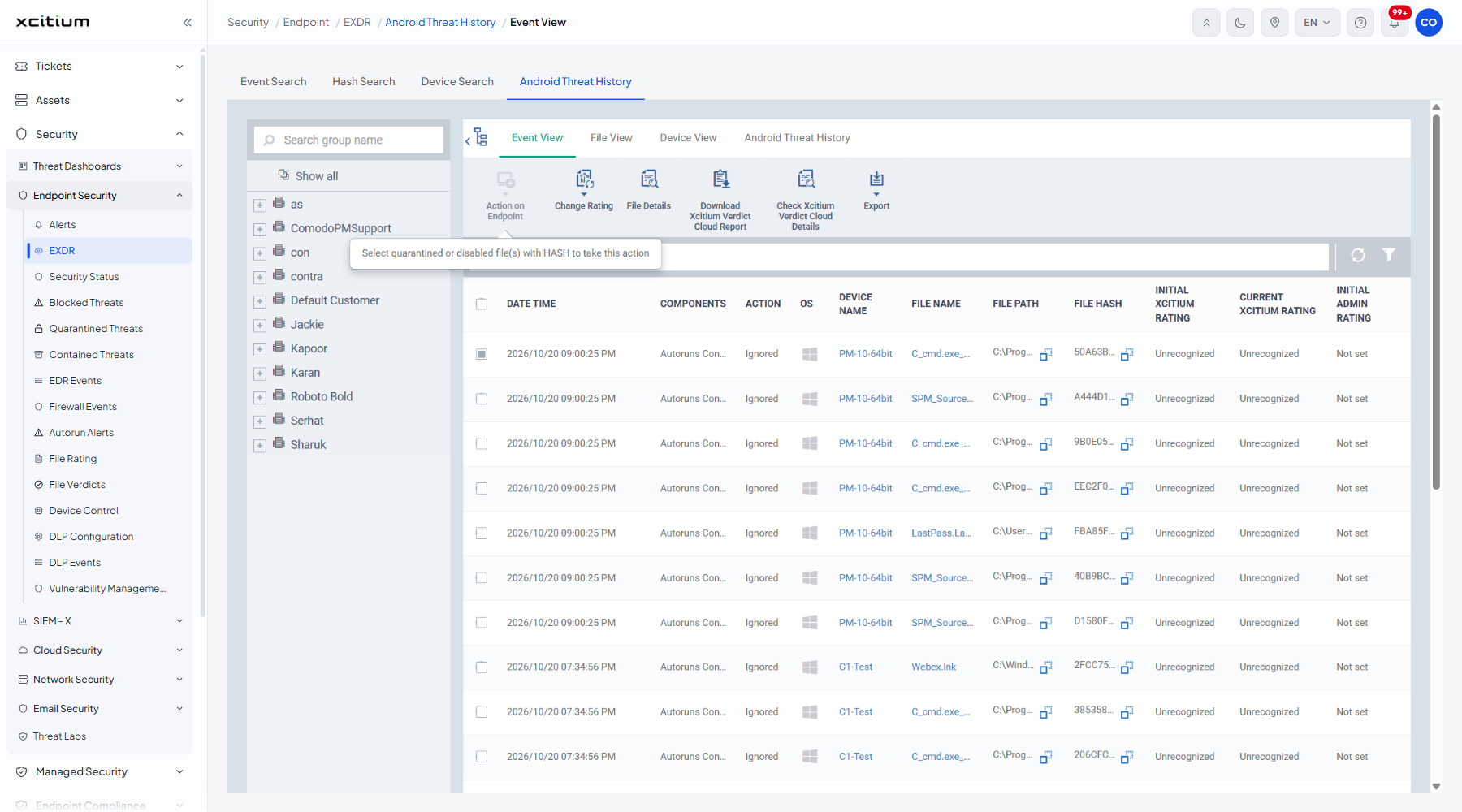
Search by file hash
- Click the box above the table marked 'Search file HASH'.
- Paste the hash.
- The list narrows to the events for that file.
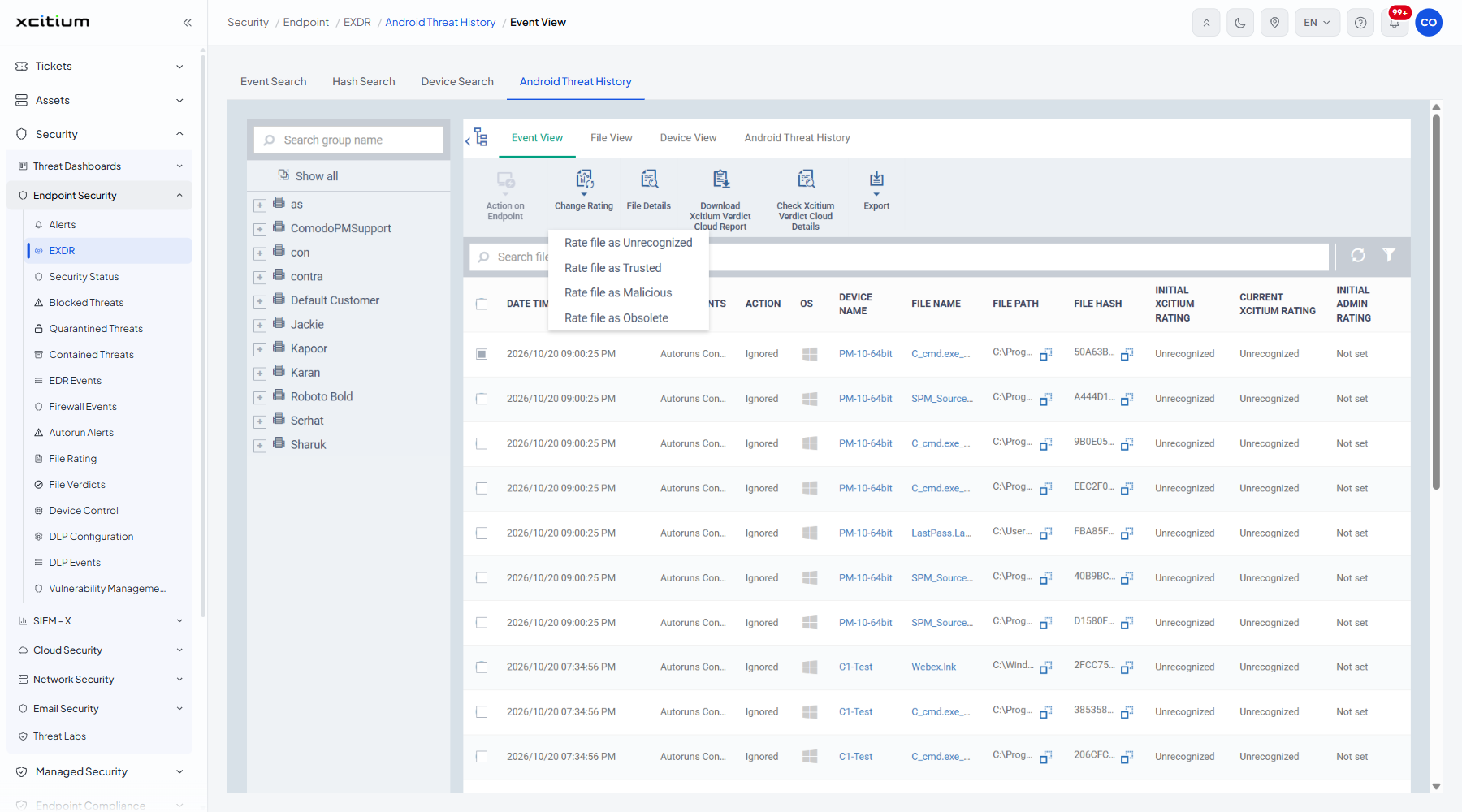
Change the rating of a file
- Tick the row or rows you want.
- Click 'Change Rating'.
- Pick 'Rate file as Unrecognized', 'Rate file as Trusted', 'Rate file as Malicious' or 'Rate file as Obsolete'.
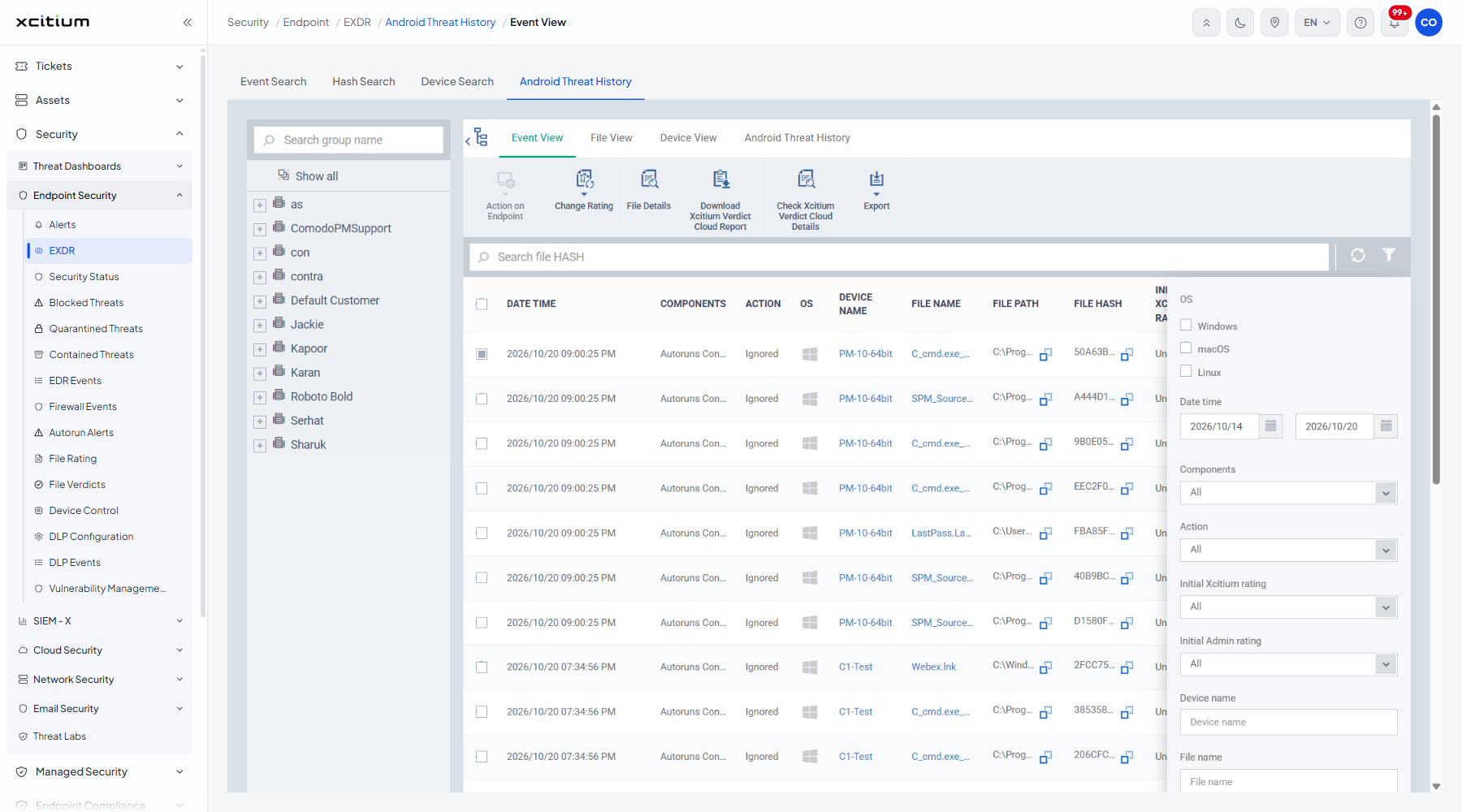
Filter the list
- Click the funnel icon at the top right of the table.
- Set the criteria you want.
- The list redraws as you apply them.
| Filter | Description |
| OS | Tick boxes for 'Windows', 'macOS' and 'Linux'. |
| Date time | A from and a to date, each with a calendar picker. |
| Components | 'All' (the default), 'Antivirus', 'Containment', 'Application Control', 'Autoruns Control' and 'Virtual Desktop'. |
| Action | 'All' (the default) plus every recorded action, including 'Malware detected', 'Quarantined', 'Deleted from quarantine', 'Restored from quarantine', 'Skipped', 'Quarantined and deleted on reboot', 'Removed Obsolete file from Quarantine', 'Malware removed from file', 'Ignored', 'Blocked', 'Added to exclusions', 'Added to trusted', 'Marked as false positive', 'Run restricted', 'Run virtually', 'File added', 'File updated', 'Removed from the list', 'Terminated', 'Terminated and disabled', 'Quarantined and disabled', 'Restored', 'Deleted', 'Launched', 'Session started', 'Session paused', 'Session continued', 'Session terminated', 'Switched to host' and 'Switched to Virtual Desktop'. |
| Initial Xcitium rating | 'All' (the default), 'Trusted', 'Unrecognized' and 'Malicious'. |
| Initial Admin rating | 'All' (the default), 'Not set', 'Trusted', 'Unrecognized' and 'Malicious'. |
| Device name | Free text. |
| File name | Free text. |
| File path | Free text. |
| File hash | Free text. |
| Additional info | Free text. |
Note: changing a rating here changes how the client treats that file on every device in the account.