


Alert Triggers
- Click 'Security' > 'Cloud Security' > 'Alerts', then click the 'Triggers' tab to open this interface.
A trigger watches the cloud alert stream and does something when an alert matches it - sends the alert to an integration, or suppresses it so it stops cluttering the list. This tab is the list of triggers that exist and whether each one is running.
You can search the triggers, see how many times each has fired, see where each one sends its alerts, turn one on or off, edit one, and delete the ones you have selected.
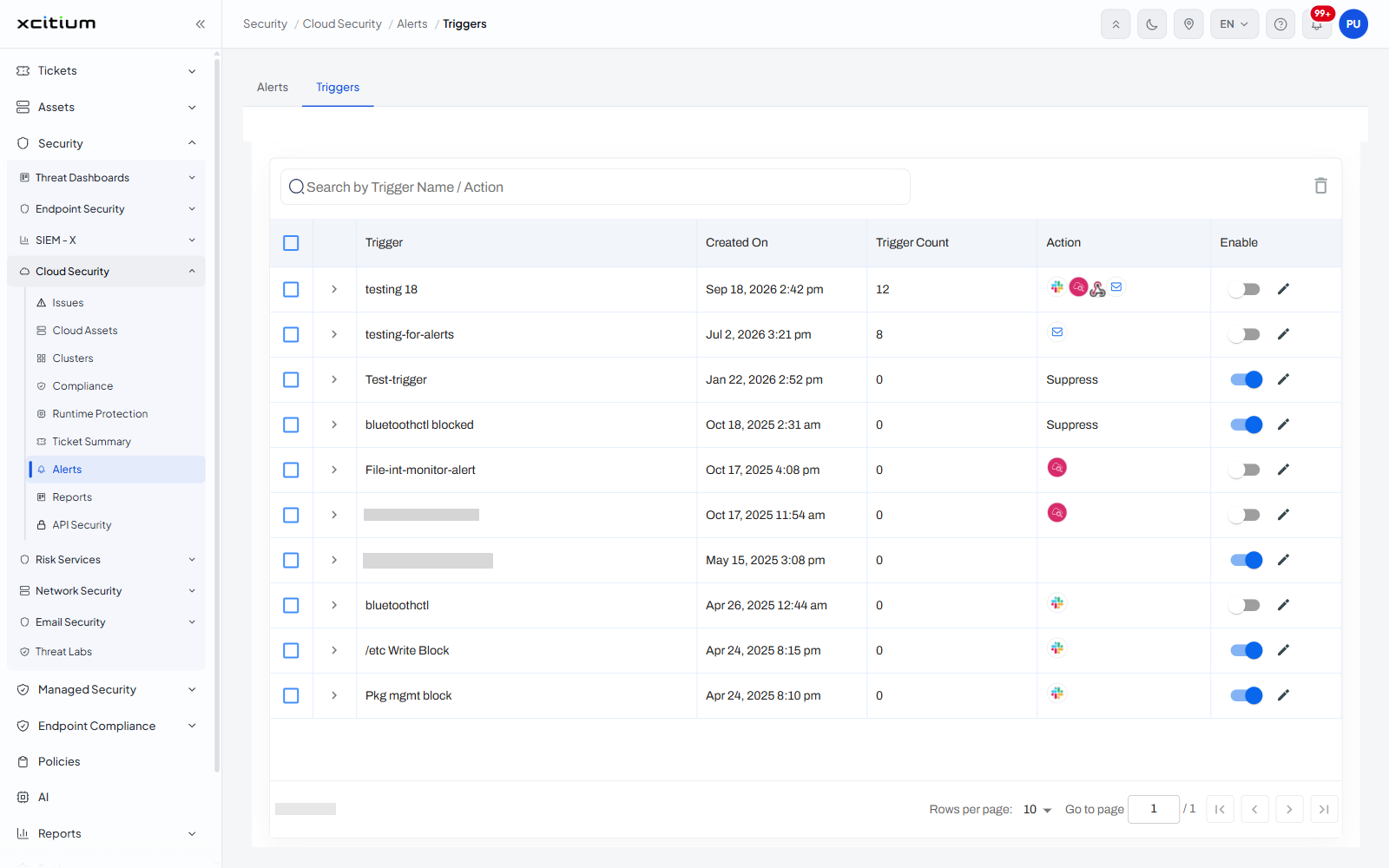
The interface
The 'Alerts' screen has two tabs: 'Alerts', the alert list it opens on, and 'Triggers', this tab. A search box runs the width of the panel with the placeholder 'Search by Trigger Name / Action', and a waste-bin icon sits at its right.
Column descriptions
| Column | Description |
| (check box) | Selects the trigger. A select-all check box sits in the header row. The waste-bin icon above the table acts on what you select. |
| (expander) | A chevron at the start of each row that opens the trigger's own detail. |
| Trigger | The name the trigger was saved under. |
| Created On | When it was created, as date and time. |
| Trigger Count | How many times it has fired. |
| Action | What it does with a matching alert. Triggers that forward the alert show the logo of each destination integration; triggers that silence it show the word 'Suppress'. The cell is empty on a trigger with no action set. |
| Enable | A switch showing whether the trigger is running, with a pencil beside it that opens the trigger for editing. |
Find a trigger
- Type part of the name, or of the action, into 'Search by Trigger Name / Action'.
- The list narrows as you type.
Turn a trigger off
- Find the trigger in the list.
- Click the switch in its 'Enable' column.
Edit a trigger
- Find the trigger in the list.
- Click the pencil at the end of its row.
Note: the 'Enable' switch, the pencil and the waste-bin icon all change live alerting.