


Edit a Ticket
- Open a ticket, then click 'Edit' on the ticket toolbar to open this interface.
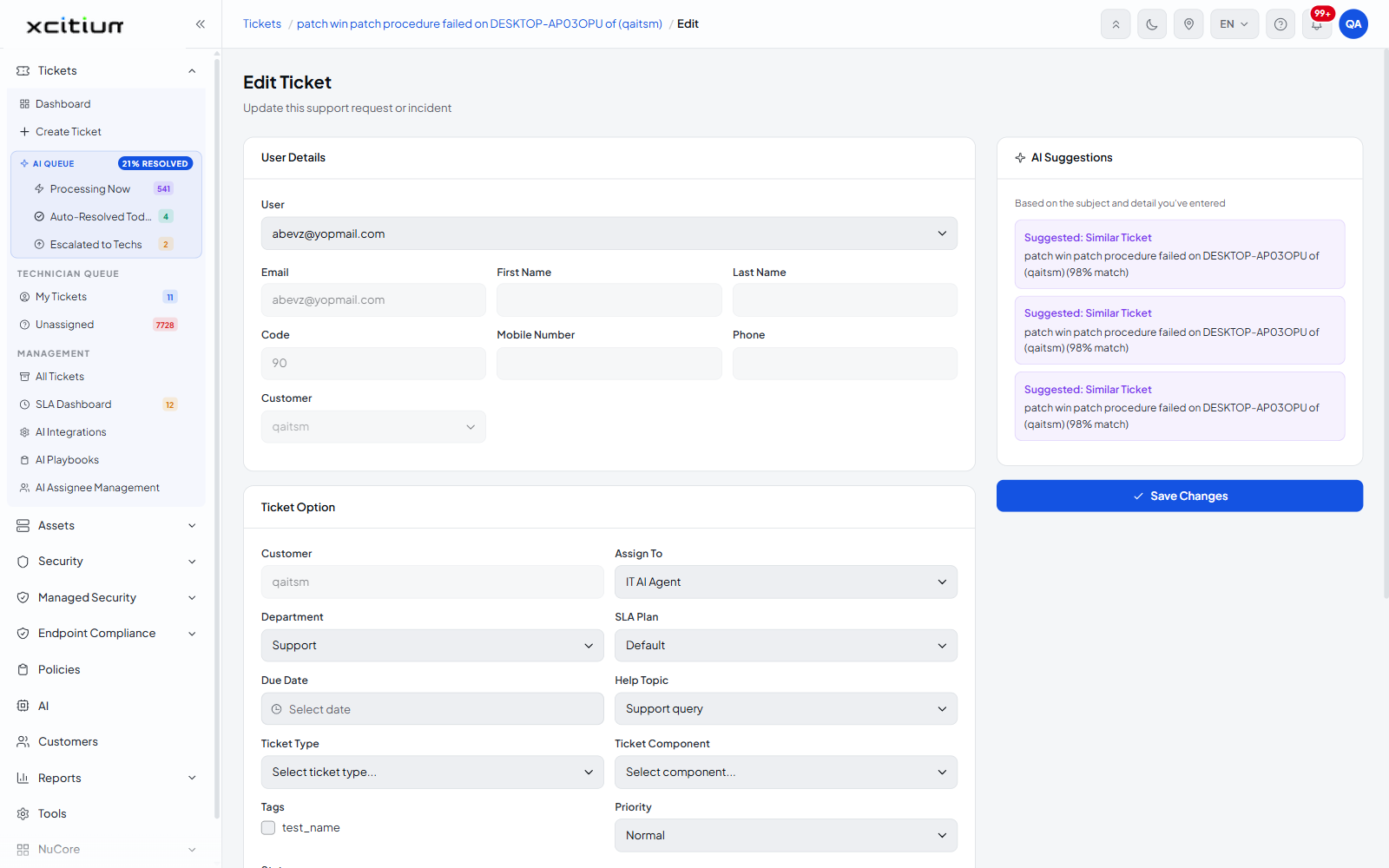
The Edit Ticket screen is the Create Ticket form loaded with the ticket's current values. Use it to correct the requester's details, change how the ticket is routed or classified, or move it to a different status.
You can change the reporter, the routing and SLA, the classification and tags, the priority and the status, the subject and description, and the attachments — then save the lot in one step.
How it differs from Create Ticket
The heading is 'Edit Ticket' with the line 'Update this support request or incident'. The layout is the same — 'User Details', 'Ticket Option' and 'Ticket Detail' cards with an 'AI Suggestions' panel — with three differences:
- Every field is pre-filled with the ticket's current values.
- The 'Ticket Option' card carries an extra read-only 'Customer' field showing the customer the ticket belongs to. It cannot be edited here.
- A 'Status' dropdown is present, which Create Ticket does not have.
- The submit button reads 'Save Changes' instead of 'Create Ticket'.
The User Details card
| Field | Type | Options / default | Required |
| User | Dropdown | Pre-selected to the ticket's reporter. Lists every user in the account. | No |
| Text (email) | Pre-filled with the reporter's address. | No | |
| First Name | Text | Pre-filled if known. | No |
| Last Name | Text | Pre-filled if known. | No |
| Code | Text | Pre-filled with the dial code. | No |
| Mobile Number | Text | Pre-filled if known. | No |
| Phone | Text | Pre-filled if known. | No |
| Customer | Dropdown | Pre-selected to the ticket's customer. | No |
The Ticket Option card
| Field | Type | Options / default | Required |
| Customer | Text, read-only | Shows the ticket's customer. Disabled. | — |
| Assign To | Dropdown | Pre-selected to the current assignee. Lists 'Select an agent...' plus every technician, including 'IT AI Agent'. | No |
| Department | Dropdown | Pre-selected to the current department. Lists 'Select a department...' plus the departments configured in your account. | |
| SLA Plan | Dropdown | Pre-selected to the current SLA plan. Lists 'Select SLA plan...' plus the plans configured in your account. | No |
| Due Date | Date picker | Pre-filled if a due date is set, otherwise empty with the placeholder 'Select date'. | No |
| Help Topic | Dropdown | Pre-selected to the current help topic. Lists 'Select help topic...' plus the topics configured in your account. | No |
| Ticket Type | Dropdown | Pre-selected if set, otherwise 'Select ticket type...'. Lists the ticket types configured in your account. | No |
| Ticket Component | Dropdown | Pre-selected if set, otherwise 'Select component...'. Lists the components configured in your account. | No |
| Tags | Checkboxes | One checkbox per tag configured in your account, ticked where the tag is applied. | No |
| Priority | Dropdown | Pre-selected to the current priority. Options: 'Select priority...', 'Low', 'Normal', 'High', 'Critical'. | No |
| Status | Dropdown | Pre-selected to the current status. Options: 'Select status...', 'Open', 'Resolved', 'Closed', 'Archived', 'Deleted', 'Unverified', 'Request Approval', 'Reject'. | No |
The Ticket Detail card
| Field | Type | Options / default | Required |
| Subject | Text | Pre-filled with the current subject. | Yes |
| Detail | Rich-text editor | Pre-filled with the current description. Same toolbar as Create Ticket. | No |
| Attachments | File drop zone | 'Drop files here or click to browse', with the hint 'Max 5MB per file · PNG, JPG, PDF, ZIP, LOG supported'. | No |
The AI Suggestions panel
On an existing ticket the panel is usually populated. Each card reads 'Suggested: Similar Ticket', names the matching ticket and gives a match percentage, for example '(98% match)'. Click a card to open the suggestion.
Edit a ticket
- Open the ticket from any ticket list.
- Click 'Edit' on the ticket toolbar. The Edit Ticket screen opens.
- Change the fields you need.
- To move the ticket to another state, set the 'Status' dropdown.
- Click 'Save Changes'.
Note: 'Status' here is the only place to reach states such as 'Archived', 'Unverified', 'Request Approval' and 'Reject'. The 'Actions' card on the ticket covers only resolve, close and reopen.