


Reassign a Ticket
Open a ticket and click '👤 Reassign Ticket' in the 'Actions' card on the right of the page.
Reassigning moves the ticket into another technician's name, or hands it to the AI service agent. The control expands in place inside the 'Actions' card rather than opening a dialog.
You can pick the new assignee, apply the change, or cancel out and leave the ticket where it is.
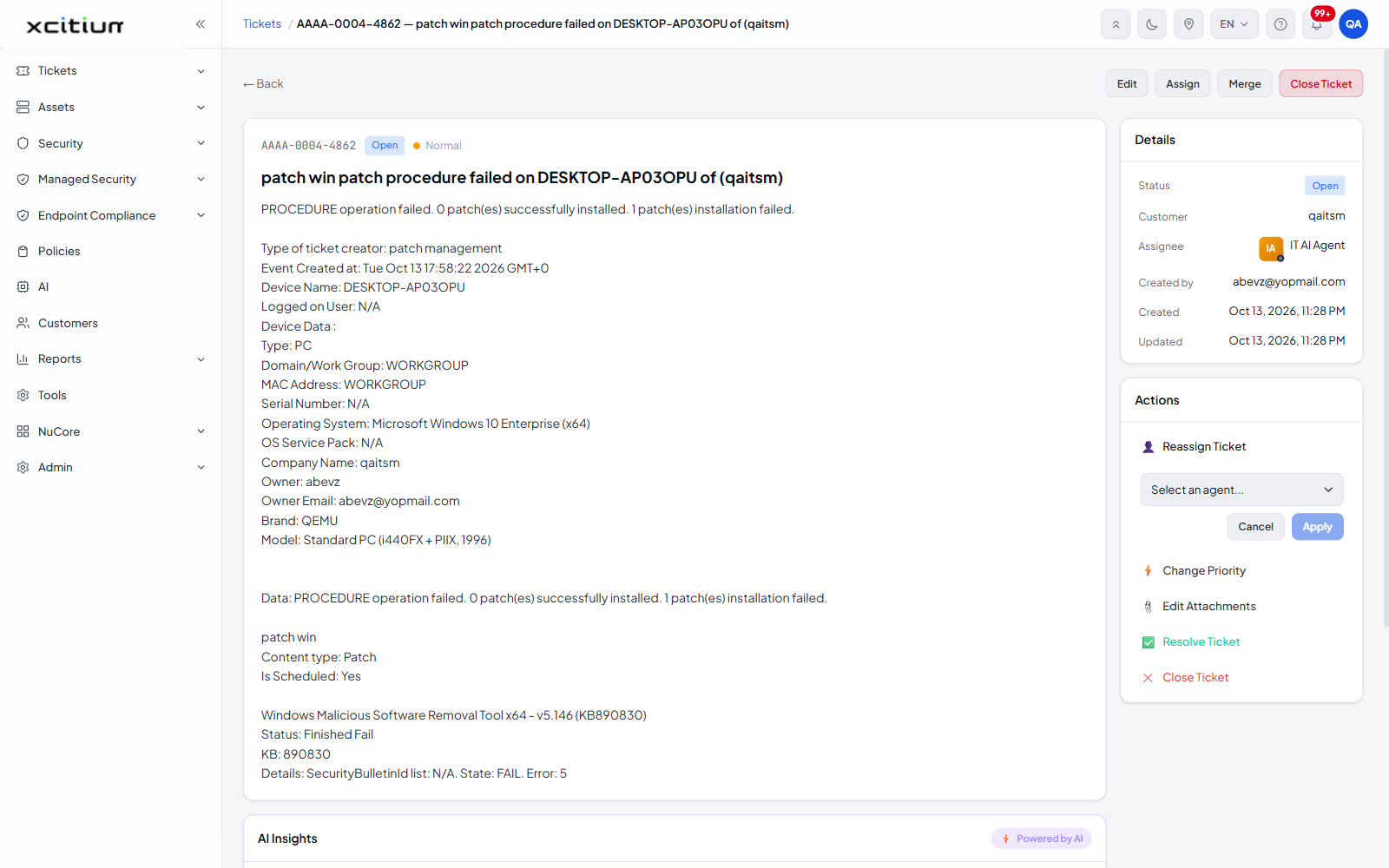
The fields
| Field | Type | Options / default | Required |
| Assignee | Dropdown | 'Select an agent...' by default, followed by one entry per technician in the account, including 'IT AI Agent'. | Yes |
The buttons
| Button | Description |
| Cancel | Collapses the control and leaves the assignee unchanged. |
| Apply | Applies the new assignee. |
Reassign a ticket
- Open the ticket from any ticket list.
- In the 'Actions' card, click '👤 Reassign Ticket'. A dropdown appears below the action with 'Cancel' and 'Apply' buttons.
- Open the dropdown and choose the technician — or choose 'IT AI Agent' to hand the ticket back to the AI.
- Click 'Apply'.
The 'Assignee' row in the 'Details' card updates, and an entry is written to the activity trail recording the change.
Note: to assign a ticket that nobody holds yet, the Unassigned Tickets queue is quicker — it shows the AI's recommended technician and its reasoning before you choose.