


Set the Enrollment Options
Open the enrollment wizard. Step 1, 'Enrollment Options', is where you make every choice that shapes the installer.
The form changes with the operating system you pick: Windows offers the most options, macOS swaps in a method choice, Linux offers a distribution list, and iOS and Android offer only the device-name options.
You can set who the device belongs to, its operating system, whether to protect it as well as enroll it, which client versions go on, the configuration profile, the reboot behaviour and the name it appears under.
Set Enrollment Type
| Option | Description |
| Enroll by customer | The device is enrolled against a customer. This is the default. Shows the 'Specify Customer' box. |
| Enroll by user | The device is enrolled against a named user. Shows the 'Specify User' box. |
Specify Customer or Specify User
| Field | Type | Options / default |
| Specify Customer | Token box | Pre-filled with your current customer, with the helper line 'You can change your current customer'. Each token has an x to remove it. |
| Specify User | Token box | Pre-filled with the signed-in user, with the helper line 'You can change your current user on another or create a new'. A 'Create New User' button sits beside it. |
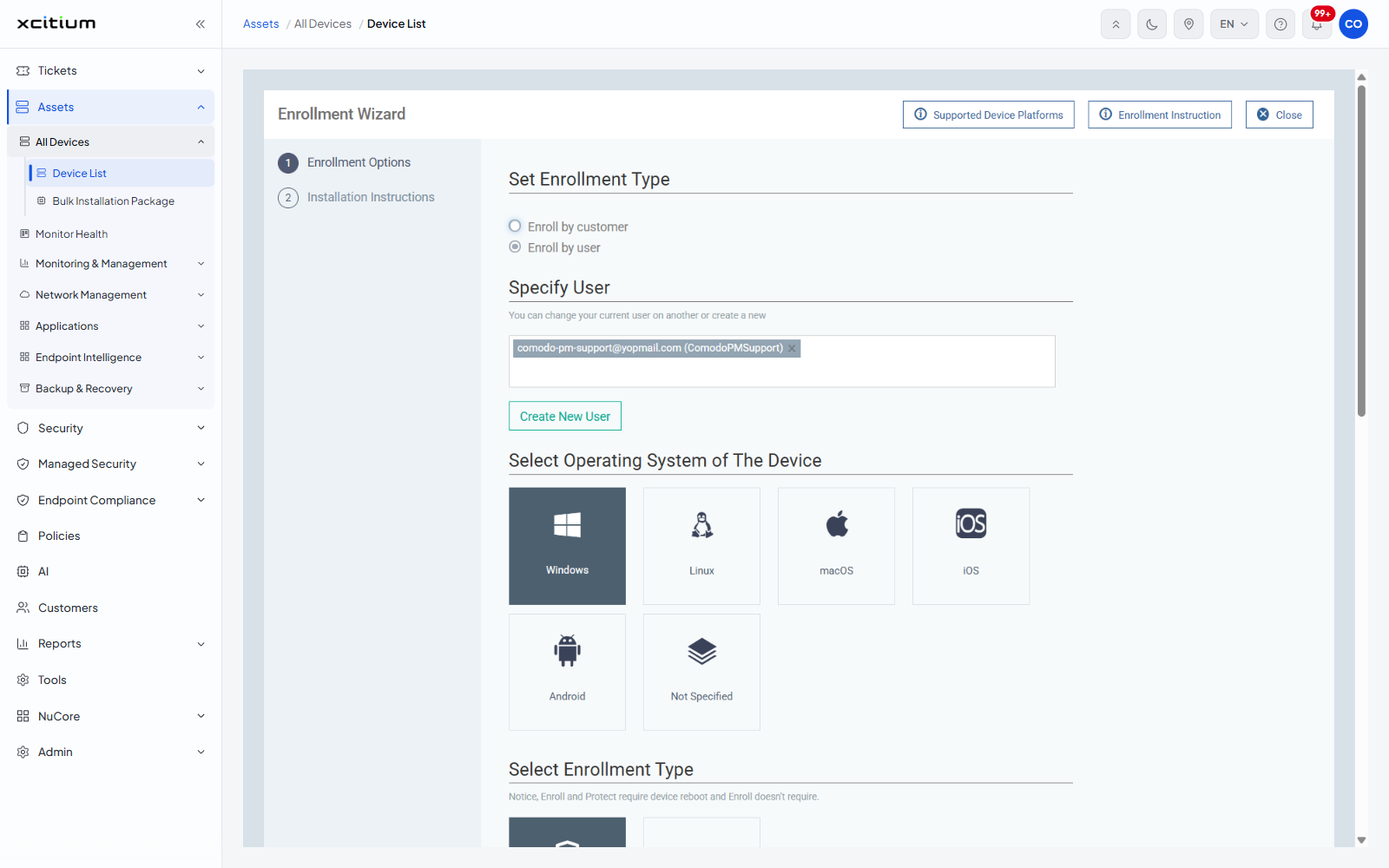
Select Operating System of The Device
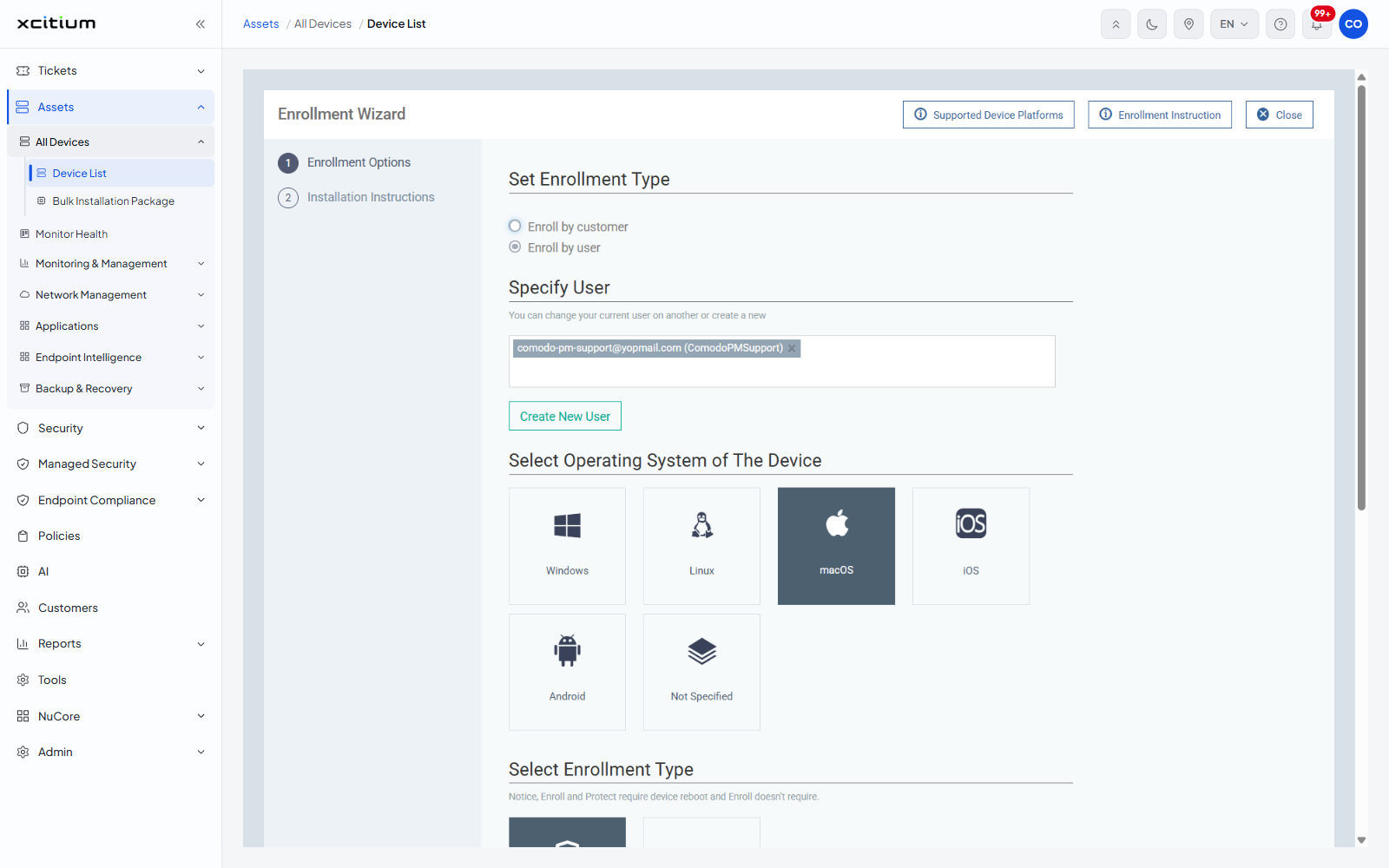
Six tiles: 'Windows' (the default), 'Linux', 'macOS', 'iOS', 'Android' and 'Not Specified'. What appears below depends on which you pick.
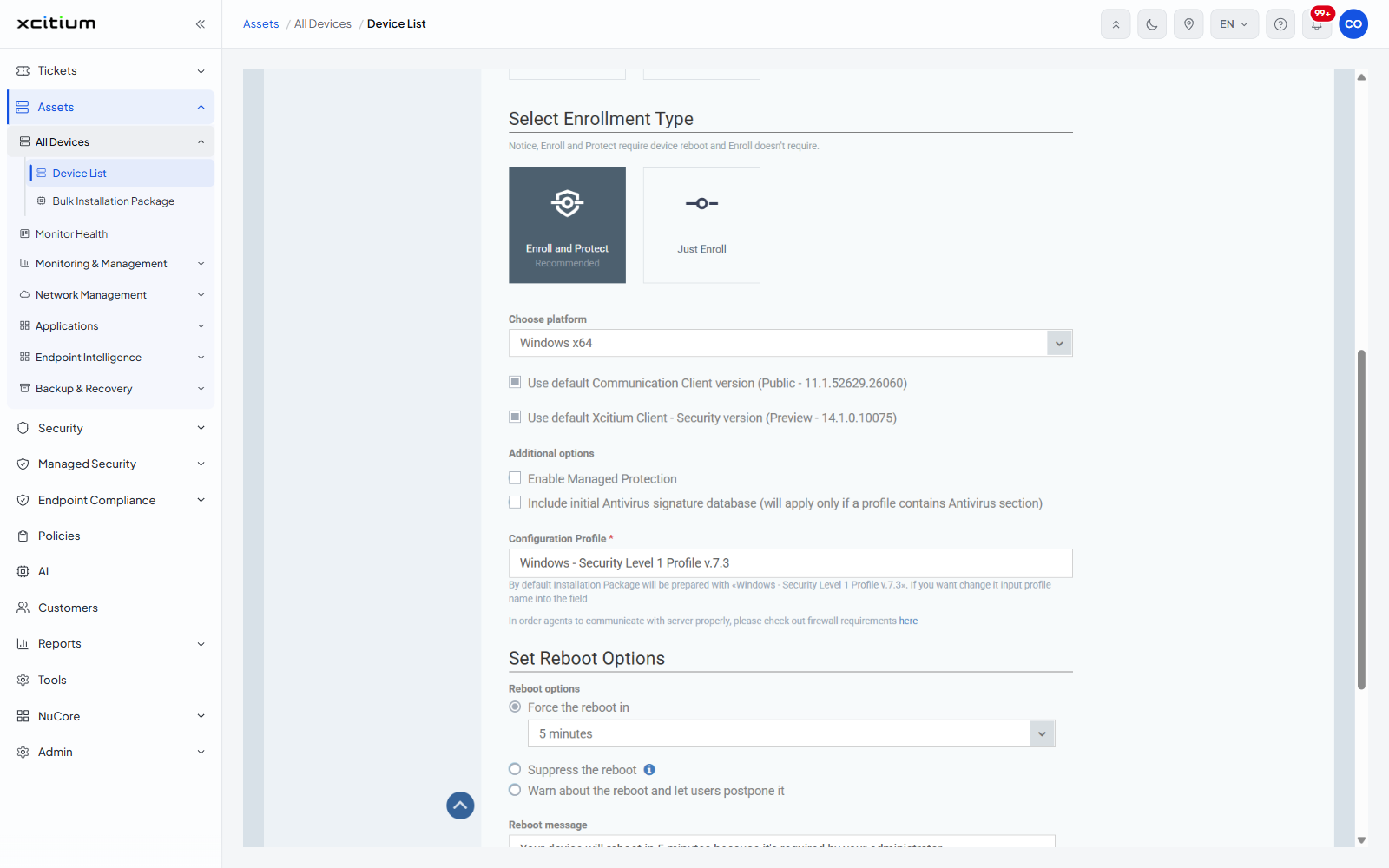
Select Enrollment Type
Shown for Windows, Linux and macOS, under the note 'Notice, Enroll and Protect require device reboot and Enroll doesn't require.'
| Tile | Description |
| Enroll and Protect | Installs the communication client and the security client. Marked 'Recommended'. This is the default. |
| Just Enroll | Installs the communication client only, and needs no reboot. |
The Windows options
| Field | Type | Options / default | Required |
| Choose platform | Dropdown | 'Windows x64' (the default) and 'Windows ARM64'. | No |
| Use default Communication Client version | Checkbox | Ticked by default, and names the default build. Clearing it reveals a dropdown listing the public build, the preview build and every released build with its date. | No |
| Use default Xcitium Client - Security version | Checkbox | Ticked by default, and names the default build. Clearing it reveals the same kind of version dropdown. | No |
| Enable Managed Protection | Checkbox | Clear by default. Under 'Additional options'. | No |
| Include initial Antivirus signature database | Checkbox | Clear by default. The full label adds '(will apply only if a profile contains Antivirus section)'. | No |
| Configuration Profile | Text | Pre-filled with the default profile. The helper line explains that you can type another profile name to use it instead. | Yes |
A line below the profile links to the firewall requirements the agent needs in order to reach the server.
The macOS options
macOS shows a notice that the latest security client does not support versions installed before macOS 12.x, then a 'Select Method' section under the note 'With MDM profile you will be able to manage Certificate, Restrictions, VPN and Wi-Fi sections of the profiles.'
| Option | Description |
| with MDM profile (recommended) | Enrolls with the MDM profile, which allows the certificate, restrictions, VPN and Wi-Fi sections of a profile to be managed. |
| without MDM profile | Enrolls without it. Those profile sections cannot then be managed. |
The Linux options
Linux shows a 'Choose platform' dropdown with four entries: 'Ubuntu (18.x+) / Debian (10.x+) with GUI', 'Ubuntu (18.x+) / Debian (10.x+) without GUI', 'RHEL (7.x+) / CentOS (7.x+) with GUI' and 'RHEL (7.x+) / CentOS (7.x+) without GUI'.
Set Reboot Options
Shown for Windows.
| Option | Description |
| Force the reboot in | Reboots after a delay you choose. This is the default. The dropdown beside it offers '5 minutes' (the default), '10 minutes', '15 minutes' and '30 minutes'. |
| Suppress the reboot | Does not reboot. Carries an information icon. |
| Warn about the reboot and let users postpone it | Warns the user and lets them delay it. |
| Reboot message | A textarea, pre-filled with the message the device owner sees before the reboot. |
Device Name Options
Shown for every platform, under a paragraph explaining that the name can be changed later from the device's own Device Name tab.
| Option | Description |
| Do Not Change | The device keeps its hardware name. This is the default. |
| Change | Enables a text box for the name the device should appear under. |
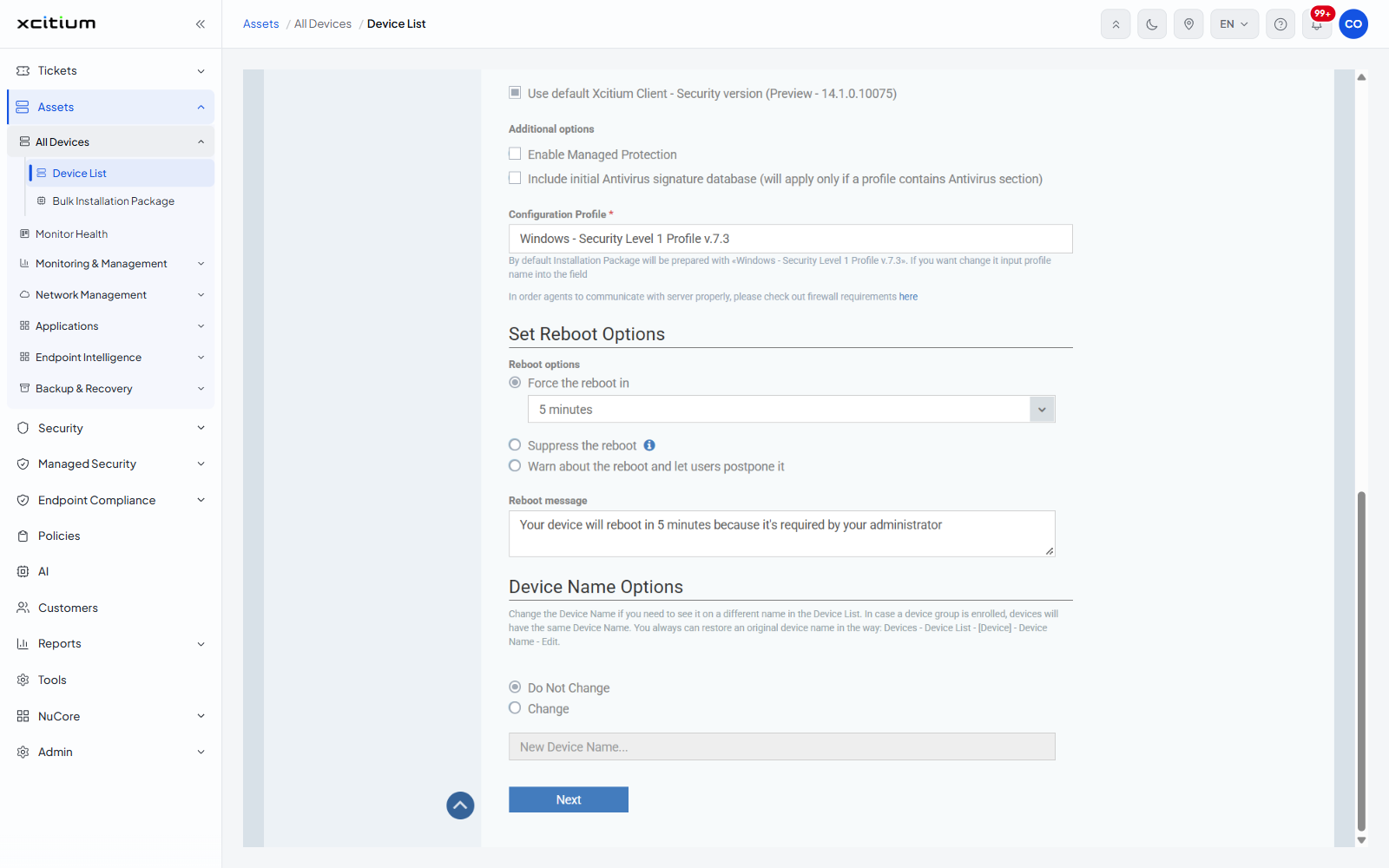
Click 'Next' to move to the installation instructions.
Note: if a device group is enrolled with a changed name, every device in it takes that same name.