


The Condition Editor
- Click 'Security' > 'Endpoint Security' > 'Alerts' > 'Alert Policy', click the policy bar to open a policy, then click the pencil at the end of any condition row.
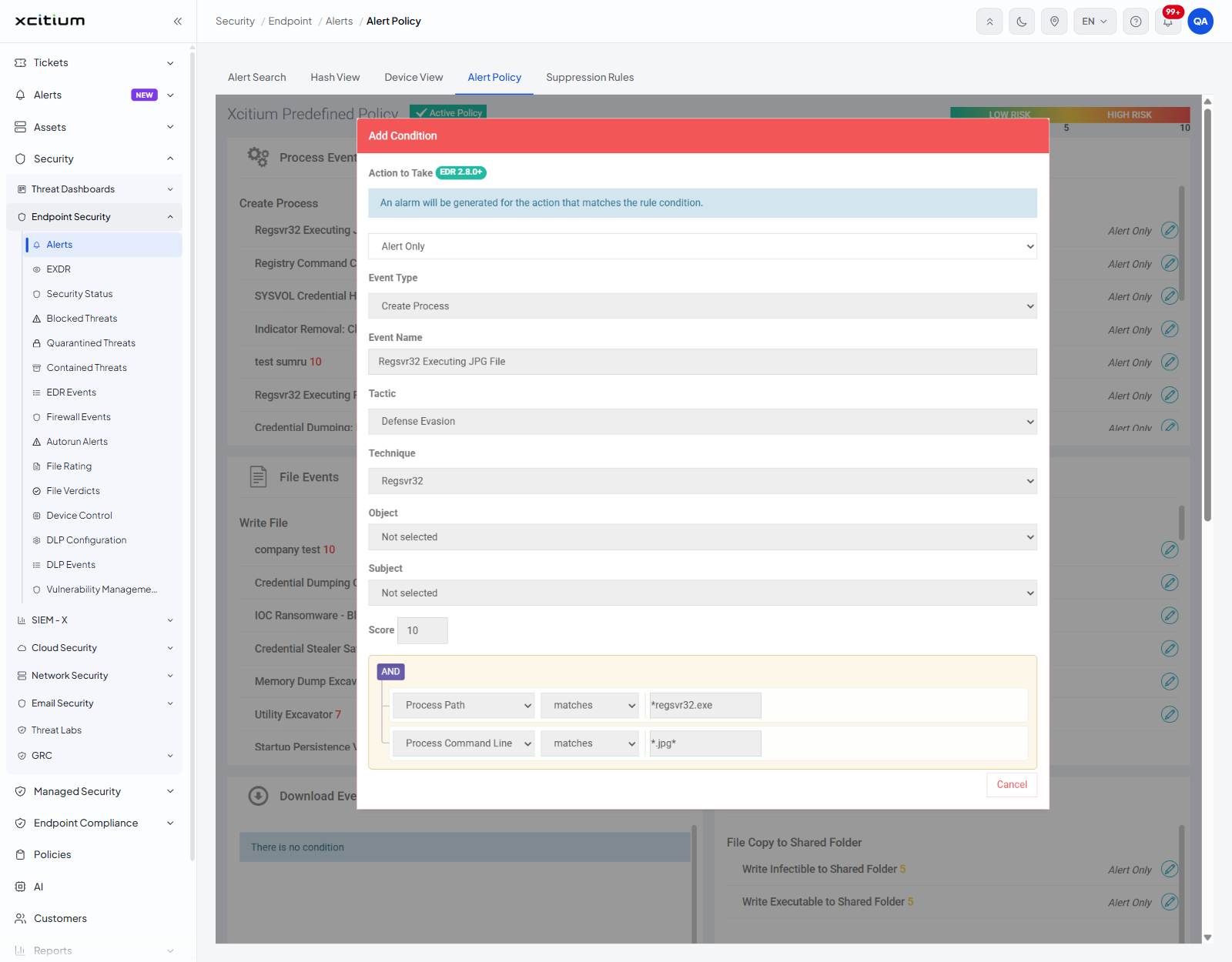
A condition is one rule inside an alert policy. It says which event to watch, what has to be true of that event, what score the resulting alert is given, which MITRE tactic and technique it maps to, and whether the activity is also stopped. The condition editor is the dialog where all of that is set. It is headed 'Add Condition' whether you are looking at an existing condition or adding a new one.
You can read every part of a condition, change the action it takes, and — on a policy of your own — change its score, its mapping and the test it applies.
The fields
| Field | Control | Options and default |
| Action to Take | Drop-down list | What the policy does when the condition matches. The options are '-- Choose Action --', 'Terminate and Alert' and 'Alert Only'. The heading carries a green badge reading 'EDR 2.8.0+', and a blue hint underneath reads 'An alarm will be generated for the action that matches the rule condition.' |
| Event Type | Drop-down list | The base event the condition watches, for example 'Create Process'. The list offers only the event type of the panel the condition sits in, so it cannot be moved to another panel. |
| Event Name | Text box | The name the alert will carry, for example 'Regsvr32 Executing JPG File' or 'Process Dump of Lsass'. Required. This is the name that appears in the 'Alert Name' column of the alert list and in the 'Alert Name' filter. |
| Tactic | Drop-down list | The MITRE ATT&CK tactic the alert maps to. The options are '-- Choose Tactic --' plus the fourteen tactics: 'Initial Access', 'Execution', 'Persistence', 'Privilege Escalation', 'Defense Evasion', 'Credential Access', 'Discovery', 'Lateral Movement', 'Collection', 'Exfiltration', 'Command and Control', 'Impact', 'Resource Development' and 'Reconnaissance'. |
| Technique | Drop-down list | The MITRE ATT&CK technique or sub-technique. Required. The list holds '-- Choose Technique --' plus the techniques and sub-techniques of the tactic you chose, so it changes whenever 'Tactic' changes — 'Credential Access', for example, offers 58 entries. |
| Object | Drop-down list | The thing the condition is about. The options are 'Not selected' (the default), 'File Hash', 'Device Name', 'Process Verdict', 'Destination Port', 'Registry Value Name', 'Registry Value Data', 'File Path', 'File Old Path' and 'Target Name'. |
| Subject | Drop-down list | The thing acting. The options are 'Not selected' (the default), 'File Hash', 'Registry Key Path', 'Process Verdict', 'File Path', 'Verdict', 'Source IP' and 'URL'. |
| Score | Number box | The score the alert is given, from 0 to 10. Required. 0 to 5 is a low-risk event and is printed in amber on the policy; 6 to 10 is a high-risk event and is printed in red. |
The condition builder
The lower half of the dialog is a builder on a pale panel. It holds one group, and the group holds one row for each test.
| Part | Description |
| AND / OR | A pair of options at the top left of the group, shown as a coloured badge. 'AND' means every row in the group must match; 'OR' means any one of them is enough. |
| Field | The first drop-down on a row. For a process condition the options are '------', 'Parent Process Path', 'Parent Process Verdict', 'Process Elevation Type', 'Process Path', 'Process Command Line' and 'Process Verdict'. Other event panels offer the fields of their own events. |
| Operator | The second drop-down on a row. The options are 'matches', "doesn't match", 'In' and 'Not In'. |
| Value | The text box at the end of the row. An asterisk stands for any text, so '*regsvr32.exe' matches any path ending in regsvr32.exe and '*.jpg*' matches anything containing '.jpg'. |
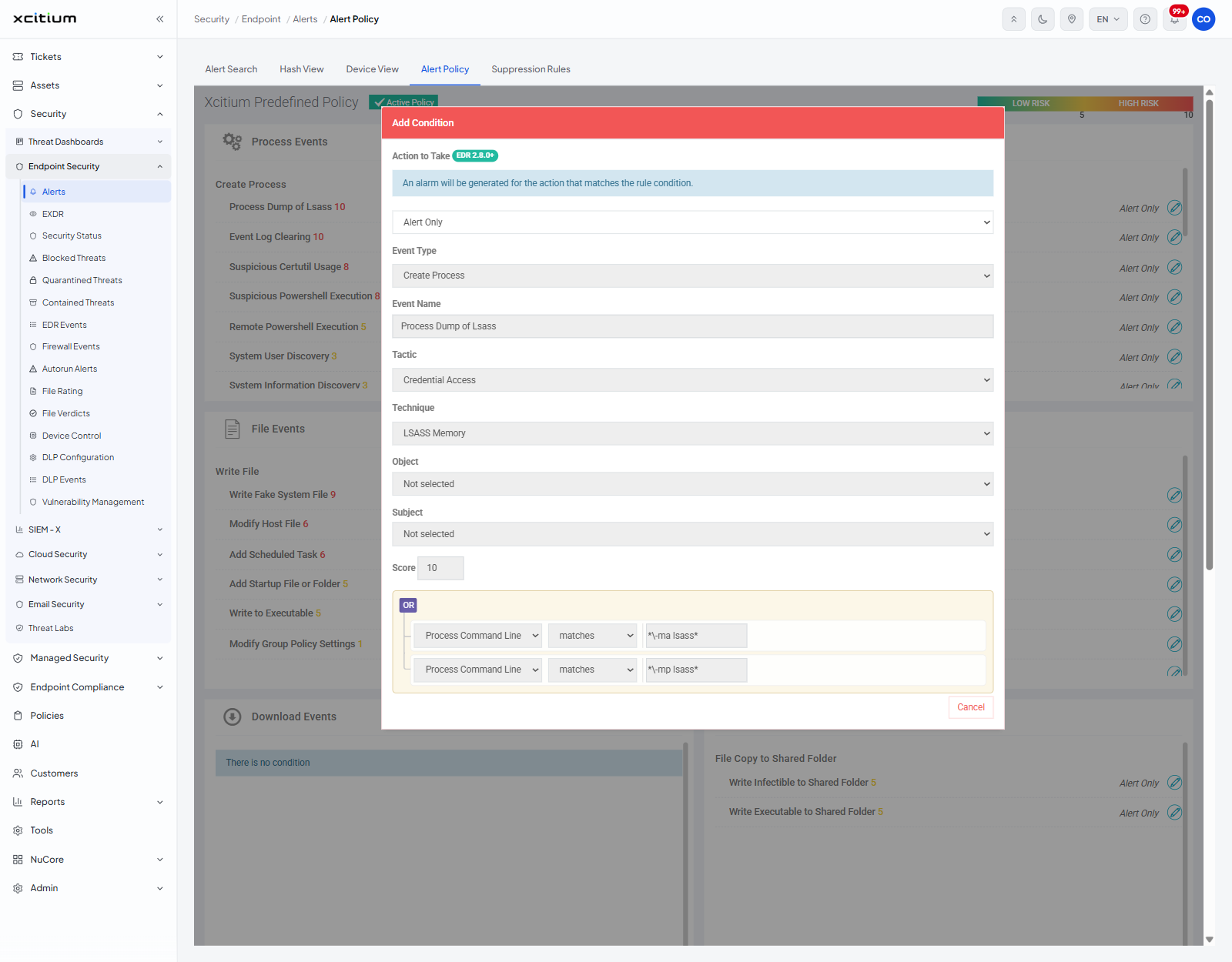
For example, the supplied condition 'Regsvr32 Executing JPG File' is an 'AND' group of two rows: 'Process Path matches *regsvr32.exe' and 'Process Command Line matches *.jpg*'. The condition 'Process Dump of Lsass' is an 'OR' group of 'Process Command Line matches *-ma lsass*' and 'Process Command Line matches *-mp lsass*'.
Read a condition
- Open the policy from the 'Alert Policy' tab.
- Find the condition in its event panel, under its group heading.
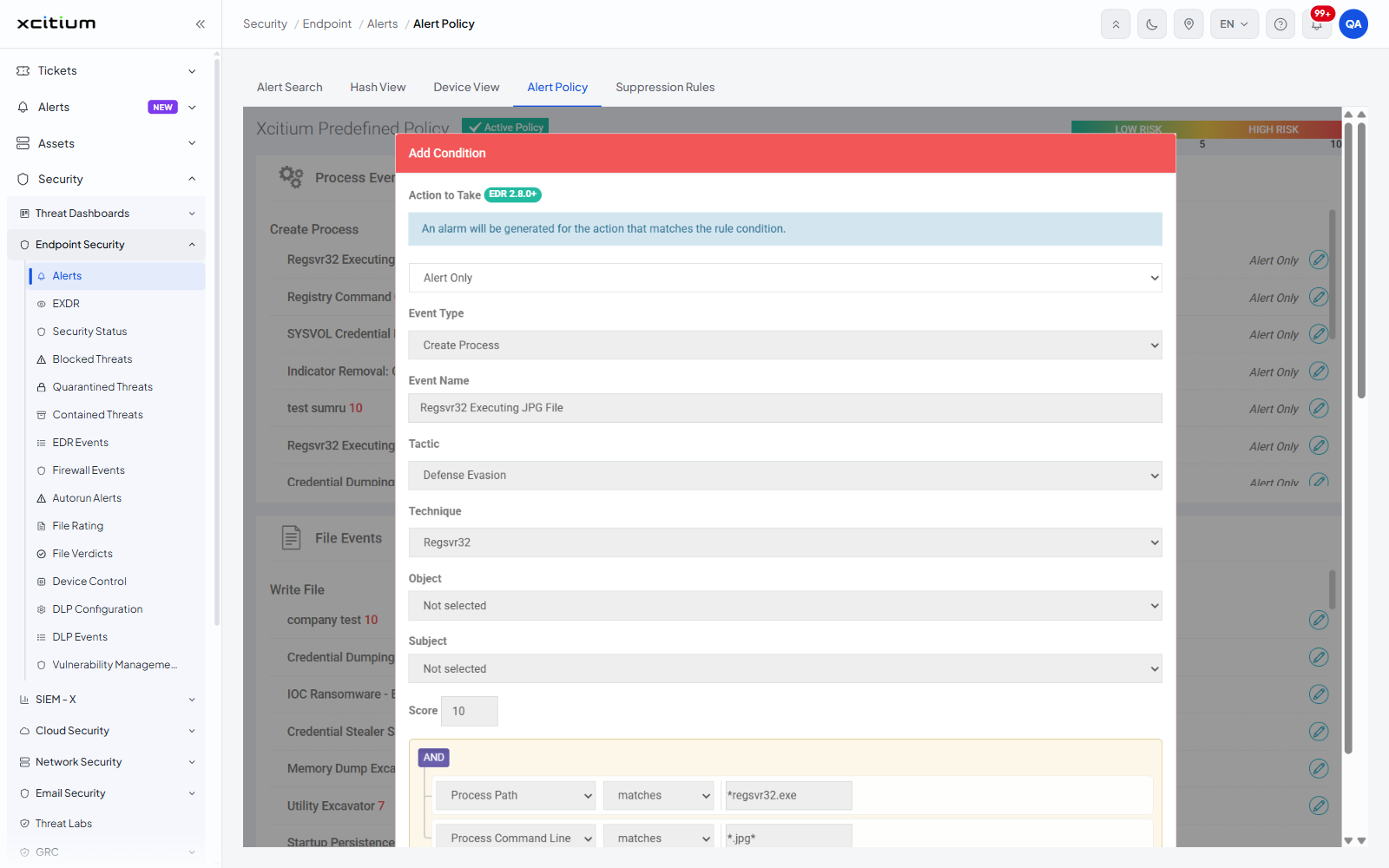
- Click the pencil at the end of the row. The 'Add Condition' dialog opens with that condition loaded.
- Read the fields and the builder rows.
- Click 'Cancel' to close the dialog.
How to tell a supplied policy from your own
When you open a condition of a policy that was supplied with the product, every field is greyed out except 'Action to Take', and the dialog offers no save control at all — 'Cancel' is the only button. A condition in a policy you created yourself is editable and offers a control to save it.