


Generated Reports
- Click 'Reports' > 'Custom Reports' > 'Standard' > 'Generated Reports' to open this interface.
'Generated Reports' lists every file produced from the report catalogue, by anybody on the account, newest first. This is where you collect a report after you have generated it.
You can filter the list by name, file type and status, change how many rows are shown, open a report's details, download a finished file, and delete reports you no longer need.
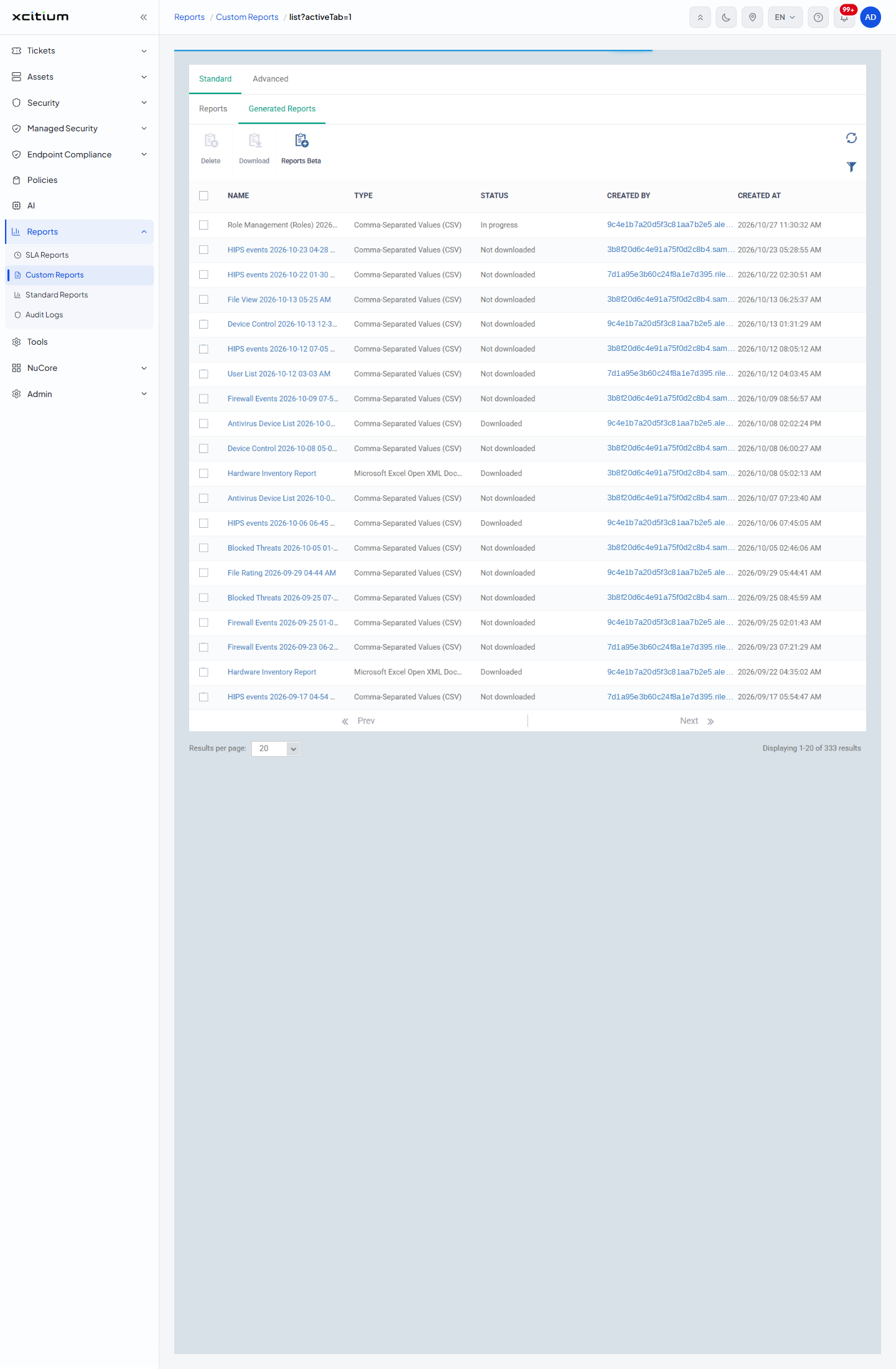
Column Descriptions
| Column | Description |
| (selection checkbox) | The leftmost column. Tick a row to select the report; the header checkbox takes every row on the page. 'Delete' and 'Download' act on the selection. |
| NAME | The report's file name, built from the report type and the date and time it was asked for, for example 'HIPS events 2026-10-23 04-28 AM'. Click it to open the report's details. |
| TYPE | The file format produced: 'Comma-Separated Values (CSV)', 'Microsoft Excel Open XML Document' or 'Portable Document Format (PDF)'. |
| STATUS | Where the report has got to: 'In progress' while it is still being built, 'Not downloaded' once it is ready but nobody has fetched it, 'Downloaded' once somebody has, and 'Failed' if it could not be produced. |
| CREATED BY | The e-mail address of the administrator who asked for the report, shown as a link to that user's account page. |
| CREATED AT | The date and time the report was asked for, to the second. |
Toolbar
| Control | Description |
| Delete | Removes the selected reports from the list. Greyed out until a row is ticked. |
| Download | Fetches the selected report file to your computer. Greyed out until a row is ticked. Downloading moves the row's 'STATUS' to 'Downloaded'. |
| Reports Beta | Switches to a preview of the next reporting console. |
| Table refresh | The circular-arrow icon at the top right. Re-reads the list, which is how you see a report's status change from 'In progress'. |
| Table filter | The funnel icon under the refresh icon. Opens and closes the filter panel. |
The Filter Panel
Click the funnel icon to slide the filter panel in from the right.
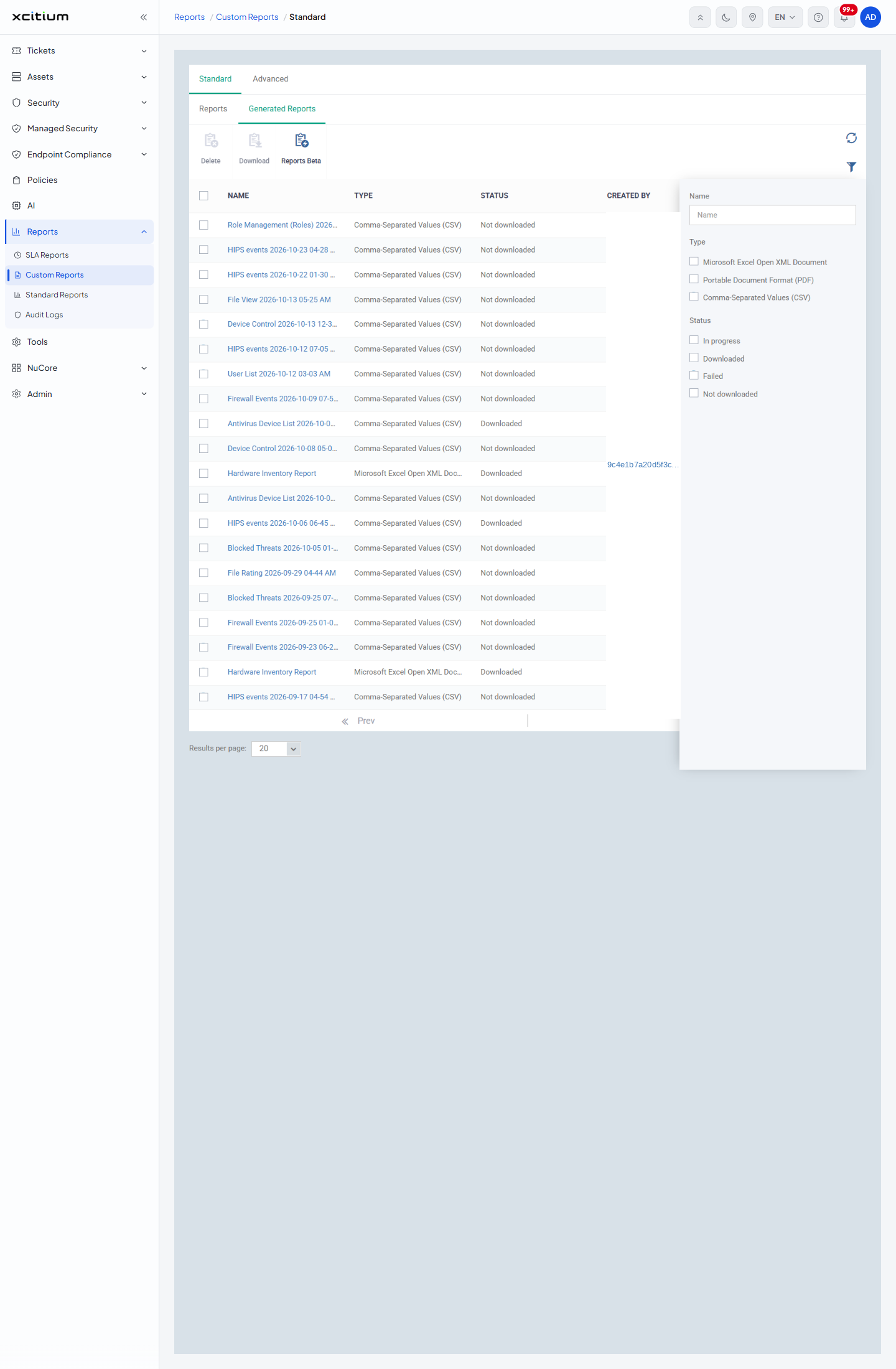
| Filter | Control | Options |
| Name | Text box, placeholder 'Name' | Free text matched against the report name. |
| Type | Three tick boxes | 'Microsoft Excel Open XML Document', 'Portable Document Format (PDF)', 'Comma-Separated Values (CSV)'. All cleared by default. |
| Status | Four tick boxes | 'In progress', 'Downloaded', 'Failed', 'Not downloaded'. All cleared by default. |
Collect a Finished Report
- Click 'Reports' > 'Custom Reports' and open the 'Generated Reports' sub-tab.
- Find the report. Open the filter panel and type part of its name into 'Name', or tick a 'Status' box, to shorten the list.
- Click the refresh icon if the report still reads 'In progress'.
- Tick the row and click 'Download'.
Delete Reports
- Tick each report you want to remove.
- Click 'Delete'.
Note: the list is shared. It shows reports produced by every administrator on the account, not only your own, so check the 'CREATED BY' column before you delete anything.