


Reports Beta: Scheduled Reports
- Click 'Reports' > 'Custom Reports' > 'Standard' > 'Generated Reports' > 'Reports Beta' > 'Scheduled Reports' to open this interface.
The 'Scheduled Reports' tab lists the recurring reports set up in the beta console. Each row produces a fresh report at its own frequency and tells you when the next one is due.
You can see what is scheduled, when each report next runs, and remove a schedule you no longer need.
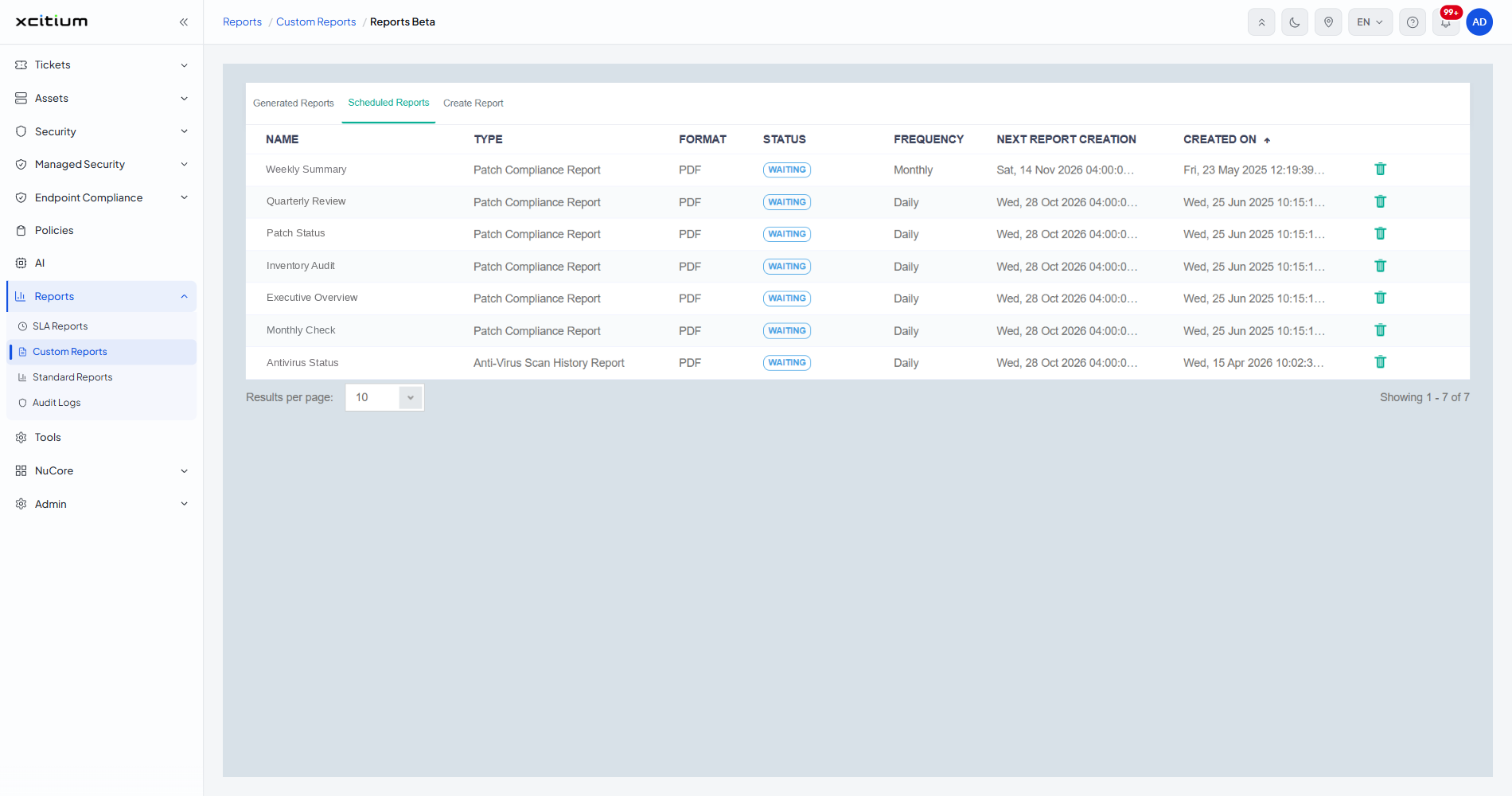
Column Descriptions
Every heading is sortable; click it to reorder the list. The list opens sorted on 'CREATED ON'.
| Column | Description |
| NAME | The name the schedule was created with. Every report it produces carries this name on the 'Generated Reports' tab. |
| TYPE | Which beta report type the schedule produces, for example 'Patch Compliance Report' or 'Anti-Virus Scan History Report'. |
| FORMAT | The output format, for example 'PDF'. |
| STATUS | A badge reading 'WAITING' while the schedule is waiting for its next run. |
| FREQUENCY | How often the report runs: 'Daily', 'Weekly' or 'Monthly'. |
| NEXT REPORT CREATION | The date and time the next report is due, written as a full date with the run time. |
| CREATED ON | When the schedule was set up, as a full date and time. |
| (actions) | The unnamed last column. A bin icon that removes the schedule. |
Check When a Report Next Runs
- Click 'Reports' > 'Custom Reports' and open the 'Generated Reports' sub-tab.
- Click 'Reports Beta', then the 'Scheduled Reports' tab.
- Read the 'NEXT REPORT CREATION' column. Click the heading to sort by it and bring the soonest to the top.
Remove a Schedule
- Find the schedule in the list.
- Click the bin icon at the end of its row.
Note: the bin acts on a single click. Check the 'NAME' and 'TYPE' of the row before you use it.
Note: the table is wider than the panel on a narrow window. Drag the horizontal scrollbar under the rows to reach 'CREATED ON' and the bin icon.