


Client Updates
- Open a Windows profile, then click the 'Client Updates' tab.
'Client Updates' controls how the communication client on the device updates itself and where it fetches update packages from. The section has two sub-tabs: 'Updates' and 'Download Servers'.
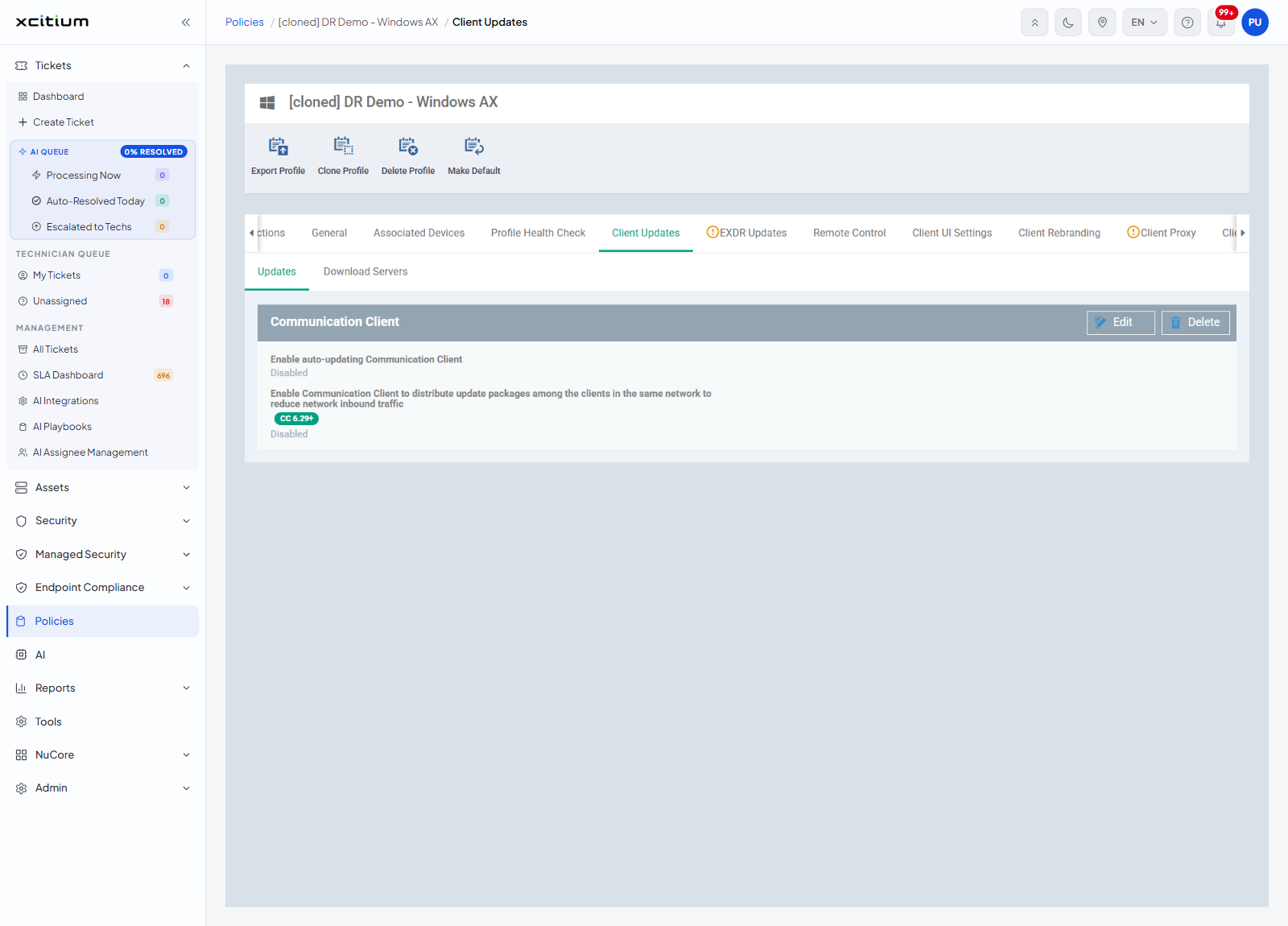
Updates
The panel is headed 'Communication Client' and carries 'Edit' and 'Delete' buttons.
| Setting | Description |
| Enable auto-updating Communication Client | Lets the communication client update itself without being told to. |
| Enable Communication Client to distribute update packages among the clients in the same network to reduce network inbound traffic | Lets one client pass update packages to the others on the same network instead of each one downloading its own. Carries the badge 'CC 6.29+'. |
Each setting reads 'Enabled' or 'Disabled' when the panel is shown read-only.
Download Servers
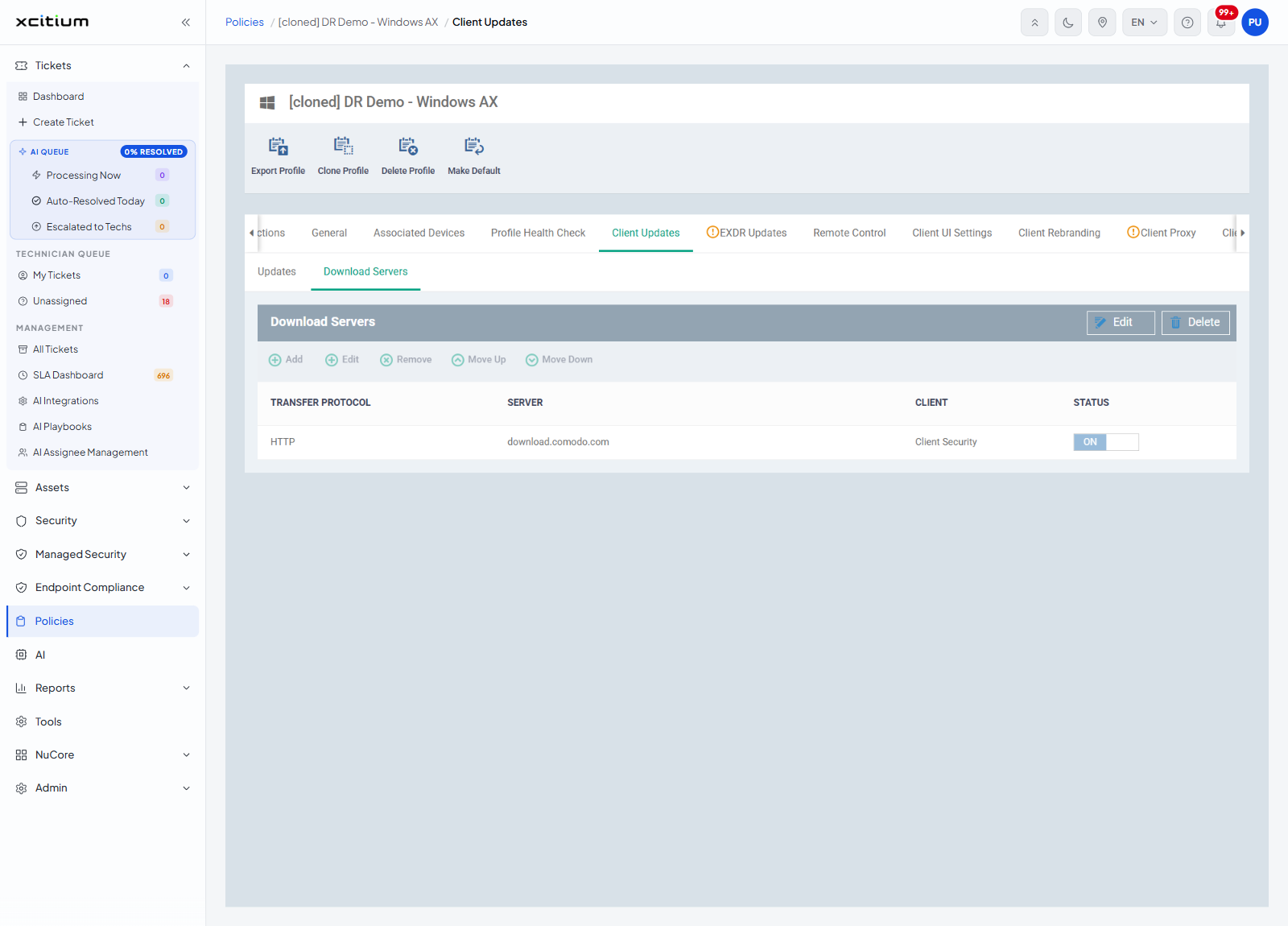
The sub-tab is headed 'Download Servers' and lists the servers the client fetches updates from, in the order it tries them.
| Button | Description |
| Add | Adds a server to the list. |
| Edit | Changes the selected server. |
| Remove | Takes the selected server off the list. |
| Move Up | Moves the selected server earlier in the order. |
| Move Down | Moves the selected server later in the order. |
| Column | Description |
| TRANSFER PROTOCOL | How the client reaches the server, 'HTTP' or 'HTTPS'. |
| SERVER | The address of the download server. |
| CLIENT | Which client the server serves. The entry reads, for example, 'Client Security'. |
| STATUS | An ON/OFF toggle that turns the server on or off without removing it. |
The Add Server dialog
'Add' is greyed out until you click 'Edit'. Once edit mode is on, 'Add' opens the 'Add Server' dialog. It is the same dialog the security client's section uses, and it is pictured under XCS Updates.
| Field | Control | Required |
| Transfer Protocol | Drop-down offering 'HTTP' and 'HTTPS'. It opens on 'HTTP'. | No |
| Host | Single-line text box for the address of the server. | Yes — marked with a red asterisk |
| Client | Drop-down offering 'Communication Client', 'Client Security' and 'Communication Client + Client Security'. It opens on 'Communication Client'. | No |
| Button | Description |
| Add | Puts the server on the list. |
| X (top right of the dialog) | Closes the dialog without adding anything. |
Add a download server
- Click 'Policies' in the left navigation bar and open the profile.
- Click the 'Client Updates' tab, then click 'Edit'.
- Click 'Download Servers', then click 'Add'.
- Choose 'HTTP' or 'HTTPS' in 'Transfer Protocol'.
- Type the address of the server in 'Host'.
- Choose which client the server serves in 'Client'.
- Click 'Add'.
- Use 'Move Up' and 'Move Down' to set the order the servers are tried in.
- Click 'Save'.
Set up client updating
- Click 'Policies' in the left navigation bar and open the profile.
- Click the 'Client Updates' tab.
- Click 'Edit' and set the two update options on the 'Updates' sub-tab.
- Click 'Download Servers' and add, order or switch off servers as you need.
- Click 'Save'.
Note: the security client has its own update settings in a separate section. See XCS Updates.
Note: the EXDR client has its own update setting too. See EXDR Updates.