


Add a Maintenance Window
- Click 'Assets' > 'Monitoring & Management' > 'Maintenance Windows', then click 'Add Window' on the toolbar.
The Maintenance Window dialog has two tabs. 'General' sets when the window opens and closes; 'Settings' sets what may be done outside it.
You can give the window a name, choose how it recurs, and set the hours it covers.
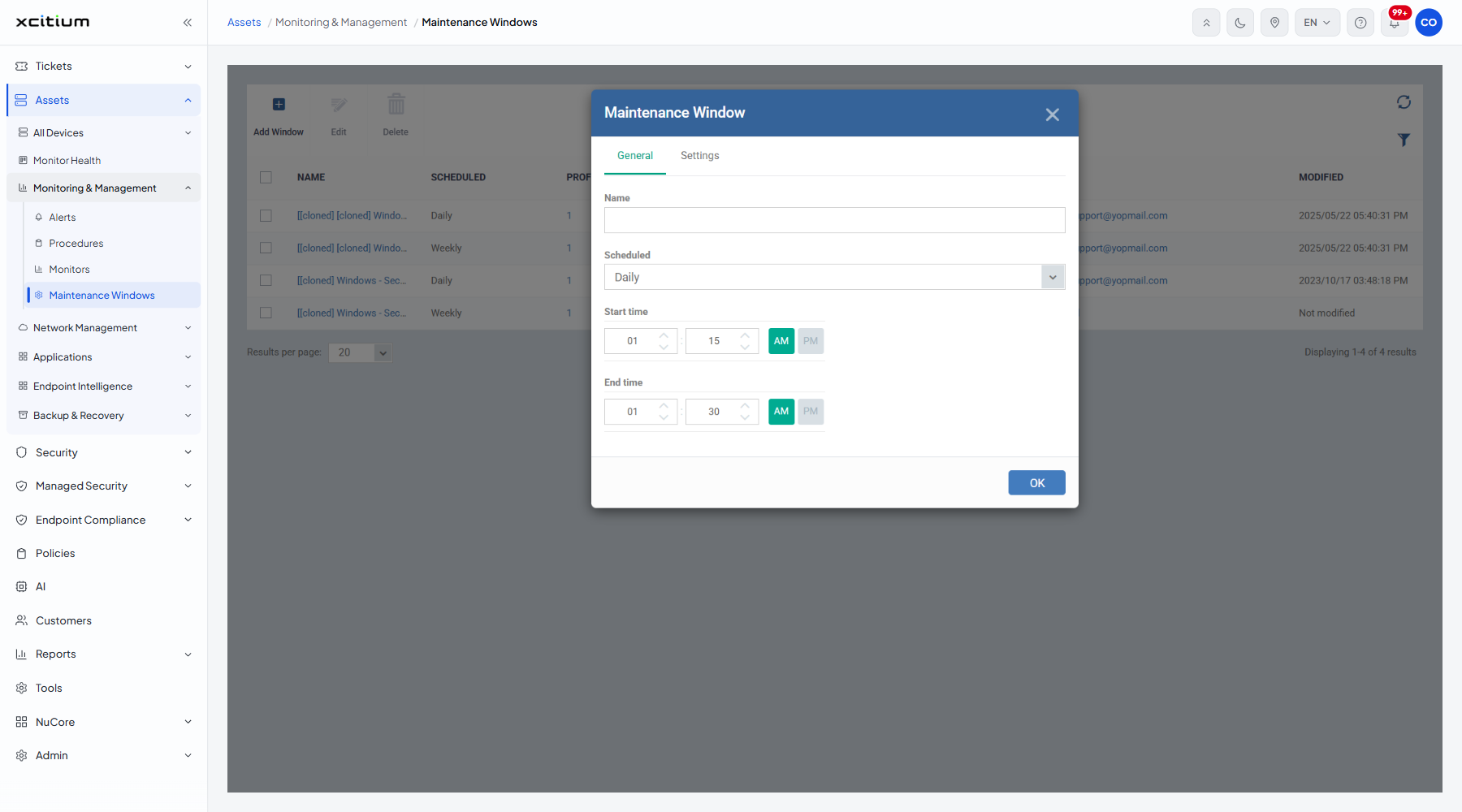
The dialog has one button, 'OK'. The two tabs are 'General' (the default) and 'Settings'; see Maintenance Window Settings for the second.
The General tab
| Field | Type | Options / default | Required |
| Name | Text box | Empty by default. | No |
| Scheduled | Dropdown | 'Daily' (default), 'Weekly', 'Monthly', 'Week of Month'. | No |
| Start time | Hour and minute boxes with an AM / PM toggle | Defaults to 01 : 15 AM. | No |
| End time | Hour and minute boxes with an AM / PM toggle | Defaults to 01 : 30 AM. | No |
The day pickers
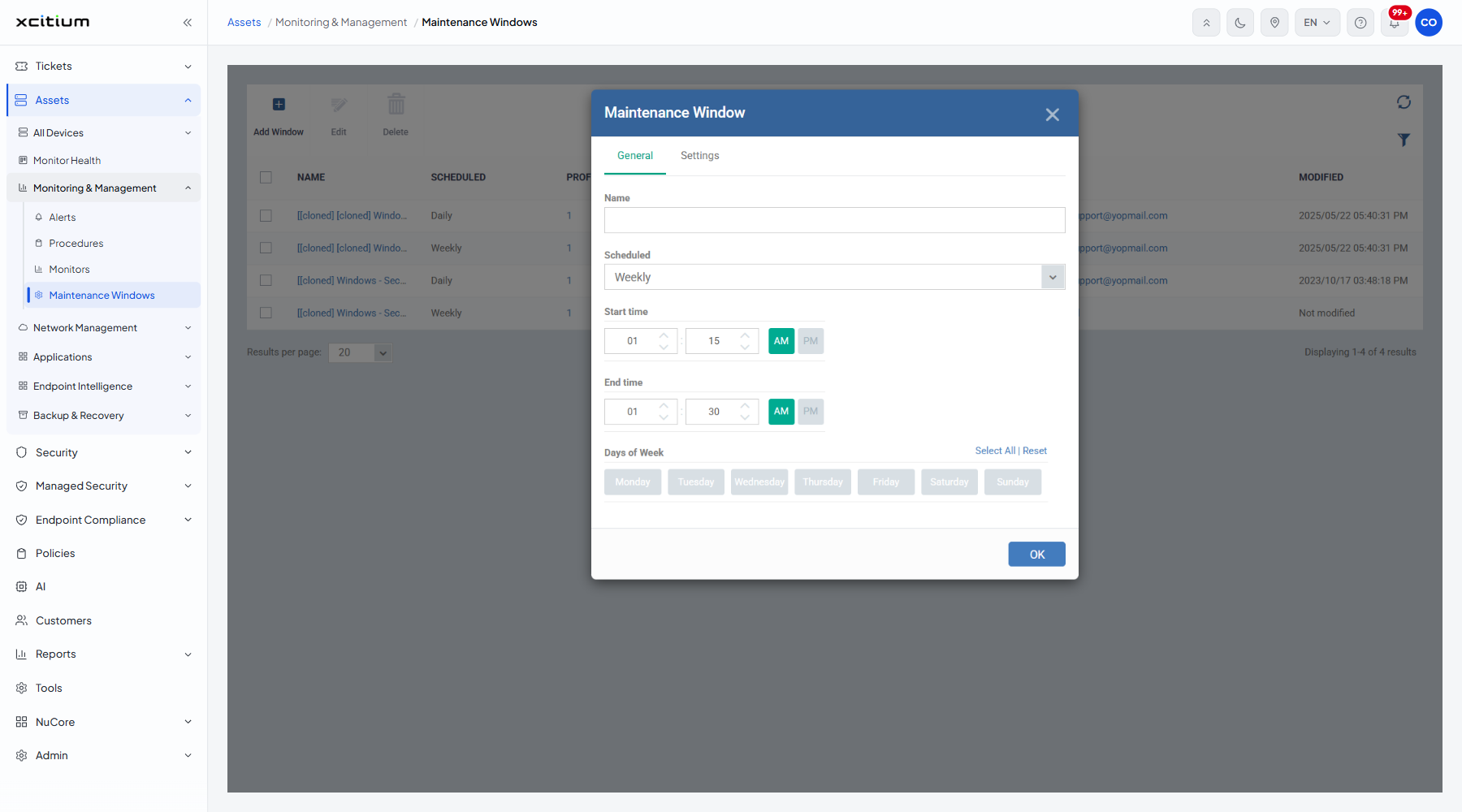
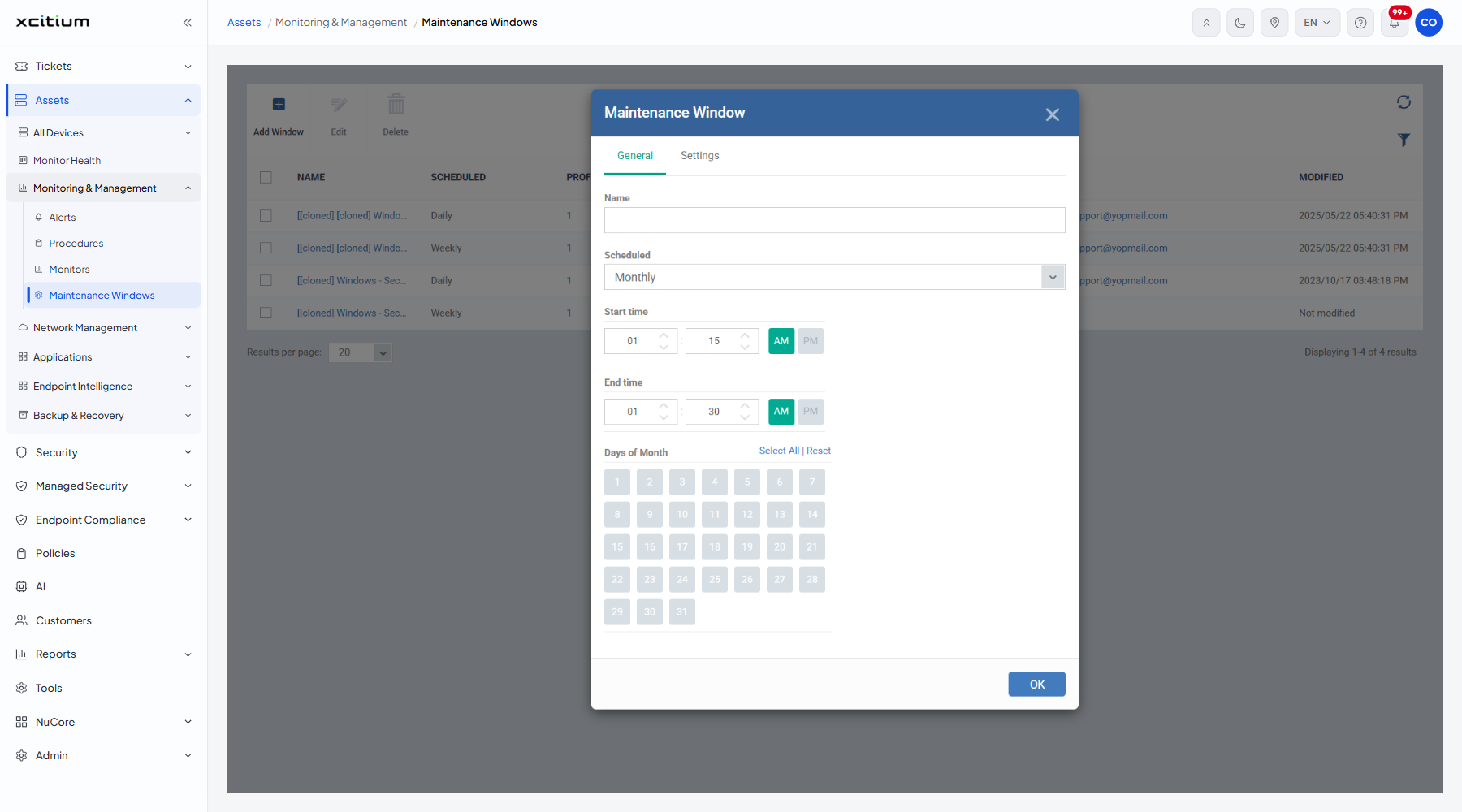
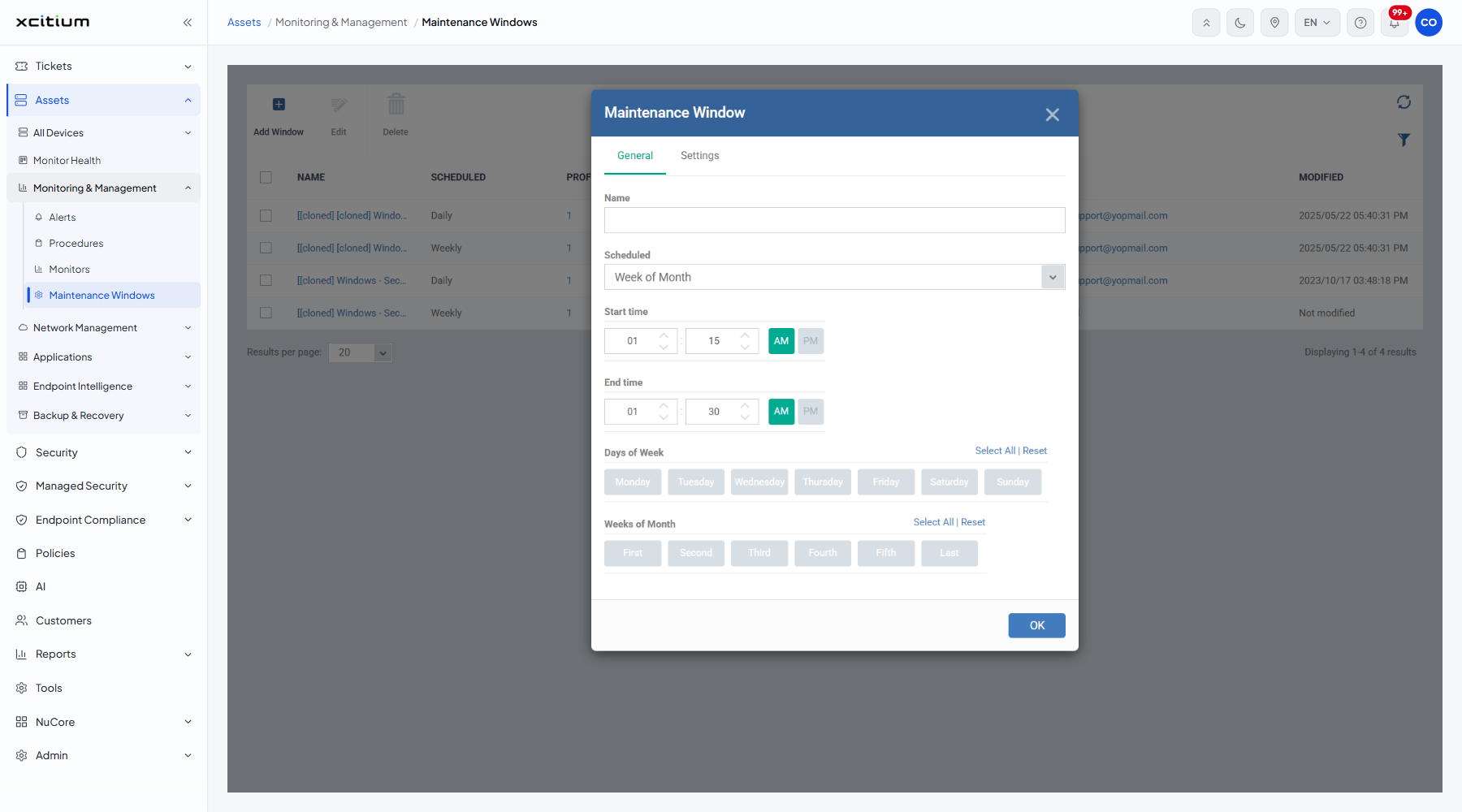
What you choose in 'Scheduled' decides which day pickers appear below the times. Each picker carries a 'Select All | Reset' pair above its buttons.
| Scheduled | Pickers added |
| Daily | None. The window opens every day between the two times. |
| Weekly | Days of Week — the buttons Monday, Tuesday, Wednesday, Thursday, Friday, Saturday, Sunday. |
| Monthly | Days of Month — the buttons 1 to 31. |
| Week of Month | Both a 'Days of Week' block and a Weeks of Month block with the buttons First, Second, Third, Fourth, Fifth, Last. |
Add a maintenance window
- Click 'Assets' > 'Monitoring & Management' > 'Maintenance Windows'.
- Click 'Add Window'.
- Type a name into 'Name'.
- Choose how often the window recurs in 'Scheduled'.
- Set the hours in ‘Start time’ and ‘End time’, remembering the AM / PM toggle.
- Click the days or weeks in whichever pickers appeared.
- Open the 'Settings' tab and set what may be done outside the window.
- Click 'OK'.
Note: 'Week of Month' needs a choice in both pickers: pick the weekday in 'Days of Week' and the week in 'Weeks of Month', for example Sunday and First to mean the first Sunday of every month.