


Enrollment Reference Pages
Open the enrollment wizard. The two buttons at the top right of its header, 'Supported Device Platforms' and 'Enrollment Instruction', open reference pages.
These pages answer the two questions that come up during an enrollment: whether a given device version is supported, and what the person at the device actually has to do.
You can check which platform versions are supported and which client builds are current, and you can print a per-platform instruction sheet to hand out.
Supported Device Platforms
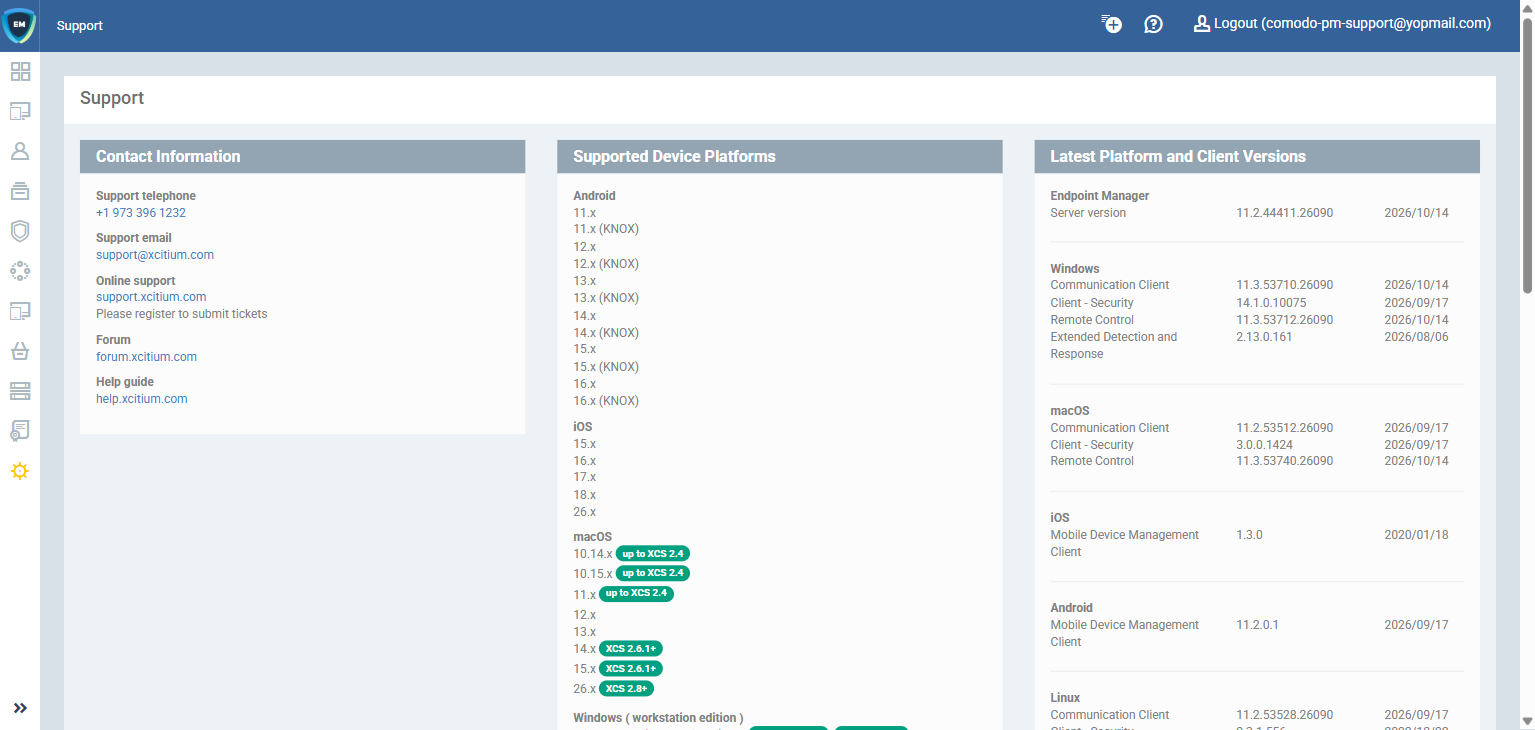
Opens a support page in a new browser tab, with three panels.
| Panel | Description |
| Contact Information | The support telephone number and email address, and links to online support, the forum and the help guide. |
| Supported Device Platforms | The supported Android, iOS, macOS, Windows and Linux versions. Some entries are annotated with the client version that supports them. |
| Latest Platform and Client Versions | The server version, plus the current communication client, security client, remote control and extended detection and response builds per platform, each with its release date. |
Enrollment Instruction
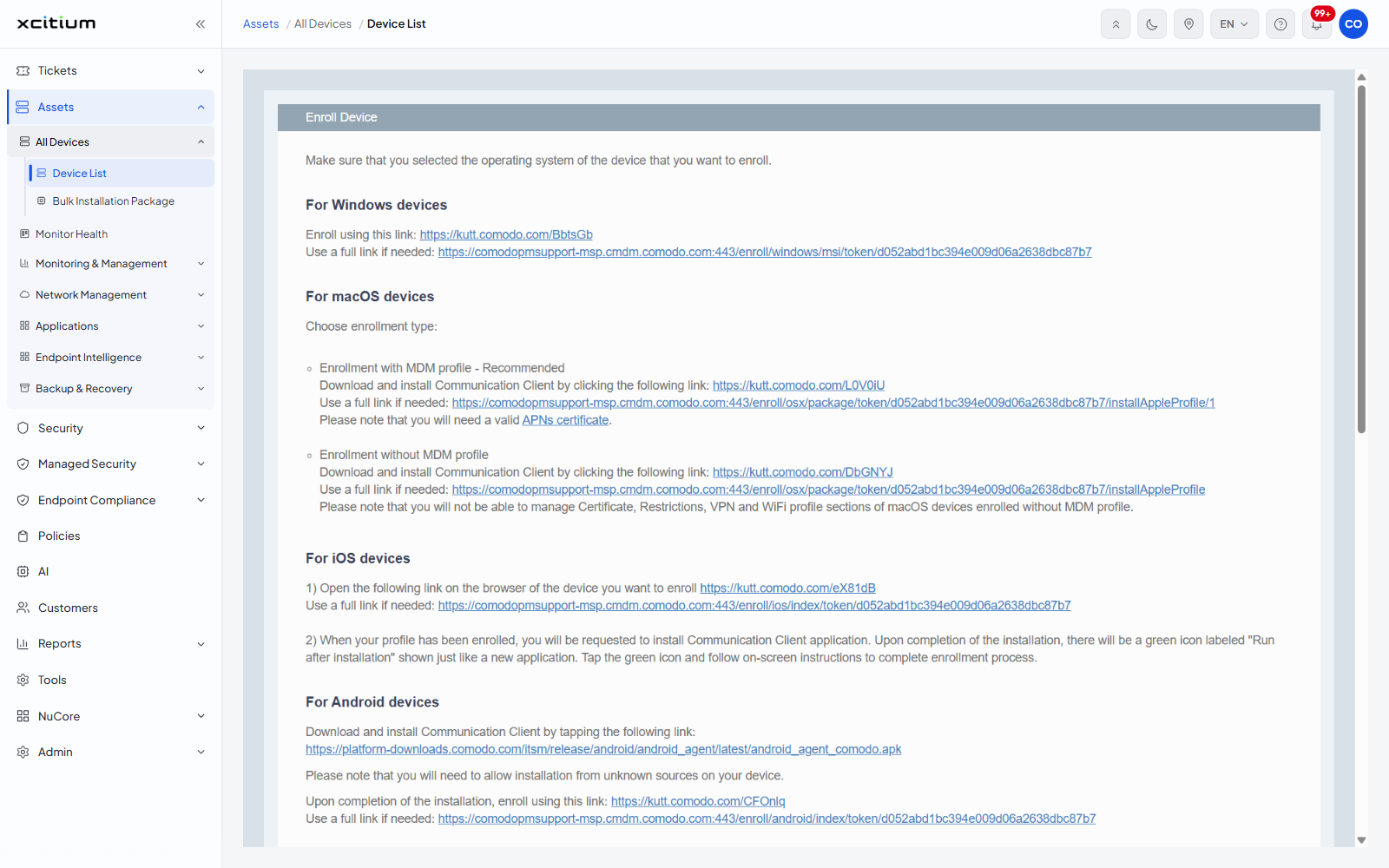
Replaces the wizard with a printable 'Enroll Device' sheet. It opens with the line 'Make sure that you selected the operating system of the device that you want to enroll.' and then gives a section per platform.
| Section | Description |
| For Windows devices | The short and full enrollment links to open on the device. |
| For macOS devices | Split into 'Enrollment with MDM profile - Recommended' and 'Enrollment without MDM profile', each with its own link, and a note that without the MDM profile you cannot manage the Certificate, Restrictions, VPN and WiFi sections of a profile. |
| For iOS devices | A two-step procedure with its links. |
| For Android devices | The links to open on the device. |
| For Linux devices | The links to open on the device. |
See Set the Enrollment Options for the choices that produce these links.